

Build a weekly PDF report from Google Sheets and email the team
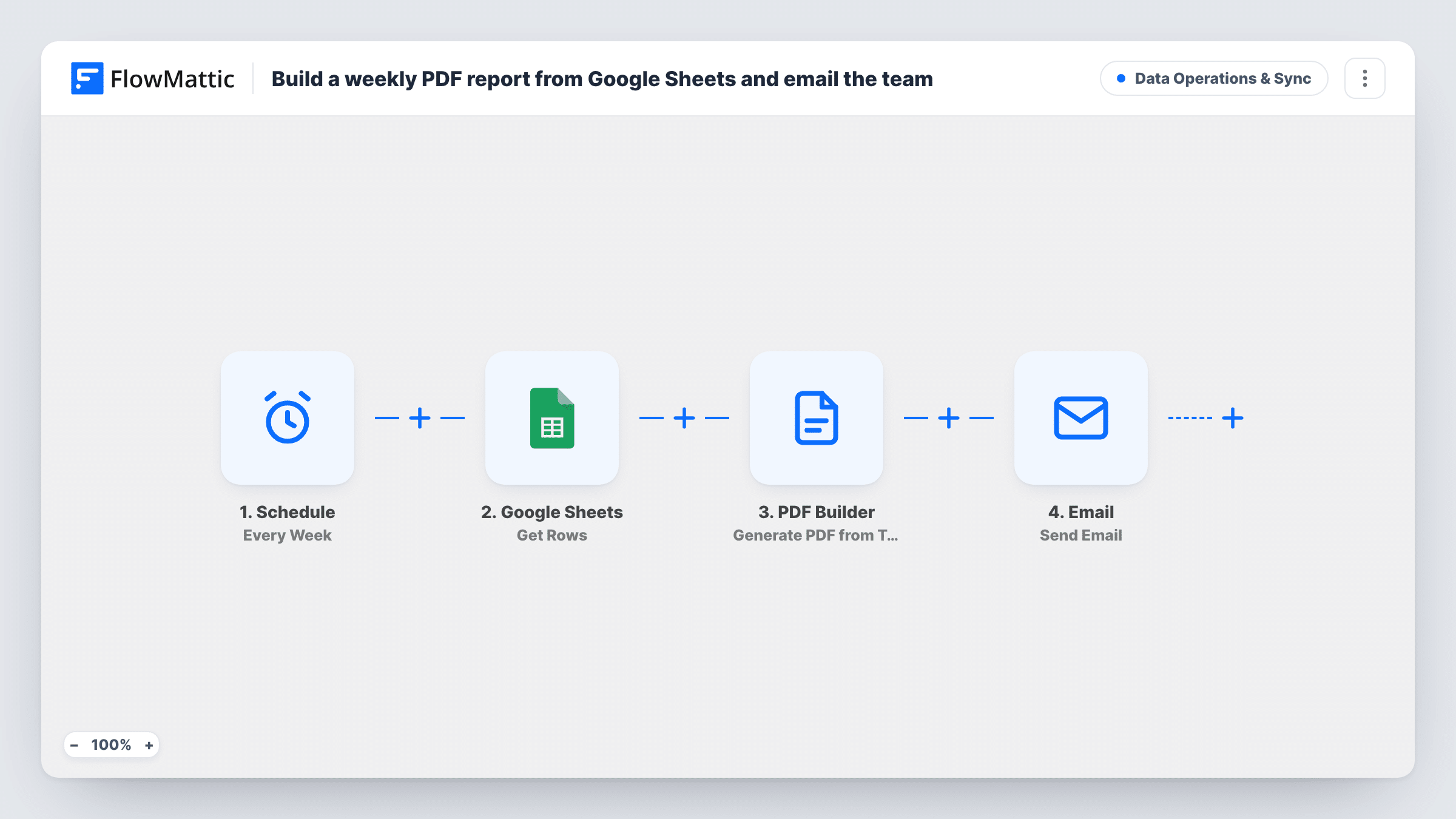
Once a week, FlowMattic reads rows from your Google Sheets spreadsheet, renders them through a saved PDF Builder template as weekly-report, and emails your team a link to the finished PDF.
 Schedule
 Google Sheets
 PDF Builder
 Email
Email4 steps Setup ~8 min Used on 343 sites Data Ops Free to import
What this workflow does
Many teams keep their numbers in a Google Sheet and then spend part of each week turning them into something presentable. This workflow does that on a timer: it reads the sheet, fills a PDF template and tells the team where to find the result.
A Schedule trigger set to Every Week starts each run. The Google Sheets step then uses Get Rows, which FlowMattic describes as retrieving rows in JSON format. You pick the spreadsheet and sheet after import, and each run reads them as they are at that moment.
Next, PDF Builder renders a saved template and saves the file to your Media Library as weekly-report. The template ID is set to 12 and no sheet data is mapped yet, so choose your own report template and map the Get Rows output into its parameters. Last, the Email step sends a message to [email protected] saying the weekly report has been generated, with the PDF's link. Replace that placeholder address before you turn the workflow on.
Weekly sales summary for a small team
Sales figures are logged in a Google Sheet during the week, and every Monday the team gets an email linking to a PDF built from those rows.
Client reporting for an agency
An agency tracks campaign numbers per client in a sheet and sends the account manager a weekly PDF to forward or present.
Operations log for managers
A warehouse or support team records daily counts in Google Sheets, and managers receive a PDF snapshot of the sheet each week.
How this workflow runs
What happens at each step once the workflow is on, and what you need before you import it.
 Schedule Every Week
Kicks off a run every week for this report. No outside event is needed, and each run reads the sheet afresh.
- Google Sheets Get Rows
Reads rows from the Google Sheets spreadsheet and sheet you choose and returns them as JSON for the next step. Connect your Google account and pick the file after import.
- PDF Builder Generate PDF from Template
Renders a saved PDF Builder template and saves it as weekly-report in the Media Library. Pick your own template in place of ID 12 and map the rows from Get Rows into its parameters.
 Email Send Email
Emails [email protected] with a subject saying the weekly report is ready and a link to the PDF. Change the address to your team's, and send through WordPress mail or your SMTP settings.
What you need
- FlowMatticCore
- Google Sheets AccountAccount
After importing, map your own data. To keep the template universal, not every step is pre-filled. Open each step in the builder and connect your accounts and fields (channels, lists, sheets, recipients) before you switch the workflow on.
Make it yours
Changes worth making after you import it.
- The filename is fixed as weekly-report. Add the run date to it in the PDF Builder step so each week's file keeps its own name in the Media Library.
- Test the Get Rows and PDF Builder steps after import and open the PDF, so you can see how the Get Rows data appears in your template before the first scheduled run.
- To send the report as a file instead of a link, use the Email step's attachment option with the PDF that PDF Builder saved on your site.
Questions about this workflow
Which Google Sheets rows go into the weekly PDF report?
The rows Get Rows returns from the sheet you choose, read fresh on each run. There is no Filter, so every run works from the sheet's current contents, not only rows added that week.
Do I need to design a PDF Builder template first?
Yes. The step points at template ID 12 and has no sheet data mapped. Create a report template in PDF Builder, select it, and map the Get Rows output into its parameters.
Who receives the weekly report email?
As shipped, [email protected], which is a placeholder. Put your team's real address in the Email step before turning the workflow on, or the report goes nowhere useful.
Can I change the day the report runs?
Open the Every Week trigger after import and look at its timing settings. A test run of the later steps then shows the report before the first scheduled week.
More Data Operations & Sync workflows
Other ready-to-import templates from the same category.





Import this workflow into your WordPress site
Download the JSON, import it from the Workflows screen and connect your accounts. Every run stays on your server, with no per-task fees.
30-day money-back guarantee Unlimited workflows and runs Self-hosted