

Post every open lead from your leads sheet to Slack each week
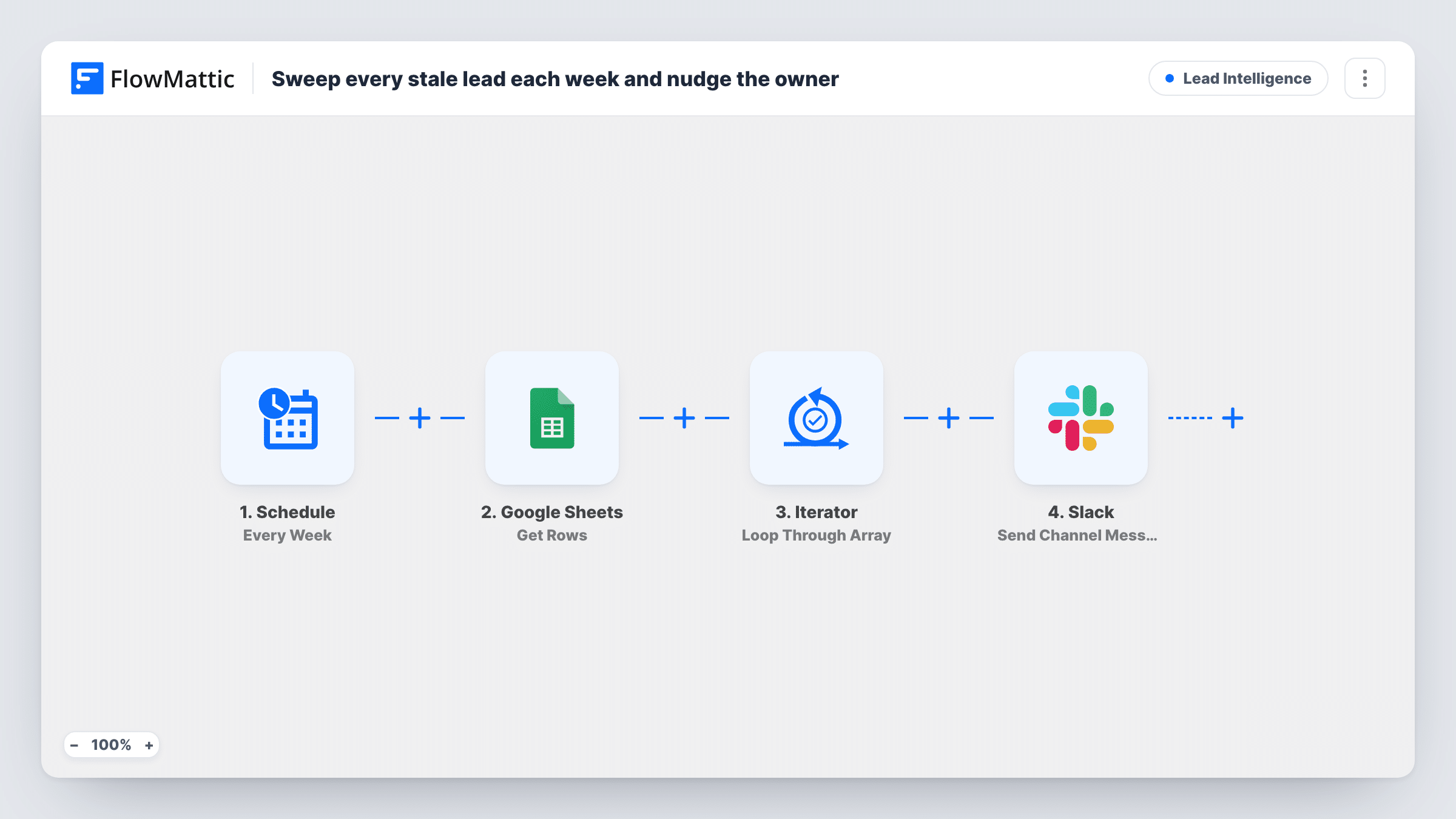
Once a week, FlowMattic reads every row of your open-leads Google Sheet and posts each lead to a Slack channel as a follow-up reminder with name, email and last contact date.
 Schedule
 Google Sheets
 Iterator
 Slack
Slack4 steps Setup ~8 min Used on 1.8k sites Growth Free to import
What this workflow does
Leads that nobody has touched for a while are easy to forget when they sit in a spreadsheet. This workflow puts them in front of the sales team once a week, as a list of Slack messages, so open leads get reviewed on a fixed rhythm instead of whenever someone remembers to check.
The Schedule trigger starts the run every week. The Google Sheets Get Rows step then reads the rows of your leads sheet. It ships unmapped, so after import you connect your Google account and pick the spreadsheet and sheet. An Iterator then goes through those rows one at a time.
For each row, the Slack step posts "Follow up needed" with the lead's name, email and last-touch date, read from columns named name, email and last_contact. You choose the destination channel when you connect Slack.
Nothing in the workflow checks whether a lead is still open. Every row the sheet holds is posted, every week, so keep only open leads on that sheet and remove or move rows once they are closed. A sheet with many rows means many Slack messages in one run.
Monday pipeline review
A small sales team schedules the run for Monday morning, so the channel fills with every open lead just before their weekly pipeline call.
Leads parked by a form or ad tool
An agency whose lead forms write into a shared sheet uses the weekly posts to make sure each prospect is followed up before going cold.
Accountability for shared leads
A founder sees each open lead and its last contact date in Slack every week and asks in the thread who is taking it.
How this workflow runs
What happens at each step once the workflow is on, and what you need before you import it.
 Schedule Every Week
Starts a run once a week. Open the Schedule trigger after import and check that it fires at a time that suits your sales team.
- Google Sheets Get Rows
Reads the rows of your leads sheet and returns them as a list for the Iterator. The step ships unmapped: connect Google and choose the spreadsheet and sheet after import.
- Iterator Loop Through Array
Loops through the rows the sheet returned and runs the Slack step once for each row, so every lead gets its own message.
- Slack Send Channel Message
Posts "Follow up needed" with the lead's name, email and last contact date to the Slack channel you choose. Remap the values if your sheet uses other column names.
What you need
- FlowMatticCore
- Google Sheets AccountAccount
- Slack AccountAccount
After importing, map your own data. To keep the template universal, not every step is pre-filled. Open each step in the builder and connect your accounts and fields (channels, lists, sheets, recipients) before you switch the workflow on.
Make it yours
Changes worth making after you import it.
- Name your columns name, email and last_contact, or edit the Slack message to use the headers your sheet already has.
- Put a Filter between the Iterator and the Slack step that checks a status column, such as continuing only when it says open. The column and value are examples to change, and inside the loop only the failing rows are skipped.
- For a private sales channel, change the action to Slack's Send Private Channel Message, since Send Channel Message is what this template uses.
- Add the lead's owner or deal value to the message text, so each post shows who should act and how much is at stake.
Questions about this workflow
Does the workflow decide which leads in the Google Sheet are still open?
No. It posts every row the sheet returns. Keep only open leads on that sheet, or add a Filter on a status column between the Iterator and the Slack step.
Will the same lead be posted to Slack again next week?
Yes, if its row is still on the sheet. Each weekly run reads all rows again and posts each one.
Can I get one Slack message with all the leads instead of one per lead?
Not as imported. The Iterator runs the Slack step once per row, so each open lead arrives as its own message in the channel.
Which Google Sheets columns does the Slack message use?
Columns named name, email and last_contact. Change the mapped values in the Slack step if your headers differ.
More Lead Intelligence workflows
Other ready-to-import templates from the same category.







Import this workflow into your WordPress site
Download the JSON, import it from the Workflows screen and connect your accounts. Every run stays on your server, with no per-task fees.
30-day money-back guarantee Unlimited workflows and runs Self-hosted