

Import trade-show leads and add each to your CRM
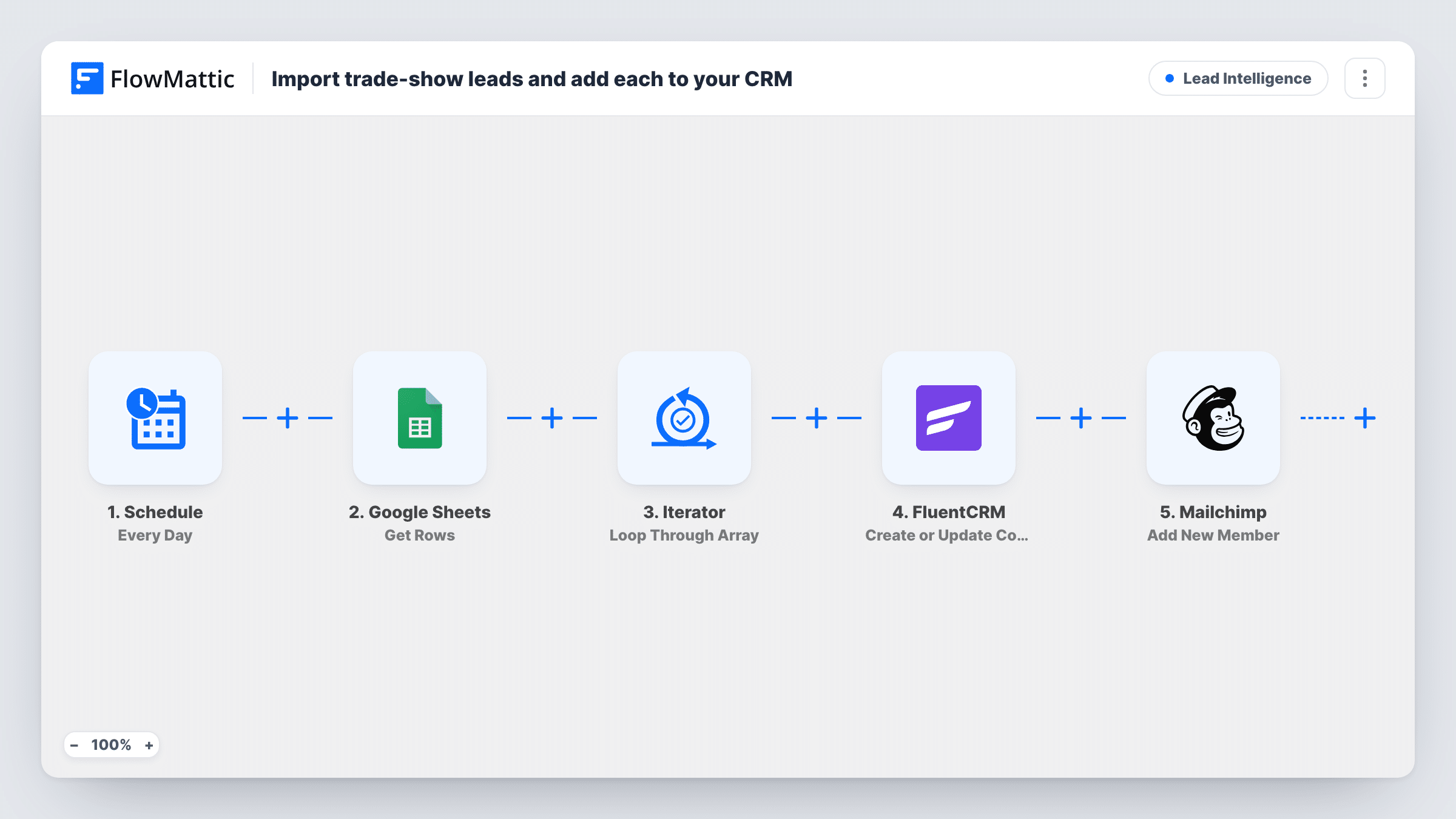
Once a day, FlowMattic reads your trade-show lead sheet and loops through every row, creating or updating a FluentCRM contact and adding the same person to Mailchimp as a subscriber.
 Schedule
 Google Sheets
 Iterator
 FluentCRM
 Mailchimp
5 steps Setup ~8 min Used on 2.1k sites Growth Free to import
What this workflow does
After an event you come home with a spreadsheet of badge scans or sign-up sheet entries. Typing each person into your CRM and your mailing list takes an afternoon, and the follow-up waits until someone finds the time. This workflow reads the sheet and does the data entry for you.
A daily Schedule trigger starts the run. FlowMattic gets the rows from your Google Sheets lead list, and an Iterator takes them one at a time. For each row, the email, first name and last name columns go to FluentCRM, which creates the contact or updates it if that email already exists. The same three values then go to Mailchimp, adding the person with a status of subscribed.
The Get Rows step has no filter, so every daily run goes through every row again. FluentCRM simply updates the same contacts. Mailchimp's Add New Member updates anyone already in the audience, so each run writes the sheet's names and the subscribed status over their member record again. For a one-off event list, turn the workflow off once the first run is done, or clear processed rows from the sheet.
Badge scans from a conference stand
Your scanner exports a list of visitors. Paste it into the sheet, and the next run puts every visitor into FluentCRM and Mailchimp so follow-up emails can start.
Paper sign-up sheets typed up by staff
Staff copy names from a clipboard into Google Sheets during the week. Each daily run makes sure everyone listed is in both systems.
Partner-supplied lead list
An event organiser shares attendees who opted in. Drop them into the sheet and both your CRM and your mailing list are filled without manual entry.
How this workflow runs
What happens at each step once the workflow is on, and what you need before you import it.
 Schedule Every Day
Starts the import every day. Check when the Schedule step runs after import and pick a time after your team usually updates the lead sheet.
- Google Sheets Get Rows
Reads rows from your trade-show lead sheet in Google Sheets. The sheet needs columns for email, first name and last name, which the later steps use.
- Iterator Loop Through Array
Takes the rows from Google Sheets and runs the next two steps once per row, so each lead is handled on its own.
- FluentCRM Create or Update Contact
Creates a FluentCRM contact from the row's email, first name and last name, or updates the existing contact when that email is already in your CRM.
- Mailchimp Add New Member
Adds the same lead to Mailchimp with their email, first name and last name and a status of subscribed. Run a test after connecting Mailchimp to confirm where they are added.
What you need
- FlowMatticCore
- Google Sheets AccountAccount
- FluentCRM PluginPlugin
- Mailchimp AccountAccount
After importing, map your own data. To keep the template universal, not every step is pre-filled. Open each step in the builder and connect your accounts and fields (channels, lists, sheets, recipients) before you switch the workflow on.
Make it yours
Changes worth making after you import it.
- Turn the workflow off after the first successful run if the sheet is a single event list, so the same rows are not sent to Mailchimp again every day.
- Add a Filter after the Iterator that skips rows where the email column is empty, so incomplete scans don't reach FluentCRM or Mailchimp.
- Only keep people who agreed to receive emails in the sheet, or add a consent column and a Filter on it, because the Mailchimp step marks everyone as subscribed.
Questions about this workflow
Will FluentCRM get duplicate contacts from the daily runs?
No. The step is Create or Update Contact, so a lead whose email is already in FluentCRM is updated instead of added again.
Does each run send only the new rows in the lead sheet?
No. Get Rows has no filter, so each run loops through every row. Remove handled rows or turn the workflow off once the event list is in.
What column names does the sheet need?
The template maps fields named email, first_name and last_name from each row. If your columns are named differently, remap them in the FluentCRM and Mailchimp steps after a test run.
Do I have to use both FluentCRM and Mailchimp?
No. Delete the step you don't need and the loop runs with the other one. Keep the Iterator so each row is still handled one at a time.
More Lead Intelligence workflows
Other ready-to-import templates from the same category.





Import this workflow into your WordPress site
Download the JSON, import it from the Workflows screen and connect your accounts. Every run stays on your server, with no per-task fees.
30-day money-back guarantee Unlimited workflows and runs Self-hosted