

Create a Zoom meeting for each Calendly booking and email the join link
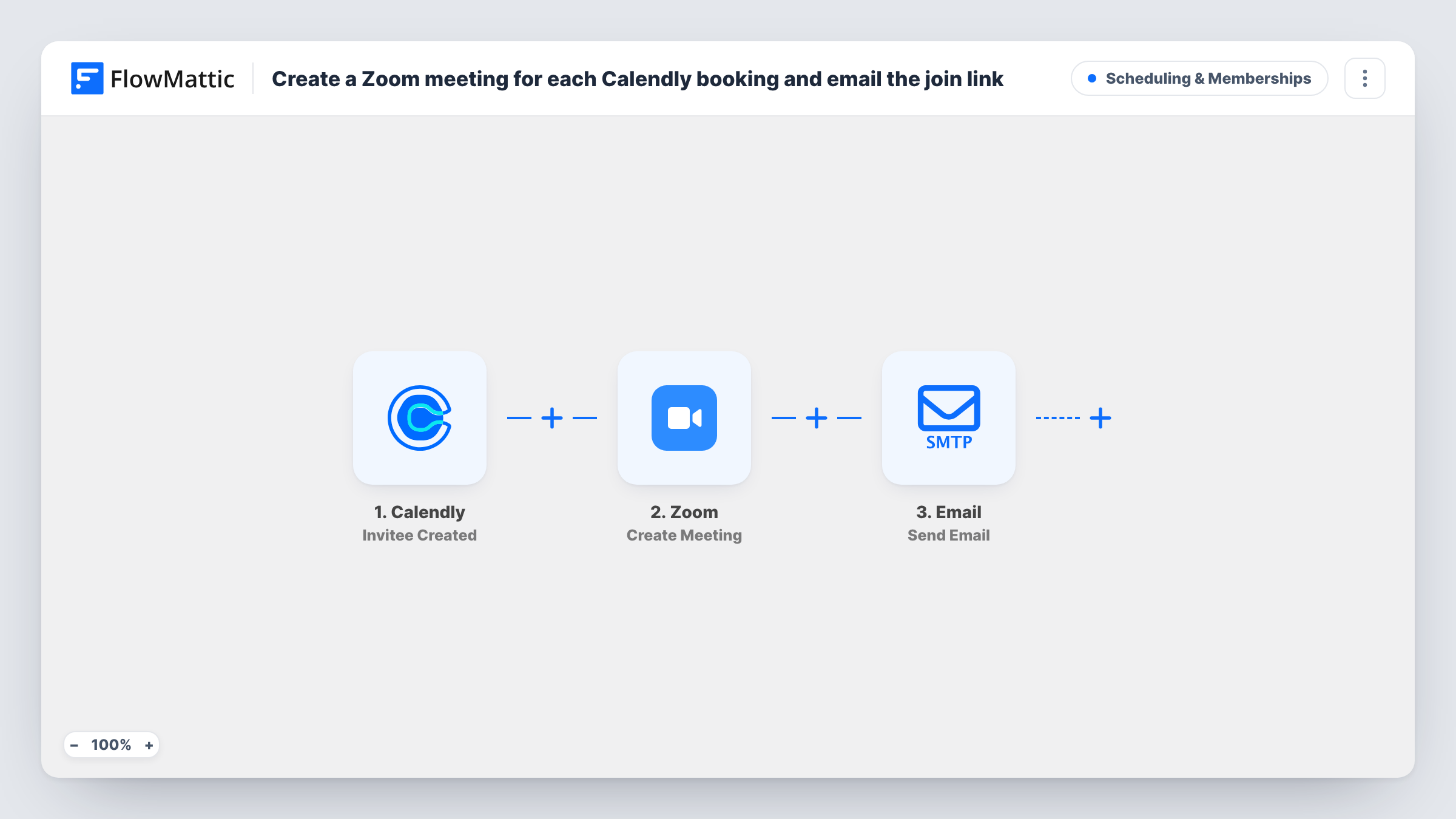
When someone books through Calendly, this workflow creates a Zoom meeting named after the event and invitee, set to the booked start time, and emails the invitee the Zoom join link.
 Calendly
 Zoom
Zoom
 Email
Email3 steps Setup ~5 min Used on 750 sites Community Free to import
What this workflow does
A booking is only half done until the invitee has a link to join. If you create Zoom meetings by hand after each Calendly booking, it's easy to forget one or send the wrong link. This workflow creates the meeting and sends the link for every booking.
As soon as a time is booked on Calendly, FlowMattic creates a meeting in Zoom, with the topic set to the event name and the invitee's name, and the start time taken from the booking. Zoom returns a join URL, and the last step emails it to the invitee, with the event name in the subject line.
The template sets only the topic and the start time on the Zoom meeting. Book a test slot after import and check the meeting in Zoom, including its time zone and length, before you share your booking page.
If your Calendly event type already adds a Zoom link through Calendly's own Zoom connection, this workflow would create a second meeting. Use one method, not both.
Coaches and consultants
Clients book a session on your Calendly page and get a Zoom link in their inbox straight after, with the meeting named after them so you can find it in Zoom.
Tutoring sessions
Students book lessons and each lesson gets its own Zoom meeting, so you don't reuse one room for everyone.
Sales demos from a website
Prospects pick a demo slot. The workflow sets up the Zoom call and sends the link without a rep touching it.
How this workflow runs
What happens at each step once the workflow is on, and what you need before you import it.
 Calendly Invitee Created
Fires when an invitee books an event through Calendly. The event name, invitee name and email, and start time are passed to the Zoom and Email steps.
- Zoom Create Meeting
Creates a Zoom meeting with the topic set to the event name and invitee name, starting at the booked time. Connect your Zoom account on import and check the meeting with a test booking.
 Email Send Email
Emails the invitee the Zoom join URL from the previous step, greeting them by name and naming the event in the subject.
What you need
- FlowMatticCore
- Calendly AccountAccount
- Zoom AccountAccount
After importing, map your own data. To keep the template universal, not every step is pre-filled. Open each step in the builder and connect your accounts and fields (channels, lists, sheets, recipients) before you switch the workflow on.
Make it yours
Changes worth making after you import it.
- Add a Filter after the Calendly trigger on the event name if only some of your event types should get a Zoom meeting.
- Rewrite the email body to include the date and time, and what the invitee should prepare, so the message is more than a bare link.
- Add a second workflow on Calendly cancellations to tell you when a booked meeting is cancelled, since this one doesn't remove the Zoom meeting.
Questions about this workflow
Does the Zoom meeting get deleted if the Calendly booking is cancelled?
No. This workflow only reacts to new bookings. The Zoom meeting stays until you remove it, so handle cancellations separately.
Will the host also get the Zoom link by email?
Not from this workflow. The email goes to the invitee only. The meeting appears in the connected Zoom account, where the host can start it.
What if my Calendly event already includes a Zoom location?
Then the invitee may receive two different links. Remove the Zoom location in Calendly, or skip this workflow for that event type.
Which address sends the Zoom join link email?
The Email step sends it through the SMTP connection you set up in FlowMattic.
More Scheduling & Memberships workflows
Other ready-to-import templates from the same category.




Import this workflow into your WordPress site
Download the JSON, import it from the Workflows screen and connect your accounts. Every run stays on your server, with no per-task fees.
30-day money-back guarantee Unlimited workflows and runs Self-hosted