

Post new GitHub issues to a Slack channel
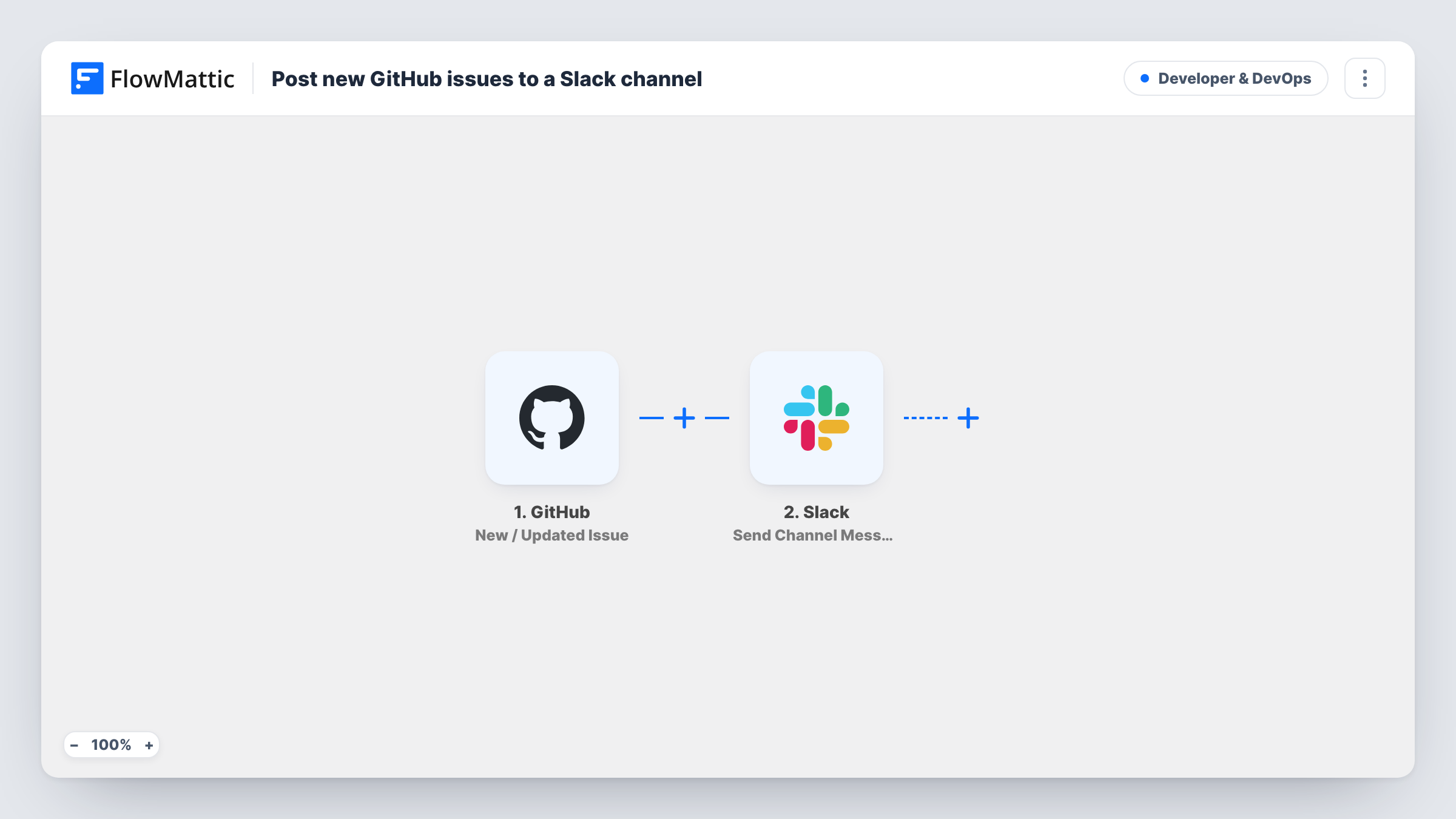
When someone opens a new issue in your GitHub repository, a Slack message names the repository, links the issue number and title, and credits the author. Edits, closes and other issue updates are left out.
 GitHub
 Filter
 Slack
Slack3 steps Setup ~5 min Used on 1.6k sites Developer & DevOps Free to import
What this workflow does
New issues are easy to miss when the team lives in Slack and only checks GitHub now and then. This workflow posts each newly opened issue to a channel, so bug reports and requests get seen the day they arrive.
The GitHub trigger, New / Updated Issue, runs for issue activity in the repository you connect, which covers more than new issues: edits, closes, labels and so on. A Filter right after it continues only when GitHub's action value exactly matches opened. Every other update stops at the Filter, and a reopened issue doesn't count, because reopened isn't an exact match.
The Slack step, Send Channel Message, then posts a message that is already written. It starts with a bug emoji, names the repository in bold, and links the issue number and title to the issue on GitHub, followed by the GitHub username of the person who opened it.
After import, connect GitHub and Slack and choose the channel. You can reword the message or map more issue fields into it. Open a test issue and check Task History to see the run pass the Filter and what Slack returned.
Open-source maintainers watching new reports
A maintainer of a small open-source library gets each new issue in a #issues channel and can reply on GitHub before the reporter waits too long.
Agency client repositories
A web agency connects a client's repository so new issues show up in the project's Slack channel where the developers already talk.
Support handing bugs to engineering
A support team files bugs as GitHub issues, and engineers see each one in Slack straight away instead of during the weekly triage.
How this workflow runs
What happens at each step once the workflow is on, and what you need before you import it.
 GitHub New / Updated Issue
Runs on issue activity in the connected GitHub repository, including new issues, edits and closes. The issue, its repository and the action GitHub reports pass to the Filter.
- Filter Continue If Condition Meet
Continues only when the GitHub action exactly matches opened, with case ignored. Edited, closed, labelled and reopened issues stop here, so only newly opened issues reach Slack.
- Slack Send Channel Message
Posts the prepared message to your chosen Slack channel: the repository name, a link with the issue number and title, and the author's GitHub username. You set the channel once the workflow is imported.
What you need
- FlowMatticCore
- GitHub AccountAccount
- Slack AccountAccount
After importing, map your own data. To keep the template universal, not every step is pre-filled. Open each step in the builder and connect your accounts and fields (channels, lists, sheets, recipients) before you switch the workflow on.
Make it yours
Changes worth making after you import it.
- In the Filter between the GitHub trigger and the Slack step, add a second condition group that matches reopened, so reopened issues are posted too. Separate condition groups work as either-or.
- Map the issue's labels into the Slack message, so people can see at a glance whether a new issue is a bug or a question.
- Use Slack's Send Private Channel Message action instead if issues for this repository should only reach a private engineering channel.
Questions about this workflow
Will editing or closing a GitHub issue post to Slack again?
No. The trigger runs for those updates too, but the Filter only continues when the action is opened, so edits, closes and label changes stop before the Slack step.
What does the Slack message for a new GitHub issue look like?
It reads as a new-issue notice with the repository name in bold, a clickable issue number and title, and the author's username. Edit the text in the Send Channel Message step if you want a different format.
Can I watch more than one GitHub repository?
The trigger is connected to the repository you set up. For more repositories, import a copy of the workflow for each, pointing all of them at the same Slack channel if you like.
More Developer & DevOps workflows
Other ready-to-import templates from the same category.



Import this workflow into your WordPress site
Download the JSON, import it from the Workflows screen and connect your accounts. Every run stays on your server, with no per-task fees.
30-day money-back guarantee Unlimited workflows and runs Self-hosted