

Add 2Checkout buyers to a HubSpot CRM list when a recurring installment succeeds
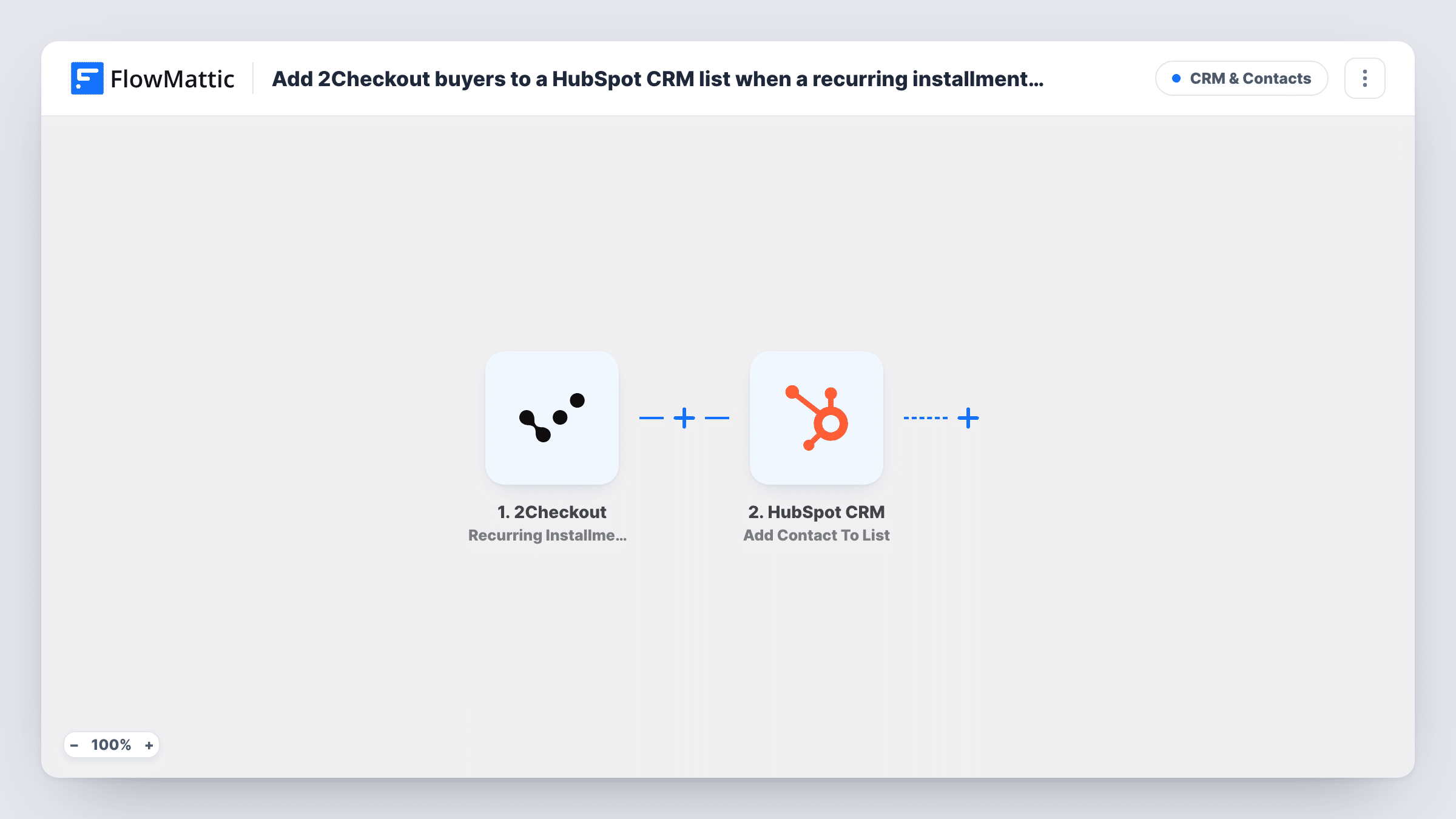
When a scheduled 2Checkout installment payment succeeds, this workflow adds the buyer’s contact to a static list in HubSpot CRM, so you can keep a list of subscribers whose renewals are going through.
 2Checkout
 HubSpot CRM
2 steps Setup ~5 min Used on 2.2k sites Free to import
What this workflow does
Customers who keep paying their recurring 2Checkout installments are your active subscribers. Grouping them in HubSpot lets you send them product news or renewal-related emails separately from leads and one-off buyers. This workflow keeps that HubSpot list topped up.
The 2Checkout trigger fires when a scheduled installment payment succeeds. The first payment of a subscription does not count, only later installments. FlowMattic passes the buyer details to HubSpot CRM, and the Add Contact To List step adds that contact to the static list you choose.
The step works on a HubSpot contact, identified from the buyer data such as their email. If the buyer is not a HubSpot contact yet, the tips show how to create one first. Each successful installment runs the workflow again for the same buyer, so expect repeat runs for long-running subscriptions. Test with a buyer you know is in HubSpot and check the list afterwards.
An active subscribers list
A software vendor keeps a HubSpot list of customers whose 2Checkout renewals are succeeding and uses it for feature announcements.
Separating renewing customers from trials
Marketing excludes this list from trial nurture emails, so paying subscribers do not get messages meant for prospects.
Loyalty offers
Buyers who have paid at least one renewal land on a list you use for upgrade or add-on offers.
How this workflow runs
What happens at each step once the workflow is on, and what you need before you import it.
 2Checkout Recurring Installment Success
Fires when a scheduled 2Checkout installment payment succeeds, not the first payment. The buyer and payment details are passed on to HubSpot.
- HubSpot CRM Add Contact To List
Adds the buyer's contact to a static list in HubSpot CRM. Map the buyer details the step needs to find the contact, then test with a known contact.
What you need
- FlowMatticCore
- 2Checkout AccountAccount
- HubSpot CRM AccountAccount
After importing, map your own data. To keep the template universal, not every step is pre-filled. Open each step in the builder and connect your accounts and fields (channels, lists, sheets, recipients) before you switch the workflow on.
Make it yours
Changes worth making after you import it.
- If buyers may not be in HubSpot yet, add a HubSpot Create Contact step before the list step. HubSpot may refuse a duplicate email, but the run still goes on to the list step, and Task History shows the response.
- Pair it with a second workflow on the 2Checkout Recurring Stopped or Recurring Installment Failed trigger that uses HubSpot's Remove Contact from List, so lapsed buyers come off the list.
- Use a static list created for this purpose in HubSpot, since the step adds contacts to static lists only.
Questions about this workflow
Does the first 2Checkout payment add the buyer to HubSpot?
No. The Recurring Installment Success trigger fires for scheduled installments after the initial payment, so the buyer is added at their first successful renewal.
What if the 2Checkout buyer is not a HubSpot contact?
The step adds an existing contact to a list. Add a HubSpot Create Contact step before it, or make sure buyers are already in HubSpot, and test with a known address.
Can I use a HubSpot active list with this workflow?
No. Add Contact To List works with static lists. Active lists in HubSpot update from their own filters.
Does every 2Checkout renewal run the workflow again?
Yes. Each successful installment starts a new run for that buyer, and the step targets the same HubSpot list each time.
More CRM & Contacts workflows
Other ready-to-import templates from the same category.





Import this workflow into your WordPress site
Download the JSON, import it from the Workflows screen and connect your accounts. Every run stays on your server, with no per-task fees.
30-day money-back guarantee Unlimited workflows and runs Self-hosted