

When a new submission received in Contact Form 7, check if the email is valid with VerifyBee and create a user in WordPress
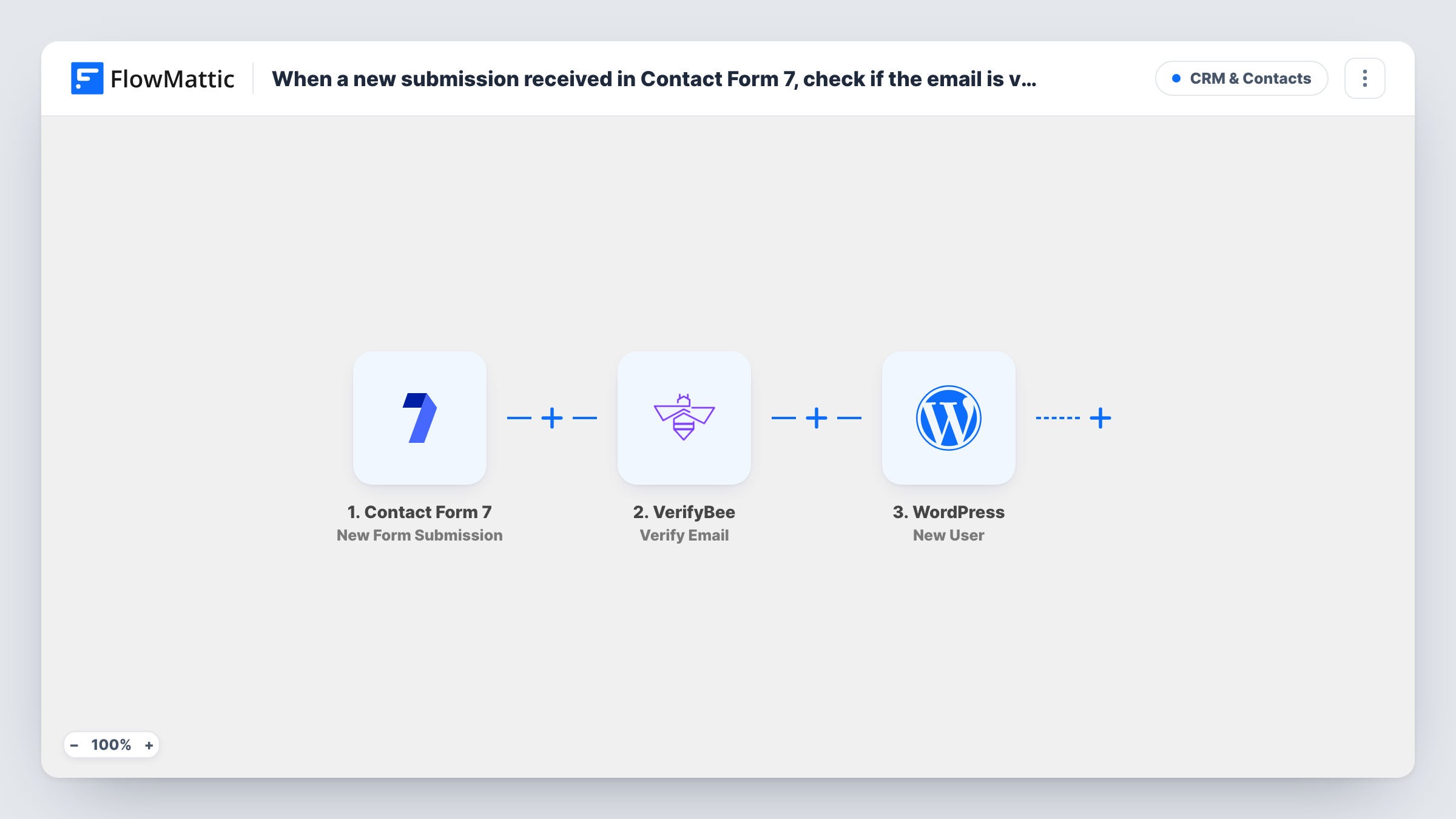
When a visitor submits a Contact Form 7 form, VerifyBee checks the email address and FlowMattic then creates a WordPress user from the submission, with the check result available to filter on after import.
 Contact Form 7
 VerifyBee
 WordPress
3 steps Setup ~5 min Used on 622 sites Free to import
What this workflow does
Some sites use a simple Contact Form 7 form as a sign-up form, for example to give people an account for a members area or a client portal. Creating those accounts by hand is slow, and an account tied to a mistyped address is tied to an inbox nobody reads. This workflow verifies the address with VerifyBee and then creates the WordPress user.
The Contact Form 7 trigger picks up each new submission. FlowMattic sends the email field to VerifyBee, and its Verify Email response becomes data you can use later in the flow. The final step adds a new user to your WordPress site from the form fields you map.
Read this before you import: as shipped, the user is created whatever VerifyBee reports, because no step sits between the check and the account. Add a Filter after VerifyBee that continues only on a valid result if you want failed addresses kept out. Since every submission creates an account, also think about spam protection on the form.
Client portal sign-ups
A Contact Form 7 form on a services site collects a new client's name and email, and they get a WordPress account for the portal pages.
Free members area for a newsletter
Readers request access through a short form. With a Filter on the VerifyBee result, only addresses that pass get a member account.
Volunteer registration for a charity site
Volunteers sign up through a form and receive a WordPress login for the volunteer resources section.
How this workflow runs
What happens at each step once the workflow is on, and what you need before you import it.
 Contact Form 7 New Form Submission
Runs for every submission of a Contact Form 7 form on your site. Send one test entry after import so the form fields, including the email, are listed for mapping.
- VerifyBee Verify Email
Checks the submitted email address with VerifyBee. Connect your VerifyBee account and map the form's email field. The response can then be used in a Filter or kept for reference in Task History.
- WordPress New User
Adds a new user to your WordPress site from the submission. Map the email and any name fields from the form, and use a test run to review the options this step gives you before going live.
What you need
- FlowMatticCore
- Contact Form 7 PluginPlugin
- VerifyBee AccountAccount
After importing, map your own data. To keep the template universal, not every step is pre-filled. Open each step in the builder and connect your accounts and fields (channels, lists, sheets, recipients) before you switch the workflow on.
Make it yours
Changes worth making after you import it.
- Place a Filter between VerifyBee and the WordPress step that continues only when the verification result shows a valid address. Test with a real and a made-up address to see the values VerifyBee returns.
- Make the email field required with the email* tag in Contact Form 7, so VerifyBee and WordPress always receive an address.
- Add a consent or terms checkbox to the form and a Filter condition on it, so an account is only created for people who agreed.
Questions about this workflow
Will a WordPress user be created when VerifyBee marks the email as invalid?
Yes, as imported. The workflow runs all three steps for every submission. Add a Filter between the VerifyBee step and the WordPress step to stop the run for addresses that fail.
What if the Contact Form 7 email already belongs to a WordPress user?
WordPress won't add a duplicate account for that address. The New User step returns the ID of the user who already has it, and Task History shows which ID came back. A role set in the step is added to that existing user too.
Do I need a VerifyBee account to use this workflow?
Yes. The check runs through your own VerifyBee account, which you connect in the VerifyBee step after import.
More CRM & Contacts workflows
Other ready-to-import templates from the same category.







Import this workflow into your WordPress site
Download the JSON, import it from the Workflows screen and connect your accounts. Every run stays on your server, with no per-task fees.
30-day money-back guarantee Unlimited workflows and runs Self-hosted