

Create a HubSpot CRM contact from a new IndiaMART lead
Each lead IndiaMART captures for your business is created as a contact in HubSpot CRM, so buyer enquiries from the marketplace sit in the same CRM your sales team already works in.
 IndiaMART
 HubSpot CRM
2 steps Setup ~5 min Used on 965 sites Free to import
What this workflow does
Enquiries from IndiaMART arrive in your seller account, while your follow-up, deals and notes live in HubSpot. Retyping each buyer's details into HubSpot takes time and lets some enquiries slip. This workflow creates the HubSpot contact for you whenever IndiaMART captures a new lead.
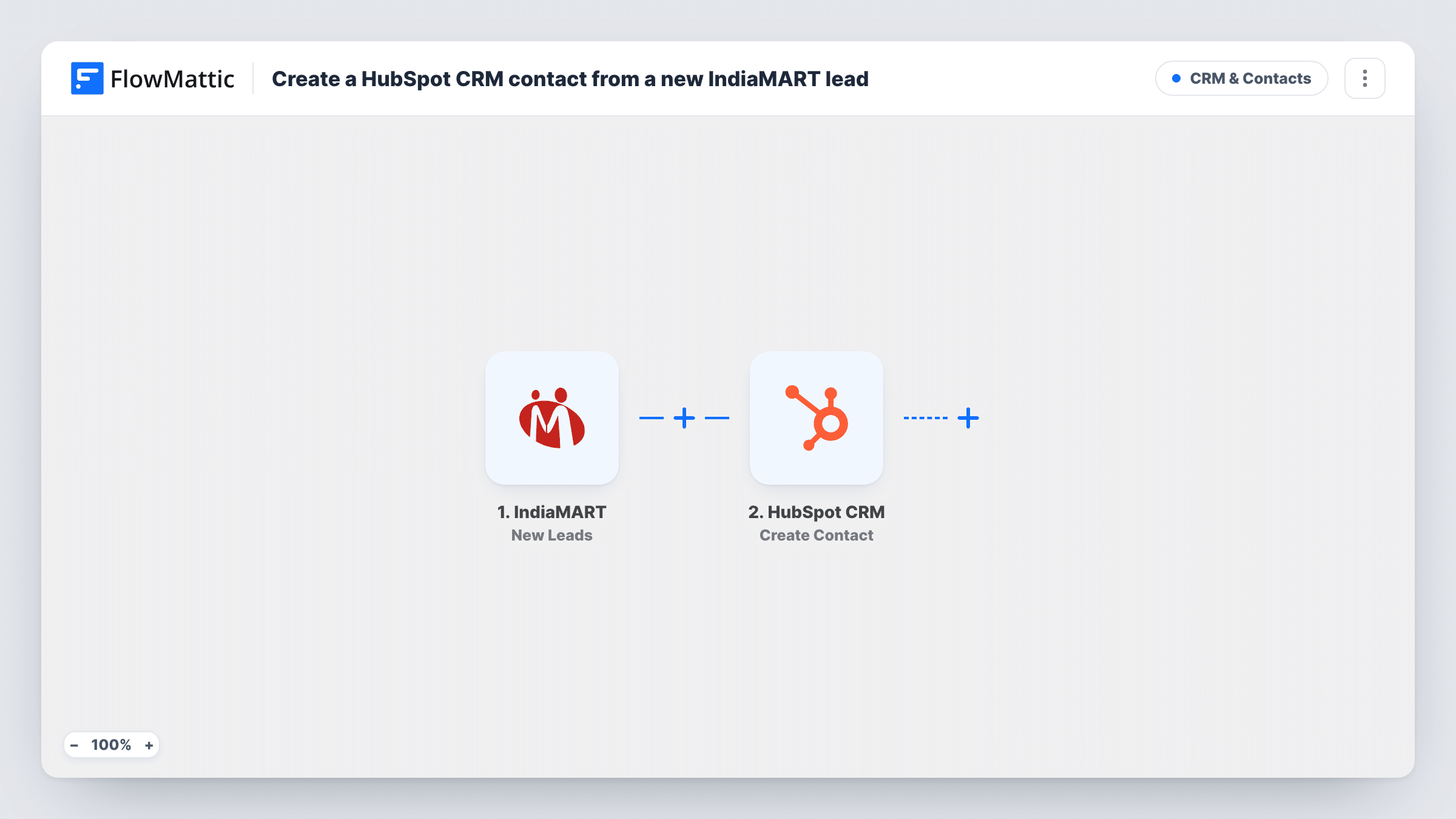
The IndiaMART New Leads trigger fires when a new lead is captured for your account. FlowMattic passes the lead's details to HubSpot CRM, and the Create Contact action adds a contact built from the fields you map, such as the buyer's name, company and contact details.
The HubSpot action here makes new records and never checks for an existing one, so a buyer who enquires again can be turned down by HubSpot as a duplicate email address. You will see HubSpot's reply on that step in Task History. Leads captured before you turn the workflow on stay in IndiaMART.
Manufacturer selling through IndiaMART
Each product enquiry from a buyer becomes a HubSpot contact, so your sales rep can log calls and quotes against that person instead of a marketplace message.
Distributor with a HubSpot sales pipeline
Marketplace leads join contacts from your website and trade shows in HubSpot, giving the team one place to see every prospect.
Follow-up sequences for marketplace buyers
Once IndiaMART buyers exist as HubSpot contacts, you can include them in the lists and follow-up your team already runs in HubSpot.
How this workflow runs
What happens at each step once the workflow is on, and what you need before you import it.
 IndiaMART New Leads
Runs when IndiaMART captures a new lead for your account. The buyer's enquiry details become available to map into HubSpot.
- HubSpot CRM Create Contact
Creates a contact in HubSpot CRM from the IndiaMART lead. Connect your HubSpot account and map the lead details you want stored; run a test lead to see which IndiaMART fields arrive.
What you need
- FlowMatticCore
- IndiaMART AccountAccount
- HubSpot CRM AccountAccount
After importing, map your own data. To keep the template universal, not every step is pre-filled. Open each step in the builder and connect your accounts and fields (channels, lists, sheets, recipients) before you switch the workflow on.
Make it yours
Changes worth making after you import it.
- Run a test after import and look at the IndiaMART lead data in Task History, so you map the buyer details that actually arrive rather than guessing at field names.
- If you only want contacts that have an email address, add a Filter after the IndiaMART trigger that continues only when the lead's email is not empty.
- Add a Slack or email step after HubSpot to alert the salesperson who handles IndiaMART leads, with the buyer's enquiry in the message.
Questions about this workflow
What happens when the same IndiaMART buyer enquires twice?
The workflow runs again and tries to add the buyer to HubSpot a second time. HubSpot can reject that if the email already belongs to a contact, and the HubSpot step in Task History records what it returned.
Do I need a paid HubSpot plan for this IndiaMART workflow?
The template only needs a HubSpot account that FlowMattic can connect to and that lets you create contacts. Check HubSpot's own terms for what your account includes.
Are past IndiaMART leads imported into HubSpot?
No. Only leads captured after the workflow is on reach HubSpot. Enquiries from before that date remain in IndiaMART for you to handle separately.
More CRM & Contacts workflows
Other ready-to-import templates from the same category.




Import this workflow into your WordPress site
Download the JSON, import it from the Workflows screen and connect your accounts. Every run stays on your server, with no per-task fees.
30-day money-back guarantee Unlimited workflows and runs Self-hosted