

Create a HubSpot CRM contact from a Braze webhook payload
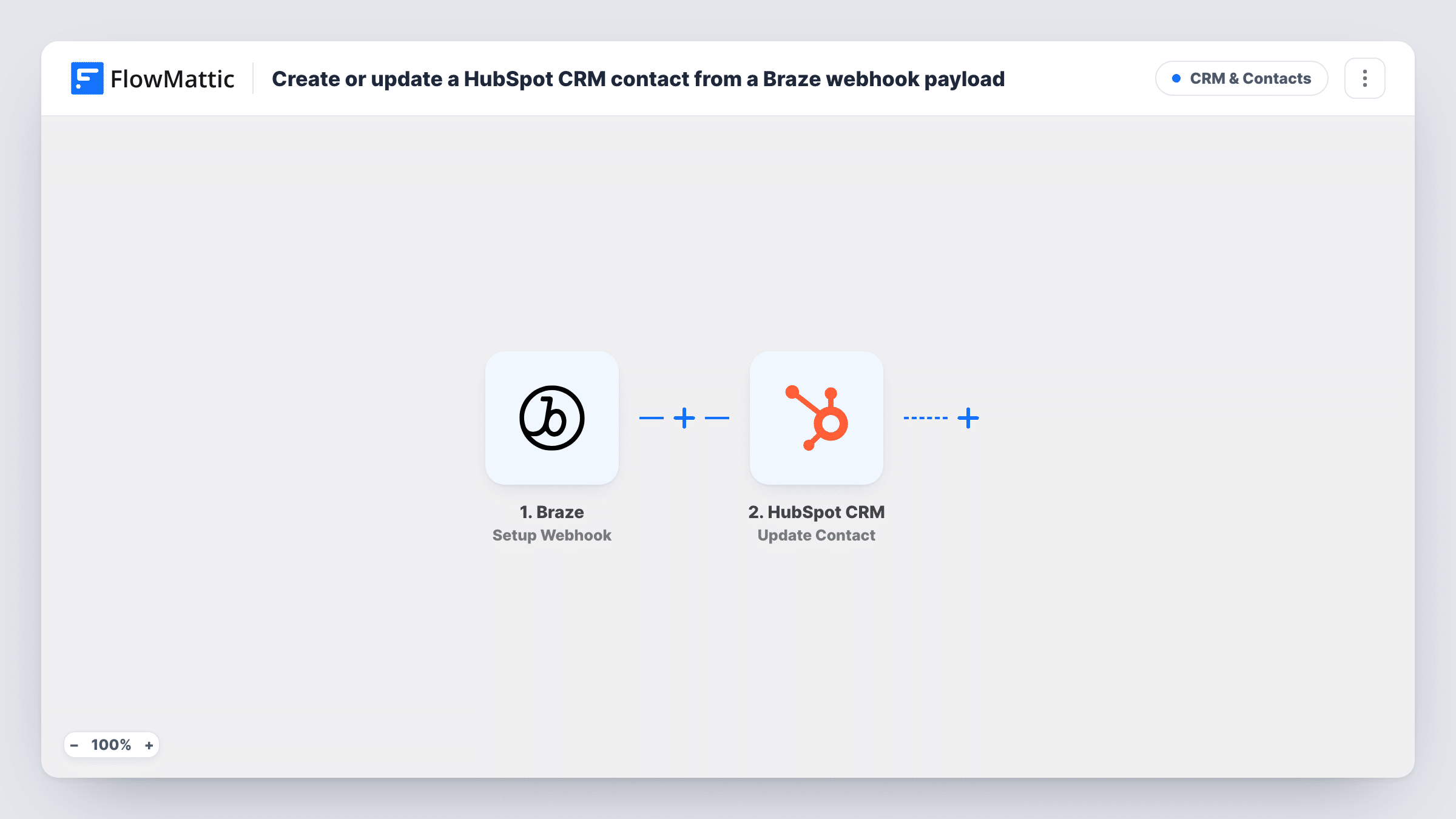
A Braze webhook campaign sends user data to FlowMattic, and each payload creates a new contact in HubSpot CRM from the fields you map, so people you message in Braze also appear in your sales CRM.
 Braze
 HubSpot CRM
2 steps Setup ~5 min Used on 2.4k sites Free to import
What this workflow does
Marketing teams using Braze for lifecycle messaging often need some of those users in HubSpot too, so sales can call them or log a deal. This workflow takes the data a Braze webhook campaign sends and creates a HubSpot contact from it, with no CSV exports in between.
Runs come from a webhook campaign that you build in Braze. You paste the FlowMattic webhook URL into that campaign and decide in Braze which users it targets and what the request body contains, for example the email, first name, last name and any custom attributes. Whatever Braze sends becomes available to the next step.
The HubSpot CRM step creates a contact. It ships unmapped: connect your HubSpot account and map the payload values into the contact properties. Because this action makes new records and never searches for an existing one first, HubSpot may refuse a duplicate email; the run's entry in Task History holds its answer.
Every request your Braze campaign sends starts its own run. Build the payload with the field names you plan to map, send a test from Braze, and check the captured data in FlowMattic before you switch the workflow on.
Hand engaged app users to sales
A product team runs a Braze webhook campaign for users who reach a usage milestone, and each one becomes a HubSpot contact for the sales team to call.
Trial sign-ups into the CRM
A SaaS company triggers a Braze campaign when a trial starts and sends the user's email and company name to create the HubSpot contact.
Event registrants from in-app messages
A media app collects webinar sign-ups through a Braze in-app message and passes each registrant to HubSpot for event follow-up.
How this workflow runs
What happens at each step once the workflow is on, and what you need before you import it.
 Braze Setup Webhook
Receives the request from a Braze webhook campaign that points at your FlowMattic webhook URL. The body you define in Braze, such as email and name, is passed to HubSpot.
- HubSpot CRM Create Contact
Adds the person to HubSpot CRM as a brand-new contact. No properties are mapped in the template, so connect HubSpot and map the Braze payload values, at least the email, into the contact.
What you need
- FlowMatticCore
- Braze AccountAccount
- HubSpot CRM AccountAccount
After importing, map your own data. To keep the template universal, not every step is pre-filled. Open each step in the builder and connect your accounts and fields (channels, lists, sheets, recipients) before you switch the workflow on.
Make it yours
Changes worth making after you import it.
- Use a JSON body in the Braze webhook campaign with clear key names such as email, firstname and lastname, so the fields are easy to find when you map the HubSpot step.
- Put a Filter between the Braze trigger and the HubSpot step that continues only when the email in the payload is not empty, so requests without one don't reach HubSpot.
- Send a test from the Braze campaign before going live and look at the captured payload in FlowMattic, so you map the HubSpot step from real field names rather than guesses.
Questions about this workflow
What data does Braze send to FlowMattic?
Whatever you put in the webhook campaign's request body in Braze. You choose the user attributes there, then map them into the HubSpot contact after import.
What if the Braze user is already a HubSpot contact?
Create Contact doesn't check for an existing record, so HubSpot may refuse a duplicate email. Look at the run in Task History to read what HubSpot answered.
Which Braze users become HubSpot contacts?
Only the users your Braze webhook campaign targets, since each request it sends starts one run. Set the campaign's audience and trigger in Braze to decide who reaches HubSpot.
More CRM & Contacts workflows
Other ready-to-import templates from the same category.





Import this workflow into your WordPress site
Download the JSON, import it from the Workflows screen and connect your accounts. Every run stays on your server, with no per-task fees.
30-day money-back guarantee Unlimited workflows and runs Self-hosted