

When a new Privy order is placed, create a HubSpot CRM deal and log it in Google Sheets
Each new order that Privy reports creates a deal in HubSpot CRM, then the order and deal details go to a new Google Sheets row, so your sales pipeline and your order log both update without copying.
 Privy
 HubSpot CRM
 Google Sheets
3 steps Setup ~5 min Used on 3.0k sites Free to import
What this workflow does
Privy sits on your store to capture shoppers, and it can report the orders those shoppers place. Getting each order into HubSpot as a deal and into a spreadsheet usually means two rounds of copying. This workflow does both every time an order comes in.
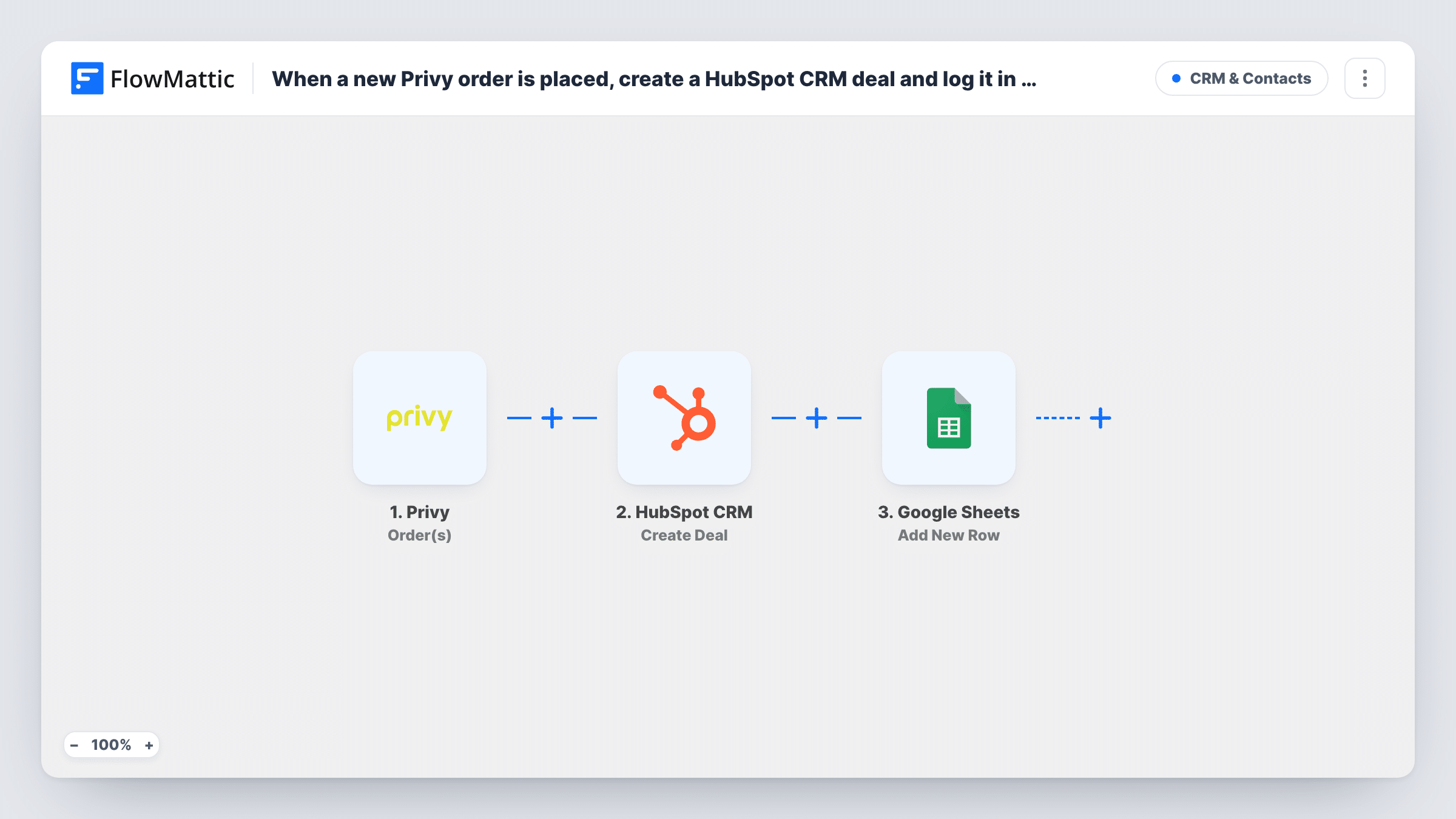
The Privy trigger fires when a new order happens. FlowMattic hands the order data to HubSpot CRM, where the Create Deal action opens a deal from the order values you map into it. The last step adds a row to Google Sheets, and you can fill its columns from the order and from what HubSpot returned for the new deal.
Every order creates its own deal. The template doesn't look for an existing deal or contact first, and it doesn't link the deal to a HubSpot contact, so plan for one deal per order.
Track store revenue as closed deals
Each Privy order lands in HubSpot as a deal, so your HubSpot reports show store sales next to the deals your sales team works by hand.
A shared order sheet for finance
Finance doesn't use HubSpot. The Google Sheets row gives them the same orders in a file they can sort and total, with any deal value you mapped beside each one.
Follow up on high-value Privy orders
Sales reviews new HubSpot deals each morning and calls buyers with large orders, while the sheet keeps a full history of every order.
How this workflow runs
What happens at each step once the workflow is on, and what you need before you import it.
 Privy Order(s)
Runs when Privy reports a new order from your connected store. The order data Privy sends is available to map in the HubSpot and Google Sheets steps.
- HubSpot CRM Create Deal
Creates a deal in your HubSpot CRM account for the order. Map the Privy order data into the deal, then place a test order and open the new deal in HubSpot to check what was filled in.
- Google Sheets Add New Row
Writes one row per order to a Google Sheets spreadsheet of your choice. Map the order data and any deal values HubSpot returned into your columns, and connect your Google account.
What you need
- FlowMatticCore
- Privy AccountAccount
- HubSpot CRM AccountAccount
- Google Sheets AccountAccount
After importing, map your own data. To keep the template universal, not every step is pre-filled. Open each step in the builder and connect your accounts and fields (channels, lists, sheets, recipients) before you switch the workflow on.
Make it yours
Changes worth making after you import it.
- Add a Filter between the Privy trigger and the HubSpot step with a rule on an order value you care about. Only matching orders become deals, and the others get no deal and no sheet row.
- Place a HubSpot step that creates the contact before Create Deal if you want buyers stored as contacts as well. Test it, since HubSpot may refuse a duplicate email and Task History shows the response.
- Place an order in your store after import so FlowMattic captures Privy's order fields, then map them in both steps before you turn the workflow on.
Questions about this workflow
Does a repeat Privy customer get a new HubSpot deal?
Yes. The workflow runs once per order, so every order creates its own deal and its own row, even when the same person buys again.
Will the new HubSpot deal be tied to the Privy buyer's contact record?
Not as imported. This template stops at creating the deal for each order. Add your own HubSpot steps if you want a contact created or linked as well.
Where does the Privy order data appear in the HubSpot deal?
Wherever you map it in the Create Deal step after import. Place a test order, then open the new deal in HubSpot to confirm each value landed where you expect.
Can the Google Sheets row show the HubSpot deal ID?
Yes, if HubSpot returns it. The Sheets step comes after Create Deal, so any value that step returns can go into a column beside the order data. Check a test order in Task History to see what comes back.
More CRM & Contacts workflows
Other ready-to-import templates from the same category.





Import this workflow into your WordPress site
Download the JSON, import it from the Workflows screen and connect your accounts. Every run stays on your server, with no per-task fees.
30-day money-back guarantee Unlimited workflows and runs Self-hosted