

Add customer to FluentCRM when booking is created in LatePoint
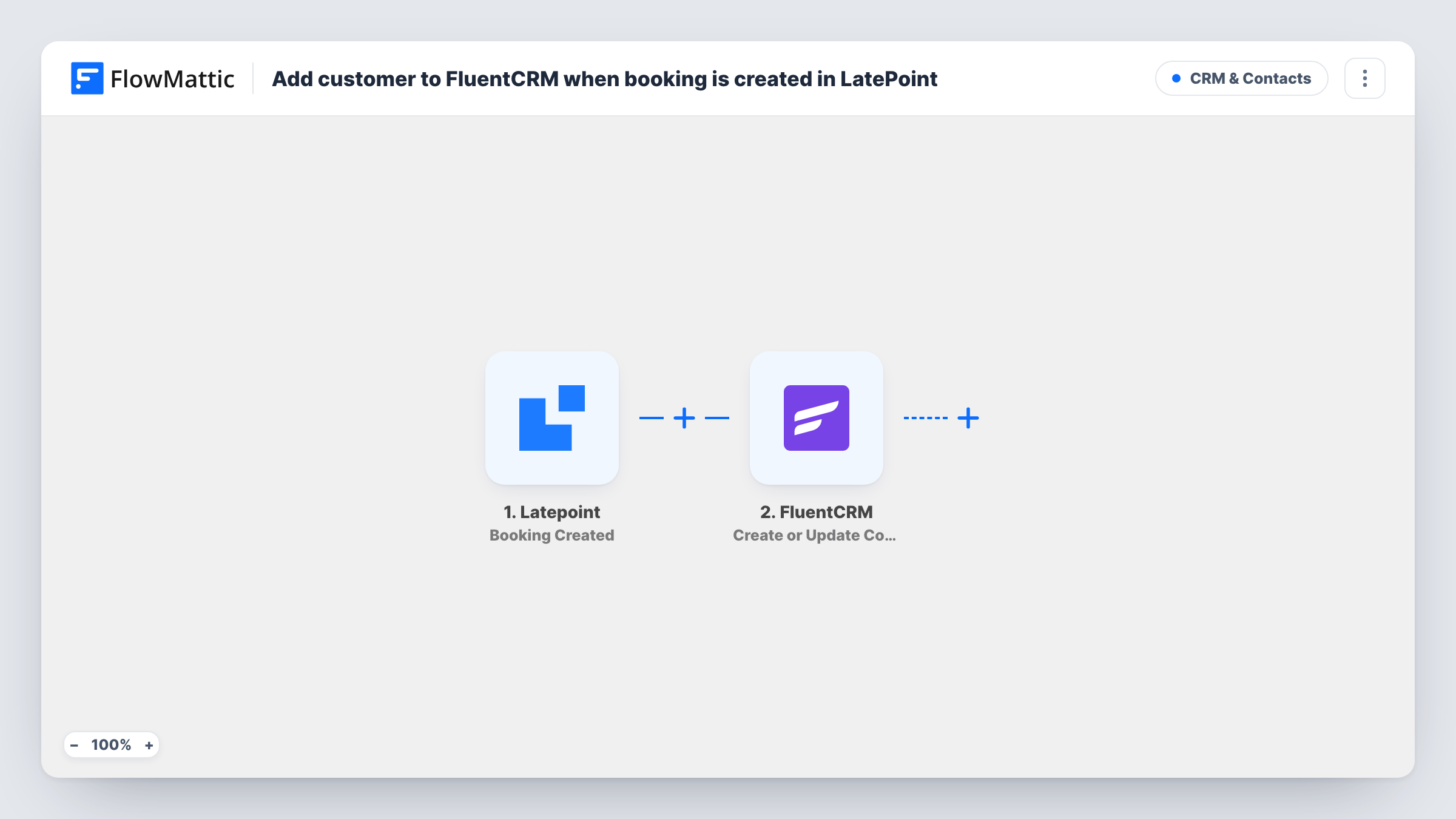
When a customer books through LatePoint, FlowMattic adds them to FluentCRM as a contact, or updates their record if they’re already there, so everyone who books is on your list.
 Latepoint
 FluentCRM
2 steps Setup ~5 min Used on 2.7k sites Free to import
What this workflow does
LatePoint keeps the customers who book appointments, and FluentCRM sends your emails. If the two don't talk, people who book never get your newsletter or follow-up sequences unless you copy them across. This workflow passes each booking's customer to FluentCRM.
The LatePoint trigger, Booking Created, fires when a booking is created. FlowMattic passes the customer's details to FluentCRM, where Create or Update Contact matches by email address. A new email creates a contact. A known email updates the one you have. Map the email, name and any other booking details you want stored.
Both plugins run on your WordPress site, so the customer data stays there. Every booking starts a run, so a returning customer's contact is updated each time they book rather than added again.
Hair salon newsletter
Clients who book a cut in LatePoint join FluentCRM, so they receive the salon's monthly offers along with everyone else.
Consultants building a mailing list
Each discovery call booked through LatePoint adds the prospect to FluentCRM, where your nurture emails can reach them.
Fitness studio class bookings
Members booking classes are kept in FluentCRM, and their contact details stay current when they book again with a new phone number.
How this workflow runs
What happens at each step once the workflow is on, and what you need before you import it.
 Latepoint Booking Created
Fires when a booking is created in LatePoint. The customer and booking details are passed on for mapping in FluentCRM.
- FluentCRM Create or Update Contact
Creates a FluentCRM contact from the booking, or updates the contact whose email matches. Map the customer's email address and name from LatePoint.
What you need
- FlowMatticCore
- LatePoint PluginPlugin
- FluentCRM PluginPlugin
After importing, map your own data. To keep the template universal, not every step is pre-filled. Open each step in the builder and connect your accounts and fields (channels, lists, sheets, recipients) before you switch the workflow on.
Make it yours
Changes worth making after you import it.
- Add FluentCRM's Add Tags to Contact step after this one, with a tag such as LatePoint booking, so you can see which contacts came from appointments.
- Add a Filter after the trigger if only certain services should add people to FluentCRM, using a service field from a test booking.
- Make a test booking with your own email after import, then check the contact in FluentCRM before turning the workflow on.
Questions about this workflow
What happens when a returning LatePoint customer books again?
FluentCRM finds the contact by email address and updates it, so you don't get a duplicate contact.
Are past LatePoint bookings added to FluentCRM?
No. Only bookings created after you turn the workflow on reach FluentCRM.
Does the customer get a FluentCRM email right away?
Not from this workflow. It only creates or updates the contact. Any emails depend on the FluentCRM automations or campaigns you set up.
Do LatePoint and FluentCRM need to be on the same site as FlowMattic?
Yes. Both are WordPress plugins, and FlowMattic connects to them on the site where it is installed.
More CRM & Contacts workflows
Other ready-to-import templates from the same category.




Import this workflow into your WordPress site
Download the JSON, import it from the Workflows screen and connect your accounts. Every run stays on your server, with no per-task fees.
30-day money-back guarantee Unlimited workflows and runs Self-hosted