

Add a ClickUp task whenever a new ArcSite drawing is created
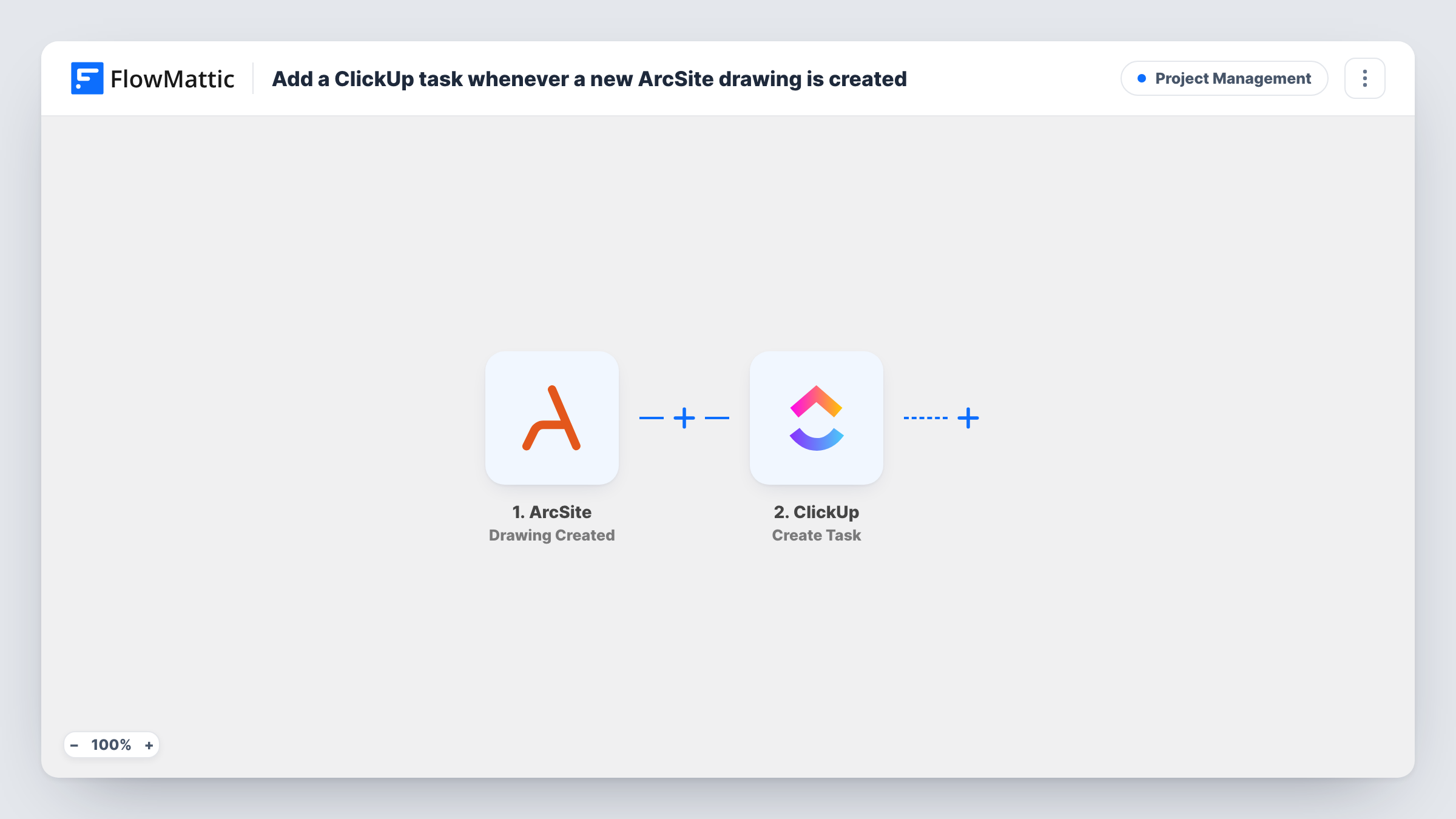
When someone creates a drawing in ArcSite, this workflow adds a task to ClickUp built from the drawing’s details, so the office knows there is new site work to review, price or schedule.
 ArcSite
 ClickUp
2 steps Setup ~5 min Used on 3.0k sites Productivity Free to import
What this workflow does
Field staff sketch floor plans and site layouts in ArcSite, and the office plans the next steps in ClickUp. Between the two there is usually a phone call or a message that says a new drawing is ready. When that message is missed, the drawing waits and nobody picks it up.
The ArcSite trigger fires when a drawing is created. FlowMattic takes the drawing data ArcSite sends and passes it to ClickUp, where the Create Task action adds a new task. You decide where the task lands and which drawing values it carries when you set up the step.
Each new drawing makes exactly one task. Edits made to the drawing later do not create more tasks or change the existing one, because the template listens for created drawings only. Task History in FlowMattic keeps a record of every run, including the data ClickUp received, which helps when you are checking the mapping.
Estimating queue for a remodelling firm
A surveyor finishes a kitchen layout on site. The estimator finds a ClickUp task waiting for it and can start pricing the job that afternoon.
Fence and deck installers
Each new property sketch drawn in ArcSite becomes a ClickUp task, so the crew lead can see which sites need materials ordered.
Drafting review for an HVAC contractor
New system layouts show up as tasks in a review list, where a senior engineer checks each drawing before it goes into a proposal.
How this workflow runs
What happens at each step once the workflow is on, and what you need before you import it.
 ArcSite Drawing Created
Fires when a drawing is created in your ArcSite account. The drawing data is passed to the ClickUp step; create a test drawing after import so the values are captured for mapping.
- ClickUp Create Task
Adds a ClickUp task for the new drawing. Pick its destination, map in drawing values so the team knows which drawing it refers to, and check the result with a test run.
What you need
- FlowMatticCore
- ArcSite AccountAccount
- ClickUp AccountAccount
After importing, map your own data. To keep the template universal, not every step is pre-filled. Open each step in the builder and connect your accounts and fields (channels, lists, sheets, recipients) before you switch the workflow on.
Make it yours
Changes worth making after you import it.
- Include the drawing's name or project reference in the text you map into the task, so tasks for the same site are easy to find in a search.
- If you also want the office told when a drawing changes, build a second workflow on ArcSite's Drawing Updated trigger that creates its own follow-up task, since this one has no link to the original task.
- Use ClickUp's Add Tag to Task action after the Create Task step to tag every task that came from ArcSite.
Questions about this workflow
Does editing an ArcSite drawing create another ClickUp task?
No. The workflow uses the Drawing Created trigger, so only new drawings make tasks. ArcSite also has a Drawing Updated trigger if you want a separate workflow for edits.
Which ClickUp list do the tasks go into?
Wherever you point the Create Task step after import. Every drawing's task goes to that same place unless you add a Router.
Are drawings made before I import this turned into tasks?
No. Only drawings created after you turn the workflow on start a run, so existing ArcSite drawings need tasks made by hand.
Is the ArcSite drawing file attached to the ClickUp task?
Not as shipped. The task holds the drawing values you map, such as a name or a link if ArcSite sends one. Run a test drawing to see what data is available.
More Project Management workflows
Other ready-to-import templates from the same category.






Import this workflow into your WordPress site
Download the JSON, import it from the Workflows screen and connect your accounts. Every run stays on your server, with no per-task fees.
30-day money-back guarantee Unlimited workflows and runs Self-hosted