

Add a Monday.com item for every new MarketBox waitlist
Every time someone joins a MarketBox waitlist, FlowMattic creates an item on your Monday.com board with the details you map, so the team sees each waitlist entry as work to follow up.
 MarketBox
 Monday.com
2 steps Setup ~5 min Used on 2.1k sites Productivity Free to import
What this workflow does
A waitlist tells you who wants a slot, a product or a service you can't offer yet. If those names stay inside MarketBox, nobody plans around them and nobody contacts them when space opens. This workflow puts each new waitlist entry on a Monday.com board, where your team already tracks its work.
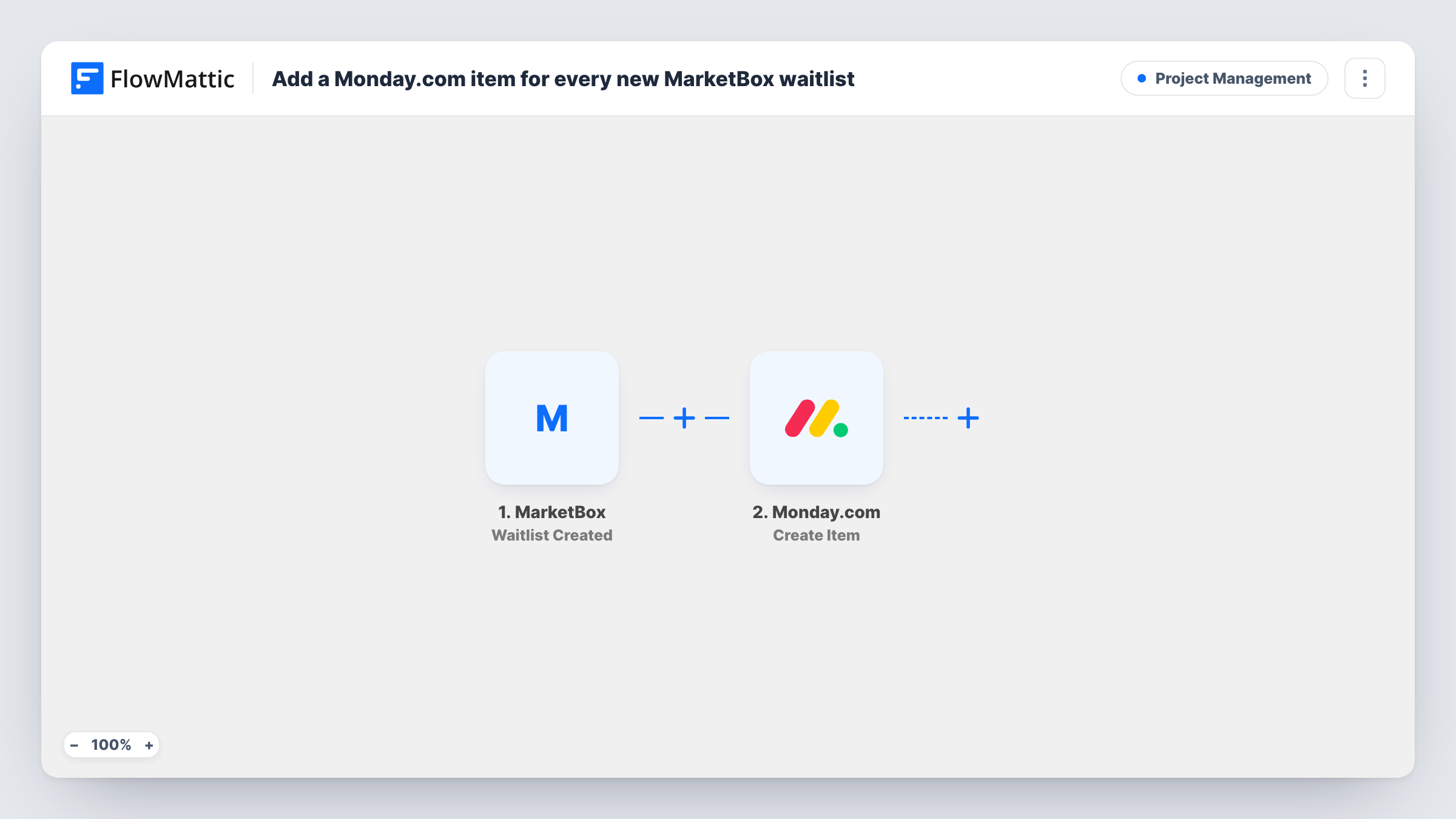
The MarketBox trigger fires when a new waitlist entry is created. FlowMattic passes the entry's data to Monday.com, and Create Item adds a new item to the board you pick. After import, you map the details you want on the item, such as the person's name for the item name and contact details in the board's columns.
Each waitlist entry becomes one item, so the board grows with demand. Moving an item along, assigning it or marking it done happens in Monday.com as usual; the workflow only creates it. Task History lists every run and the data MarketBox sent.
Fully booked classes
A studio's popular class fills up. Each waitlist sign-up appears on a Monday.com board, and staff work down the list when someone cancels.
Gauging demand for a new service
A business counts the waitlist items on its board each week to decide whether to add more appointment slots.
Assigning follow-ups
A coordinator assigns each new waitlist item to a team member in Monday.com, who contacts the customer when space becomes free.
How this workflow runs
What happens at each step once the workflow is on, and what you need before you import it.
 MarketBox Waitlist Created
Runs when a new waitlist entry is created in MarketBox. The entry's details are passed on so you can map them into the Monday.com item.
- Monday.com Create Item
Adds one item per waitlist sign-up to the Monday.com board of your choice. Connect your Monday.com account, then map the waitlist details into the item name and the columns you use.
What you need
- FlowMatticCore
- MarketBox AccountAccount
- Monday.com AccountAccount
After importing, map your own data. To keep the template universal, not every step is pre-filled. Open each step in the builder and connect your accounts and fields (channels, lists, sheets, recipients) before you switch the workflow on.
Make it yours
Changes worth making after you import it.
- Create a test waitlist entry in MarketBox after import, so the entry's fields are captured and ready to map in Monday.com.
- Add a Filter after the trigger if only some waitlists should reach this board, for example by matching a service or product name from the entry.
- Add a Status column to the board and move each waitlist item along as you contact the person, so the team can see who still needs a reply.
Questions about this workflow
Does the Monday.com item update when the MarketBox entry changes?
No. The workflow creates an item once, when the waitlist entry is made. Later changes in MarketBox don't reach the item.
Will older MarketBox waitlist entries be added to Monday.com?
No. Only entries created while the workflow is on start a run.
Can one person on several MarketBox waitlists create several items?
Yes. Each waitlist entry is its own event, so each one adds its own item to the board.
More Project Management workflows
Other ready-to-import templates from the same category.





Import this workflow into your WordPress site
Download the JSON, import it from the Workflows screen and connect your accounts. Every run stays on your server, with no per-task fees.
30-day money-back guarantee Unlimited workflows and runs Self-hosted