

Create a ClickUp task whenever a BrowserStack build finishes
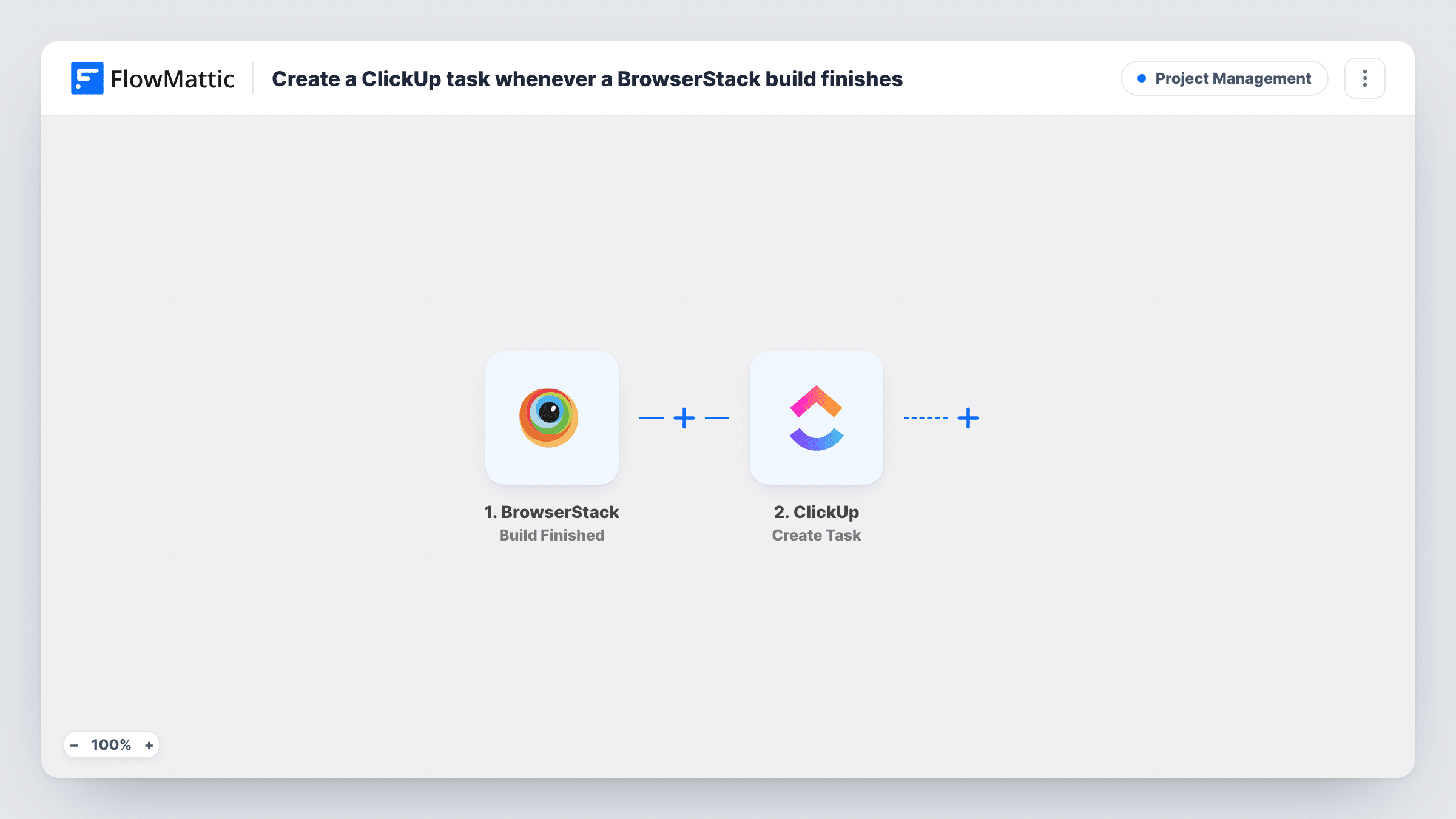
Each time a BrowserStack build finishes, this workflow opens a ClickUp task filled with the build details you map, so test results land in the same place your team plans and tracks its work.
 BrowserStack
 ClickUp
2 steps Setup ~5 min Used on 951 sites Productivity Free to import
What this workflow does
A finished test build is only useful if someone looks at it. When results stay in the BrowserStack dashboard, failed runs can sit unnoticed while the team works from ClickUp. This template puts a task in front of them for every build that completes.
The BrowserStack trigger is Build Finished, which fires when a build has finished processing. The build data BrowserStack provides, such as its name or status where present, becomes available to map. The ClickUp step then runs Create Task, and you fill the task name and description from those build values so the task says which build it covers.
Passing and failing builds both create a task, because the template has no Filter. Teams that run many builds a day may want to add one, so only failures become work items. Each run is listed in Task History with the data BrowserStack sent and ClickUp's reply.
QA review queue
Every finished nightly build becomes a ClickUp task in the QA list, so a tester checks the results the next morning and closes the task.
Release sign-off
Before a release, each build of the release branch creates a task the release owner works through, giving a record of which builds were reviewed.
Agency client testing
An agency runs cross-browser builds for a client site. Tasks appear in the client's ClickUp space so the project manager sees when testing is done.
How this workflow runs
What happens at each step once the workflow is on, and what you need before you import it.
 BrowserStack Build Finished
Fires when a BrowserStack build has finished processing. The build details BrowserStack sends are passed on, ready to map into the ClickUp task.
- ClickUp Create Task
Opens a ClickUp task for the finished build. Map build values into the task name and description, connect your ClickUp account, and run a test build to confirm where the task appears.
What you need
- FlowMatticCore
- BrowserStack AccountAccount
- ClickUp AccountAccount
After importing, map your own data. To keep the template universal, not every step is pre-filled. Open each step in the builder and connect your accounts and fields (channels, lists, sheets, recipients) before you switch the workflow on.
Make it yours
Changes worth making after you import it.
- Add a Filter between the steps that continues only when the build status from BrowserStack shows a failure, using the exact value a test build returns. Green builds then stop creating tasks.
- Put the build name and its status at the start of the ClickUp task name so the list view shows which builds need attention.
- Use a Router with one route per status value if passing and failing builds should go to different ClickUp lists, each route with its own Create Task step.
Questions about this workflow
Does every BrowserStack build create a ClickUp task, even passing ones?
Yes, as imported. The trigger fires for each finished build and nothing filters by result. Add a Filter on the build status if you only want tasks for failures.
What build details can I put in the ClickUp task?
Whatever BrowserStack includes in the Build Finished data. Run one build after import and look at the captured values in FlowMattic before you map them.
Will repeated builds create duplicate ClickUp tasks?
Each finished build is its own event, so every build gets its own task. Running the same suite twice gives two tasks.
Do I need a paid BrowserStack or ClickUp plan for this?
The template only needs accounts that FlowMattic can connect to. Check your own BrowserStack and ClickUp plans for any limits on builds or tasks.
More Project Management workflows
Other ready-to-import templates from the same category.


Import this workflow into your WordPress site
Download the JSON, import it from the Workflows screen and connect your accounts. Every run stays on your server, with no per-task fees.
30-day money-back guarantee Unlimited workflows and runs Self-hosted