

Add a Monday.com item for every new Northpass person invited
When someone is invited to your Northpass academy, this workflow adds an item to a Monday.com board, so the team can follow each invitee’s onboarding from one place.
 Northpass
 Monday.com
2 steps Setup ~5 min Used on 1.1k sites Productivity Free to import
What this workflow does
Inviting people to a Northpass academy is often the first step of onboarding a customer, partner or new hire. The rest of the onboarding, such as calls, checklists and follow-ups, may be tracked on a Monday.com board. This workflow adds a board item for each invitation, so nobody has to copy names across.
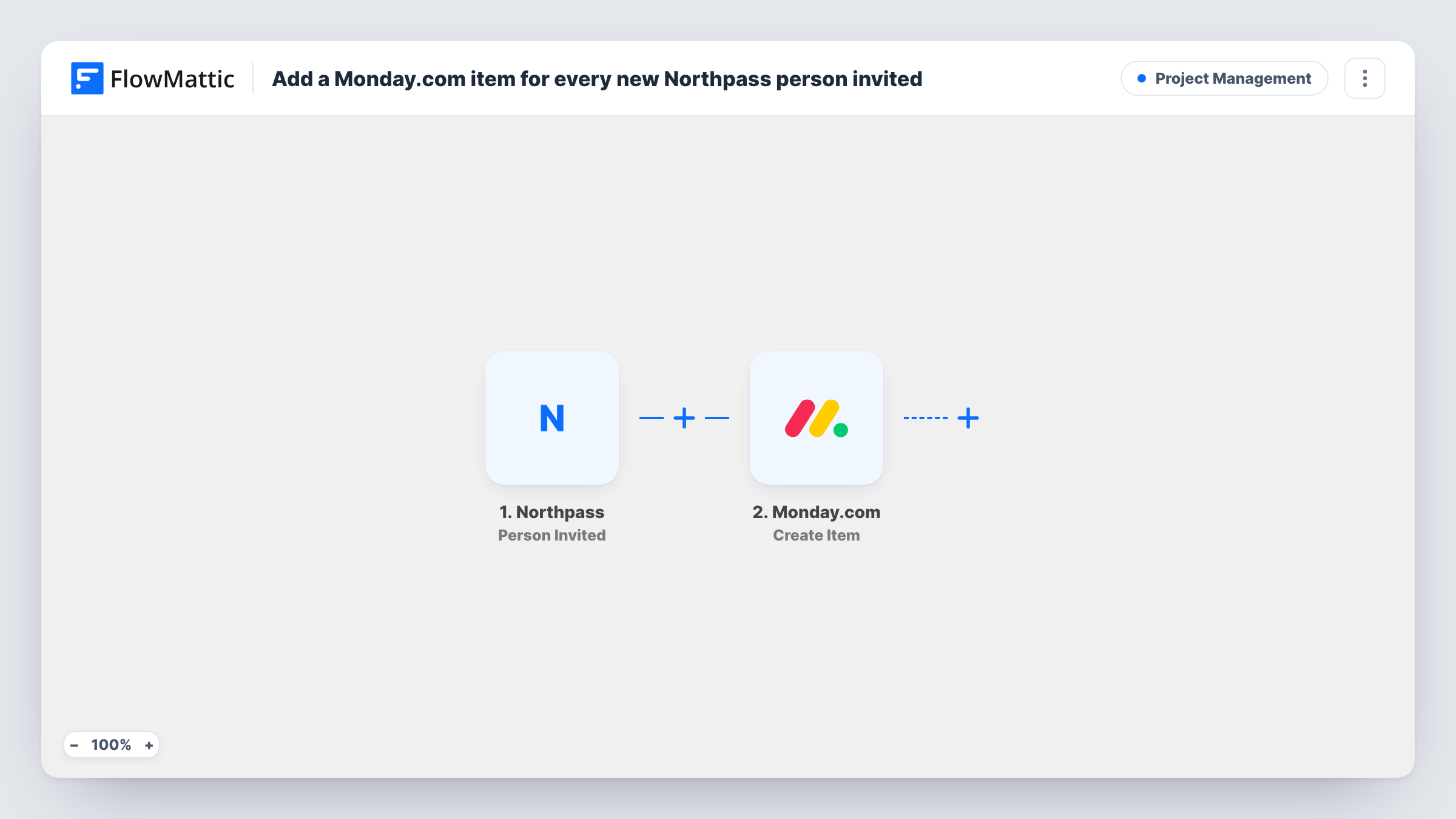
The Northpass trigger fires when a person is invited to the academy. FlowMattic passes the invitee's details to Monday.com, where Create Item adds a new item to the board you pick. You choose what fills the item, such as the person's name and email.
One invitation creates one item. If the same person is invited again, a second item is created, since the step does not look for an existing one. Task History shows each run along with the data Northpass sent.
Customer education onboarding
A customer success team invites new customers to the Northpass academy, and each one appears on the onboarding board with their CSM's checklist.
Partner certification pipeline
Partners invited to a certification academy get an item on a partner board, where the team tracks who has started.
New hire training tracker
HR invites each new hire to the internal academy, and the people team sees them on the onboarding board straight away.
How this workflow runs
What happens at each step once the workflow is on, and what you need before you import it.
 Northpass Person Invited
Fires when a person is invited to your Northpass academy. The invitee's details are made available for the Monday.com item.
- Monday.com Create Item
Adds an item to the Monday.com board you pick. Map the Northpass person's name and email into it and connect your Monday.com account.
What you need
- FlowMatticCore
- Northpass AccountAccount
- Monday.com AccountAccount
After importing, map your own data. To keep the template universal, not every step is pre-filled. Open each step in the builder and connect your accounts and fields (channels, lists, sheets, recipients) before you switch the workflow on.
Make it yours
Changes worth making after you import it.
- Put the invitee's email in the item name or a column, so you can search the board for a person later.
- Pair this with a workflow on Northpass's Person Activated trigger that posts a note, so the board owner knows when an invite is accepted.
- Add a Filter after the trigger if only invitees with a certain email domain should appear on this board.
Questions about this workflow
Does Monday.com update when the Northpass invitee activates their account?
No. This workflow only reacts to invitations. Northpass has a separate Person Activated trigger you can use in another workflow.
What if a Northpass person is invited twice?
Each invitation runs the workflow, so the board gets another item. Search the board by email to spot repeats.
Are people invited before import added to the Monday.com board?
No. Only invitations sent while the workflow is turned on create items.
More Project Management workflows
Other ready-to-import templates from the same category.





Import this workflow into your WordPress site
Download the JSON, import it from the Workflows screen and connect your accounts. Every run stays on your server, with no per-task fees.
30-day money-back guarantee Unlimited workflows and runs Self-hosted