

Add a row in Google Sheets when a donation status changes in GiveWP
Each time a GiveWP donation changes status, this workflow adds a row to Google Sheets with the donation details, building a log of every status update your donations go through.
 GiveWP
 Google Sheets
2 steps Setup ~5 min Used on 3.4k sites Free to import
What this workflow does
A donation in GiveWP does not stay in one state. It can move from pending to complete, or end up failed, refunded or cancelled. The GiveWP reports show where a donation is now, but not always the path it took. This workflow writes a row each time the status changes, so you keep a dated trail.
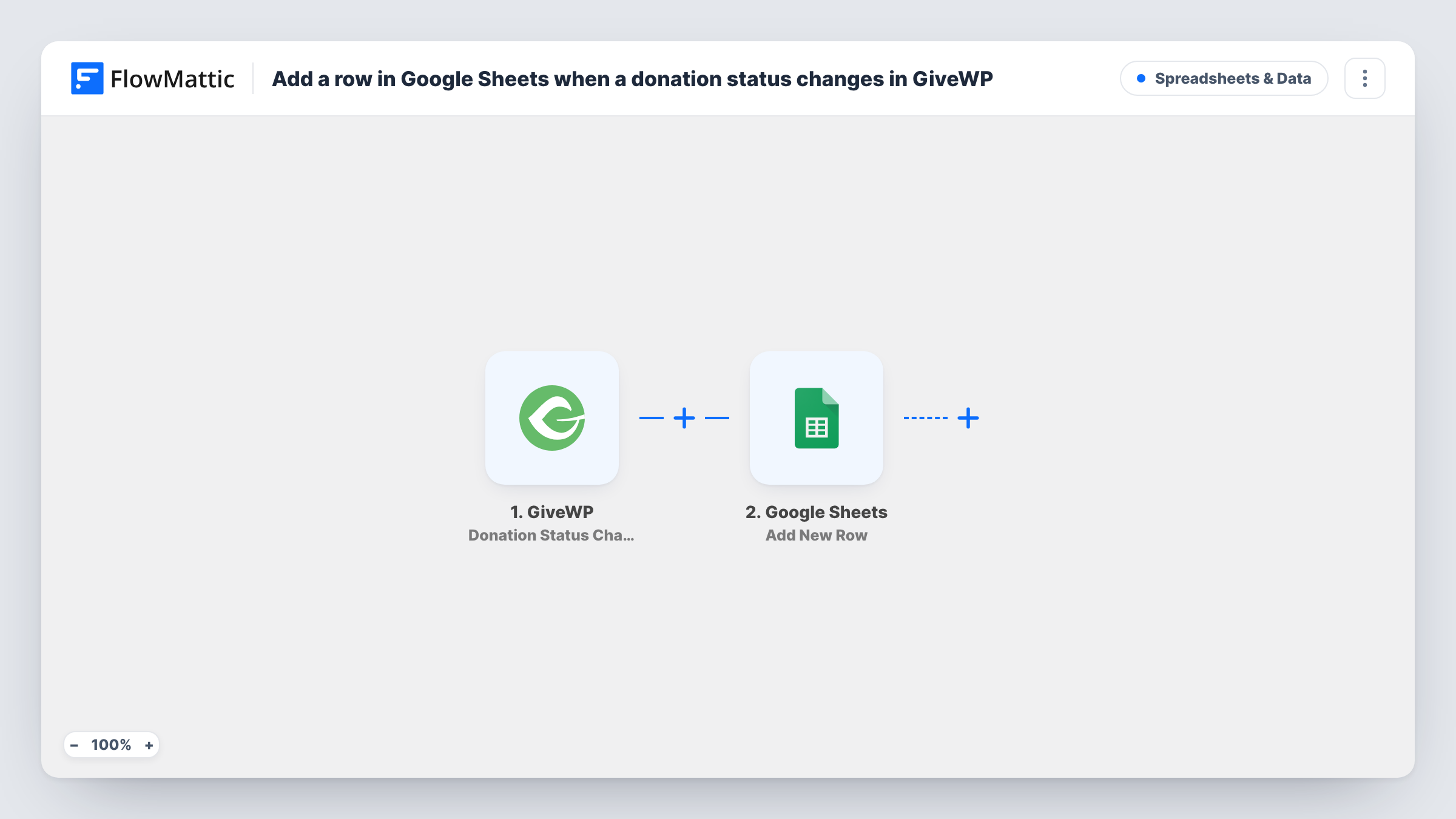
The GiveWP trigger fires when a donation's status changes on your WordPress site. FlowMattic passes the donation data on for mapping. The second step adds a row to the Google Sheets spreadsheet you choose, with the values you map, such as the donor, the amount and the new status.
One donation can create several rows, one for each change, which is what makes the sheet useful as a history. If you only want a list of completed gifts, add a Filter on the status. Run a test after import to see the values GiveWP sends, and check Task History for each run.
Audit trail for a finance team
Your treasurer sees each status change in a shared sheet, which helps when matching payments against the bank statement.
Following up failed payments
Rows with a failed status show which donors may want help completing their gift, and you can sort the sheet to find them.
Spotting refunds and cancellations
Refunded and cancelled changes appear as their own rows, so you can review them without searching through the GiveWP admin.
How this workflow runs
What happens at each step once the workflow is on, and what you need before you import it.
 GiveWP Donation Status Changed
Runs when the status of a GiveWP donation changes on your site. The donation data is passed on so you can map it into the spreadsheet row.
- Google Sheets Add New Row
Adds a row to the Google Sheets spreadsheet you pick for each status change. Map the donation values to columns, including the new status, and connect your Google account.
What you need
- FlowMatticCore
- GiveWP PluginPlugin
- Google Sheets AccountAccount
After importing, map your own data. To keep the template universal, not every step is pre-filled. Open each step in the builder and connect your accounts and fields (channels, lists, sheets, recipients) before you switch the workflow on.
Make it yours
Changes worth making after you import it.
- Include a column for the donation ID, so you can group the rows that belong to the same donation and follow its history.
- Add a Filter after the trigger if you only want certain statuses in the sheet, for example a status equal to complete.
- Change the status of a test donation after import so FlowMattic captures real GiveWP data, then map the columns from it.
Questions about this workflow
Will one GiveWP donation create more than one row?
Yes, if its status changes more than once. Each change runs the workflow and adds a new row. The earlier rows are not updated.
Does this add rows for donations that are simply created?
The trigger reacts to status changes. Run a test donation and look at Task History to see which steps of the payment produce a row on your site.
Does GiveWP have to run on the WordPress site where FlowMattic is installed?
Yes. GiveWP is a WordPress plugin, and the trigger listens for its donation events on the site where FlowMattic is installed.
Can I keep only completed GiveWP donations in the sheet?
Yes. Add a Filter after the trigger that continues when the new status is the completed value GiveWP sends. Other changes then end at the Filter.
More Spreadsheets & Data workflows
Other ready-to-import templates from the same category.




Import this workflow into your WordPress site
Download the JSON, import it from the Workflows screen and connect your accounts. Every run stays on your server, with no per-task fees.
30-day money-back guarantee Unlimited workflows and runs Self-hosted