

Add badge to user on successfully placing order in WooCommerce
Each time a WooCommerce order is created, this workflow gives the customer’s WordPress account a myCred badge you choose, so buyers show a purchase badge on your site without you assigning it by hand.
 WooCommerce
 myCred
2 steps Setup ~5 min Used on 1.7k sites Free to import
What this workflow does
If your store runs a loyalty or community side with myCred, a badge for buying is an easy way to mark customers on their profile. Handing badges out by hand after each sale gets missed. This workflow does it from the order itself.
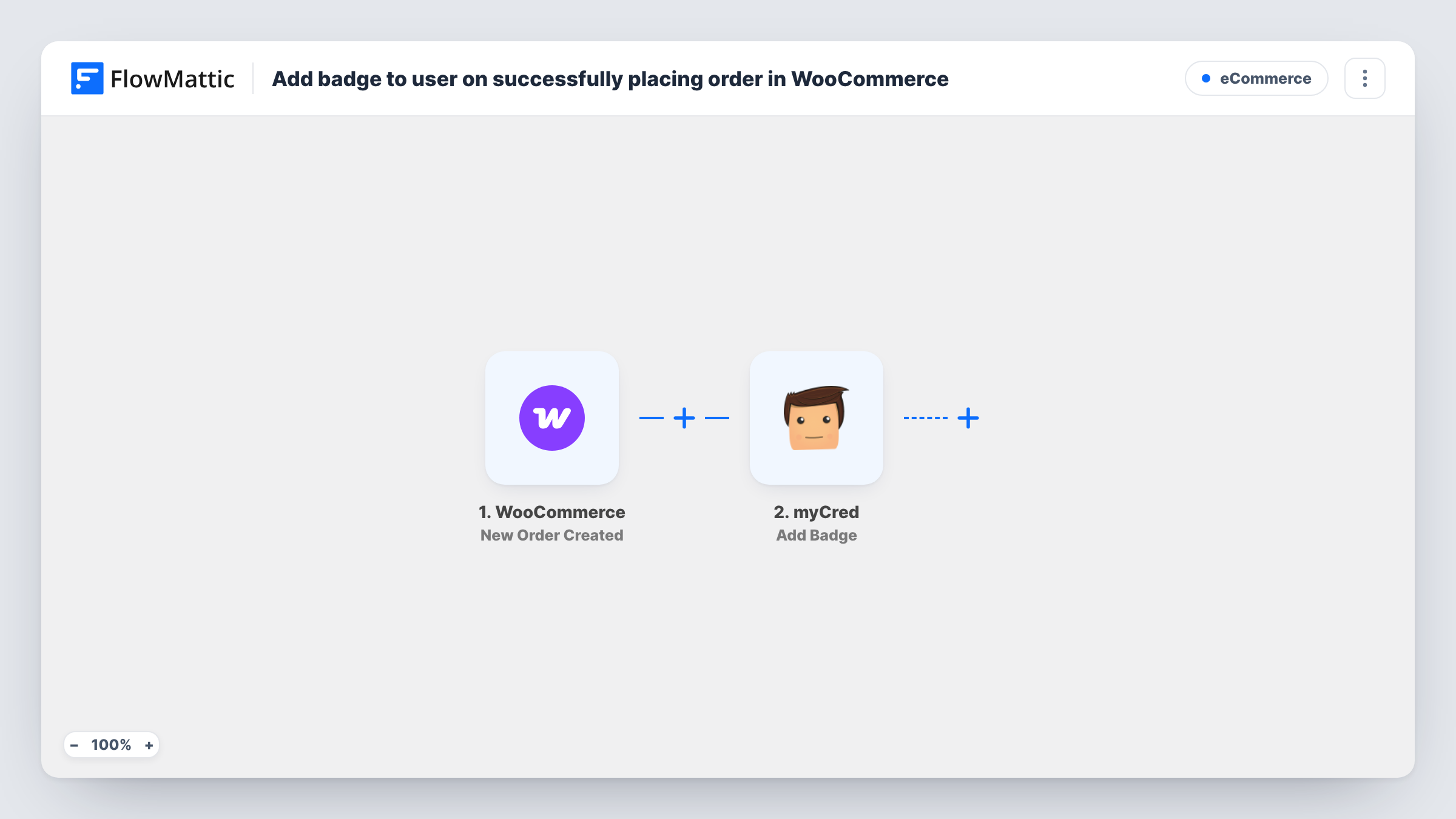
The WooCommerce trigger New Order Created fires when an order is created in your shop and passes the order data on, including the customer. The myCred step then runs Add Badge, which gives a badge to a user. You pick the badge and map the customer's WordPress user from the order.
Two things decide who gets the badge. First, myCred works with WordPress users, so a guest checkout has no account to give the badge to. Second, the trigger runs for every new order, so a customer who buys again runs the step again. Send a test order from a customer account you know and check Task History to see what myCred returned.
First Purchase badge on a membership shop
Members who buy from your store get a badge on their myCred profile, so other members can see who supports the shop.
Course or download store with community profiles
Buyers of your digital products are marked with a Customer badge, which you can then use in myCred to show on forum or profile pages.
Launch-week supporter badge
During a product launch you set the step to a Launch Supporter badge, then switch the badge or turn the workflow off when the launch ends.
How this workflow runs
What happens at each step once the workflow is on, and what you need before you import it.
 WooCommerce New Order Created
Fires whenever WooCommerce records a new order in your shop. The order details, including the customer who placed it, are passed to the myCred step for mapping.
- myCred Add Badge
Gives a myCred badge to a WordPress user. Choose the badge and map the customer's user from the WooCommerce order. Guest orders have no WordPress user, so test with an order from a logged-in customer.
What you need
- FlowMatticCore
- WooCommerce PluginPlugin
- myCred PluginPlugin
After importing, map your own data. To keep the template universal, not every step is pre-filled. Open each step in the builder and connect your accounts and fields (channels, lists, sheets, recipients) before you switch the workflow on.
Make it yours
Changes worth making after you import it.
- Want the badge only once payment goes through? Swap the trigger for WooCommerce's Order Paid trigger, then remap the user in the myCred step.
- Add a Filter after the trigger that continues only when the order's customer ID is not empty, so guest orders stop before the myCred step.
- To reward big orders differently, add a Filter on the order total and a second workflow with another badge for orders above your chosen amount.
Questions about this workflow
Does a guest checkout in WooCommerce get a myCred badge?
No. myCred badges belong to WordPress users, and a guest order has no user account to give the badge to. Task History shows the result of the myCred step for that order.
Does the badge wait until the WooCommerce order is paid?
No. The trigger fires when the order is created. If you want payment first, replace it with the Order Paid trigger after import.
What happens when the same customer places a second order?
The workflow runs again and calls Add Badge for that customer again. Place two test orders with one account to see how your myCred badge handles it.
Do WooCommerce and myCred need to be on the same site as FlowMattic?
Yes. Both are WordPress plugins, and this workflow expects them on the same WordPress site where FlowMattic is installed.
More E-Commerce workflows
Other ready-to-import templates from the same category.




Import this workflow into your WordPress site
Download the JSON, import it from the Workflows screen and connect your accounts. Every run stays on your server, with no per-task fees.
30-day money-back guarantee Unlimited workflows and runs Self-hosted