

Add each new Fillout submission as a row in a Google Sheets spreadsheet
Each new Fillout form submission is added as a row in a Google Sheets spreadsheet, with every answer in the column you map, so responses are ready to sort, share and analyse.
 Fillout
 Google Sheets
2 steps Setup ~5 min Used on 485 sites Free to import
What this workflow does
Fillout makes it easy to build forms, but plenty of teams want the responses in a spreadsheet they already use for planning or reporting. Downloading exports by hand means the sheet is always a little out of date. This workflow writes each response to Google Sheets when it arrives.
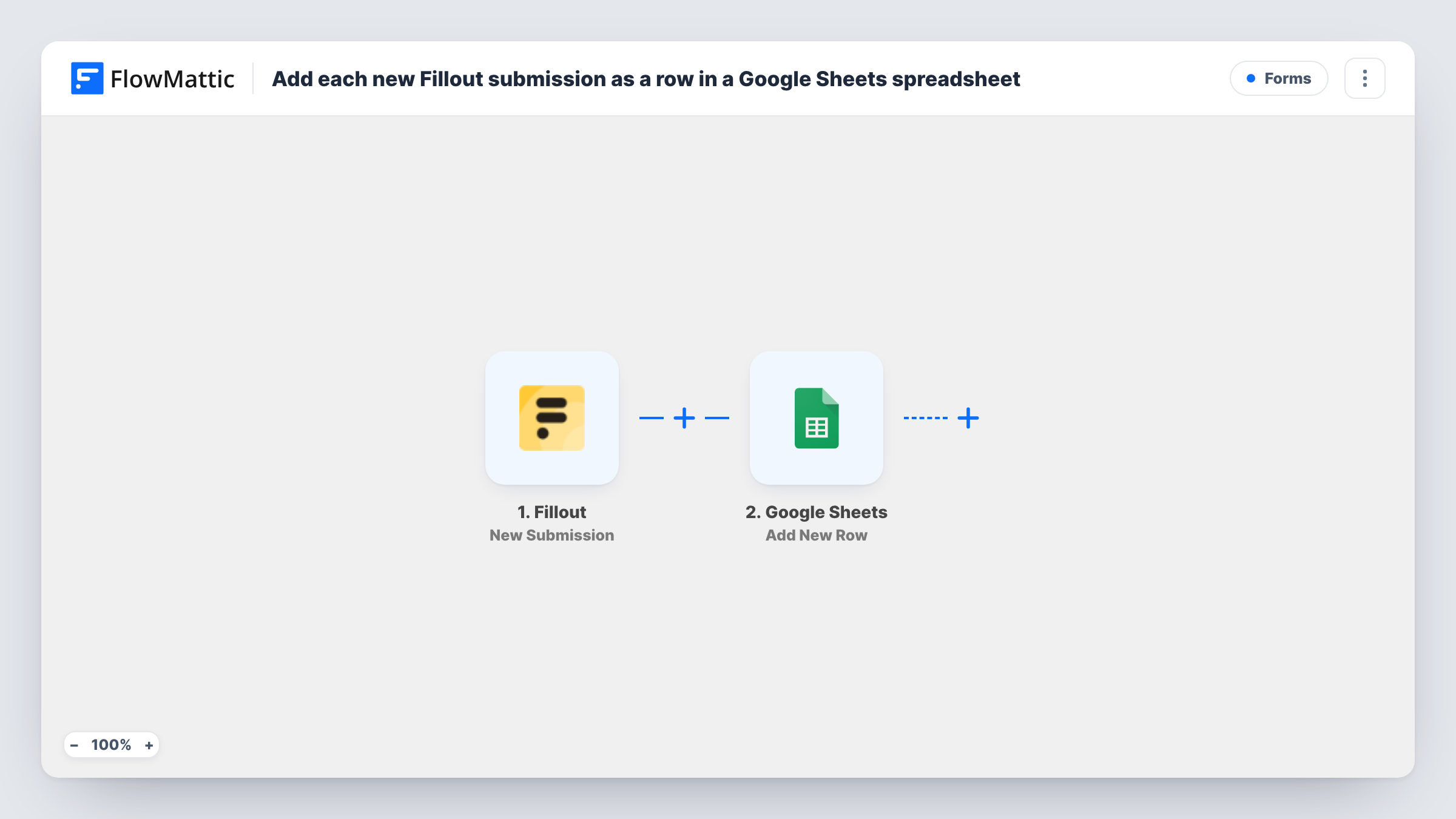
The Fillout New Submission trigger fires when a form receives a new submission. FlowMattic picks up the answers and sends the ones you map to Google Sheets. The Add New Row action then appends them to the spreadsheet, one column per answer.
One submission means one row, with no checks in between, so test responses and duplicates land in the sheet too. Fillout keeps its own copy of each response, and edits you make to the sheet don't change it. If you add questions to the form later, add matching columns and map the new answers. Task History shows the details of every run.
Order or booking requests
A small business takes requests through a Fillout form. Staff work from the sheet, adding a column to mark each request as handled.
Volunteer sign-ups
A charity collects volunteer availability with Fillout. Coordinators sort the sheet by date and share it with team leads who don't use Fillout.
Research questionnaires
A researcher gathers answers in Fillout and analyses them in Google Sheets with formulas and charts, without exporting a file each week.
How this workflow runs
What happens at each step once the workflow is on, and what you need before you import it.
 Fillout New Submission
Fires when your Fillout form receives a new submission. Each answer from the response becomes a value you can map into the spreadsheet.
- Google Sheets Add New Row
Appends the response as a row in the Google Sheets file you connect. Add column headers first, then map each column to the matching Fillout answer and run a test.
What you need
- FlowMatticCore
- Fillout AccountAccount
- Google Sheets AccountAccount
After importing, map your own data. To keep the template universal, not every step is pre-filled. Open each step in the builder and connect your accounts and fields (channels, lists, sheets, recipients) before you switch the workflow on.
Make it yours
Changes worth making after you import it.
- Put a timestamp column in the sheet and map the submission time to it, if the trigger data shows one, so you can see when each response arrived.
- Add a Filter after the trigger if only some responses belong in this sheet, for example those that answer a choice question with a particular option.
- Use a Router with two Google Sheets steps when different answers should go to different spreadsheets, giving each route a condition that can't match the other.
Questions about this workflow
Are responses submitted to Fillout before import added to the sheet?
No. The trigger only reacts to new submissions after the workflow is on. Export older responses from Fillout if you need them in the same spreadsheet.
What happens when I add a question to my Fillout form?
New answers aren't written anywhere until you add a column and map them. Submit a test response after changing the form so the new question appears for mapping.
Does deleting a row in Google Sheets remove the Fillout response?
No. The sheet holds a copy. Fillout keeps the original response, whatever you change in the spreadsheet.
Can file uploads from Fillout appear in the sheet?
If the submission data includes a link to the uploaded file, you can map that link to a column. A test submission with a file shows what Fillout sends.
More Forms workflows
Other ready-to-import templates from the same category.







Import this workflow into your WordPress site
Download the JSON, import it from the Workflows screen and connect your accounts. Every run stays on your server, with no per-task fees.
30-day money-back guarantee Unlimited workflows and runs Self-hosted