

Add each new Form.io form submission to a Google Sheets spreadsheet
Every new submission to your Form.io form is written to a new row in Google Sheets, so the people who need the responses can read, sort and share them without logging in to Form.io.
 Form.io
 Google Sheets
2 steps Setup ~5 min Used on 831 sites Free to import
What this workflow does
Form.io is built for developers who embed forms in their own apps, and its submission data usually stays in the Form.io project. Colleagues outside the development team often just want a spreadsheet. This workflow gives them one, filled one row at a time as responses arrive.
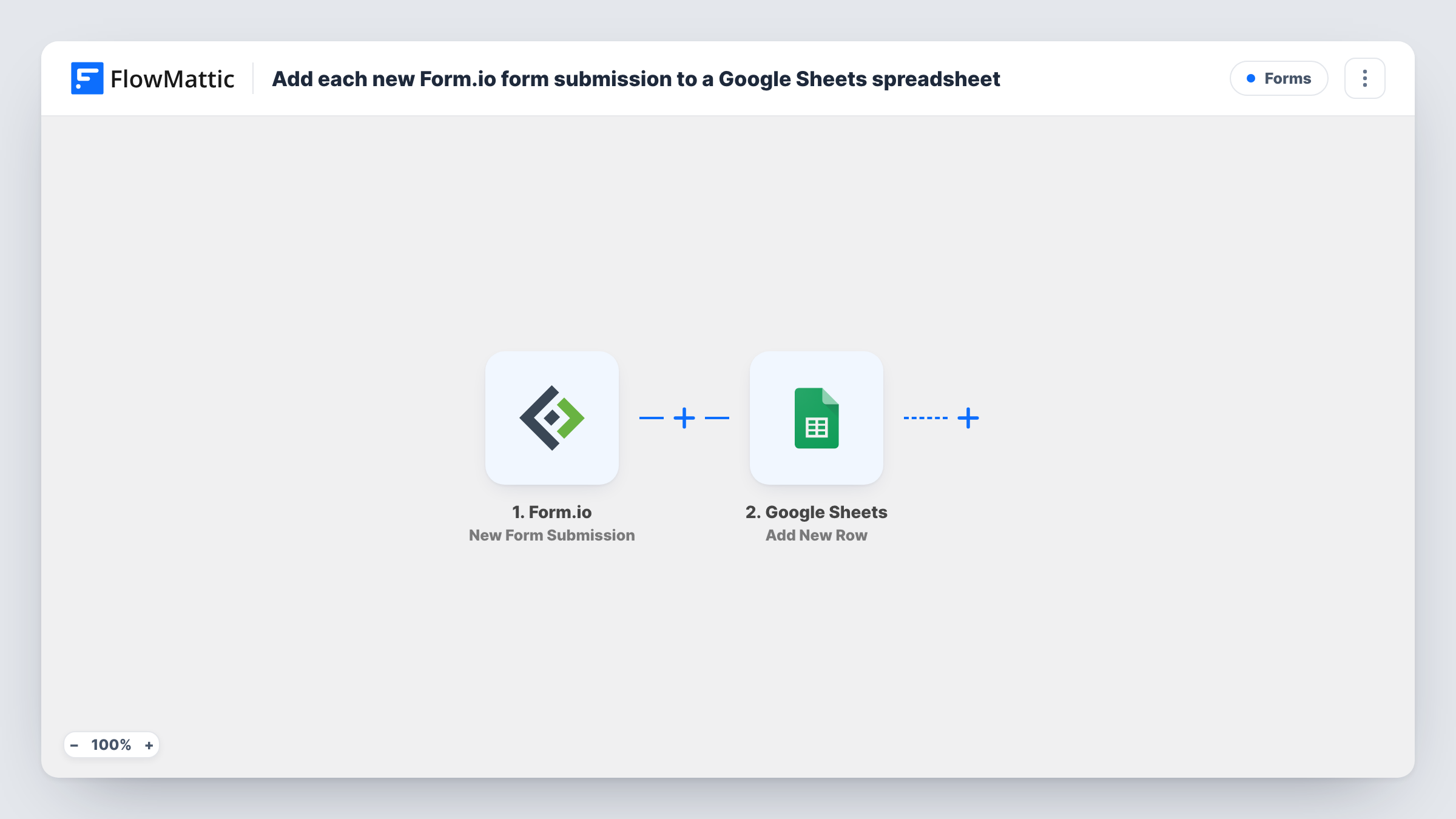
The Form.io trigger, New Form Submission, fires when there is a new submission on the form you connect. FlowMattic captures the submitted data. The Google Sheets step, Add New Row, then writes those values into the spreadsheet and sheet you pick, with each form field mapped to a column.
Every submission adds its own row. The workflow doesn't check for duplicates or change rows that already exist, so a person who submits twice appears twice. Entries made before the workflow is switched on are not copied. Task History in FlowMattic lists each run with the data it received, which helps when a column comes out empty.
Sharing app sign-ups with the sales team
A SaaS team collects trial requests with a Form.io form inside its product. Sales works from the Google Sheet without needing a Form.io login.
Field inspection reports
Inspectors submit Form.io forms from a site app. Each report becomes a row the office can filter by site or date in Google Sheets.
Survey responses for analysis
Responses to a customer survey built in Form.io land in a sheet where an analyst can chart them with familiar spreadsheet tools.
How this workflow runs
What happens at each step once the workflow is on, and what you need before you import it.
 Form.io New Form Submission
Runs when a new submission is made on the Form.io form you connect. The submitted values are captured so you can map them to spreadsheet columns.
- Google Sheets Add New Row
Writes the Form.io submission to a new row in the spreadsheet you choose. Add headers to the sheet first, then map each form field to its column and connect your Google account.
What you need
- FlowMatticCore
- Form.io AccountAccount
- Google Sheets AccountAccount
After importing, map your own data. To keep the template universal, not every step is pre-filled. Open each step in the builder and connect your accounts and fields (channels, lists, sheets, recipients) before you switch the workflow on.
Make it yours
Changes worth making after you import it.
- Create the header row in Google Sheets before you map the step, then send one test submission so FlowMattic captures every Form.io field to match against the headers.
- Add a column for the submission date or ID from the Form.io data, if your test run shows one, so you can trace a row back to the original submission.
- Need only some submissions? Add a Filter between the two steps, for example on a field such as department, and only matching entries get a row.
Questions about this workflow
Will existing Form.io submissions be added to the sheet?
No. The trigger fires on new submissions, so earlier entries stay in Form.io. Export those separately if you need them in the sheet.
What if I add a field to my Form.io form later?
Give the new Form.io field its own column header, submit a test entry to capture it, and map it to that column in the Add New Row step.
Does a second submission from the same person update their row?
No. Add New Row always appends. Each Form.io submission creates its own row, even from the same person.
What accounts does the Form.io to Google Sheets workflow need?
Access to the Form.io project and form you want to watch, and a Google account that can edit the target spreadsheet.
More Forms workflows
Other ready-to-import templates from the same category.






Import this workflow into your WordPress site
Download the JSON, import it from the Workflows screen and connect your accounts. Every run stays on your server, with no per-task fees.
30-day money-back guarantee Unlimited workflows and runs Self-hosted