

Add each new Formlets submission to a Google Sheets spreadsheet
Every new Formlets submission is written to a fresh row in Google Sheets, giving you a running spreadsheet of responses that you can sort, share and work from without exporting.
 Formlets
 Google Sheets
2 steps Setup ~5 min Used on 1.3k sites Free to import
What this workflow does
Formlets keeps responses in its own dashboard. That works for reading entries one at a time, but sorting them, sharing them with a colleague or adding your own notes is easier in a spreadsheet. This workflow copies each response into Google Sheets as it arrives, so the sheet stays current without exports.
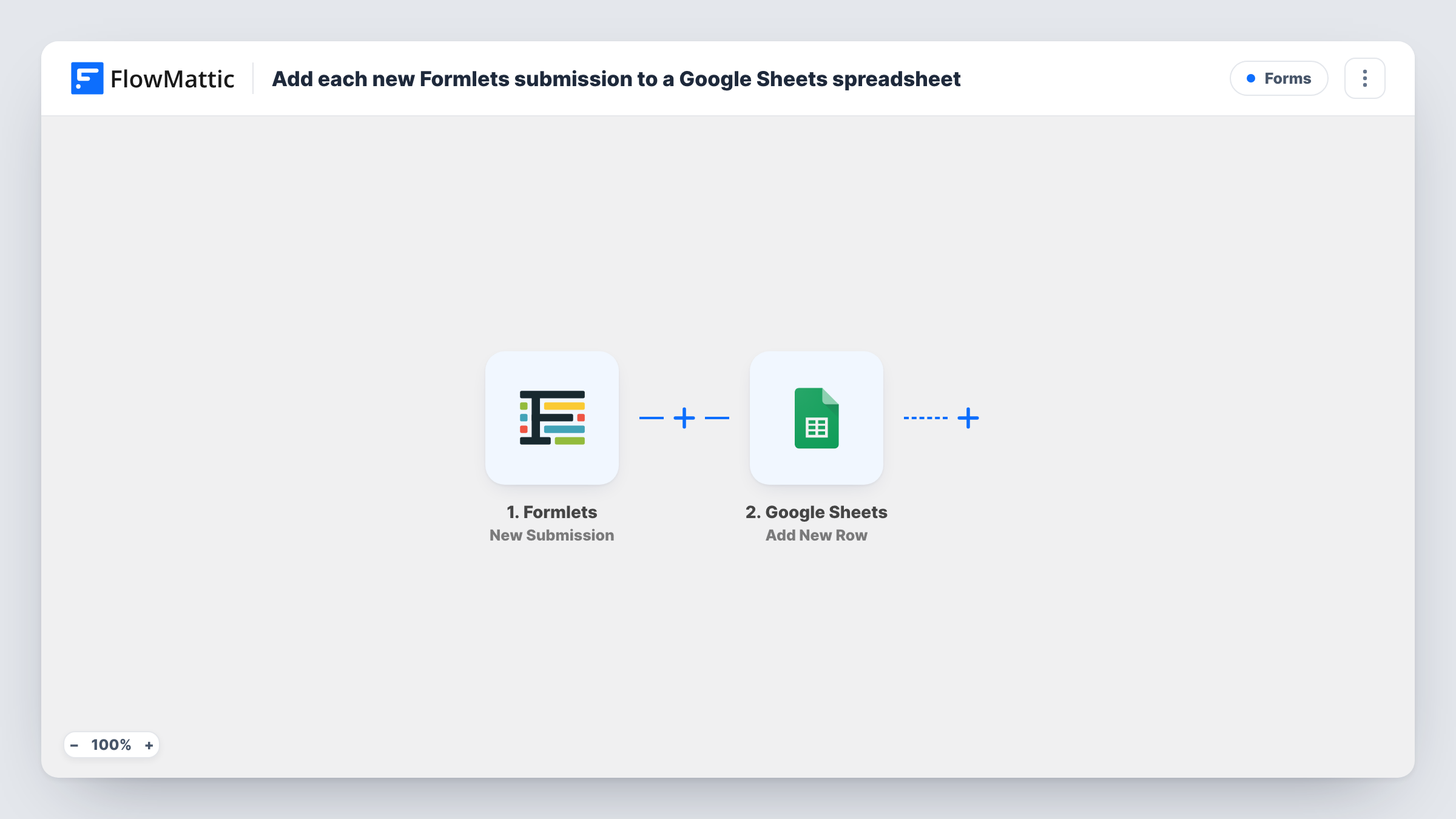
The Formlets trigger fires for each new form submission. FlowMattic receives the answers and passes them to Google Sheets, where the Add New Row action appends one row to the spreadsheet you pick. You line up each column with a Formlets answer when you set up the step.
There is no condition between the two steps, so every submission becomes a row. Formlets still keeps its own copy of the entry. If a row looks wrong, open Task History to see what Formlets sent and what Google Sheets returned for that run.
Volunteer sign-up sheet
People register through a Formlets form, and the coordinator plans shifts from the Google Sheet, adding a column for the assigned slot.
Customer feedback log
Post-purchase feedback forms land in a shared sheet where the product team tallies themes and marks rows they have acted on.
Job application tracker
Each application from your Formlets careers form gets a row, and the hiring team adds interview dates and decisions beside it.
How this workflow runs
What happens at each step once the workflow is on, and what you need before you import it.
 Formlets New Submission
Fires when someone submits one of your Formlets forms. Each answer from that response is handed to Google Sheets for mapping.
- Google Sheets Add New Row
Writes one new row per Formlets response into the spreadsheet you select. Connect your Google account, then map each column to the Formlets answer that should fill it.
What you need
- FlowMatticCore
- Formlets AccountAccount
- Google Sheets AccountAccount
After importing, map your own data. To keep the template universal, not every step is pre-filled. Open each step in the builder and connect your accounts and fields (channels, lists, sheets, recipients) before you switch the workflow on.
Make it yours
Changes worth making after you import it.
- Set up the header row in your sheet before you map the step, so each column name shows up clearly when you match it to a Formlets answer.
- Add a Filter after the trigger if one Formlets account serves several forms and only one of them belongs in this sheet.
- Leave a few empty columns to the right of the mapped ones for your own notes, such as status or owner, so the workflow never writes over them.
Questions about this workflow
Will my earlier Formlets responses be copied into the sheet?
No. The trigger picks up responses sent while the workflow is active, not ones already stored in Formlets. Export older responses from Formlets if you want them in the same sheet.
What happens if I add a question to the Formlets form later?
That extra answer stays out of the sheet until you give it a column and map it in the row step. Send a test submission so FlowMattic sees the new field.
Do I need both a Formlets account and a Google account?
Yes. The trigger listens to your Formlets account and the action writes with your Google account. You connect both when you import, then send one test response to check the row.
Can more than one person read the Google Sheet?
Yes. It is a normal Google Sheets file, so you share it with your team the usual way. Nothing in the workflow edits or removes rows you already have.
More Forms workflows
Other ready-to-import templates from the same category.








Import this workflow into your WordPress site
Download the JSON, import it from the Workflows screen and connect your accounts. Every run stays on your server, with no per-task fees.
30-day money-back guarantee Unlimited workflows and runs Self-hosted