

Add each new Subpage lead to a HubSpot CRM contact list
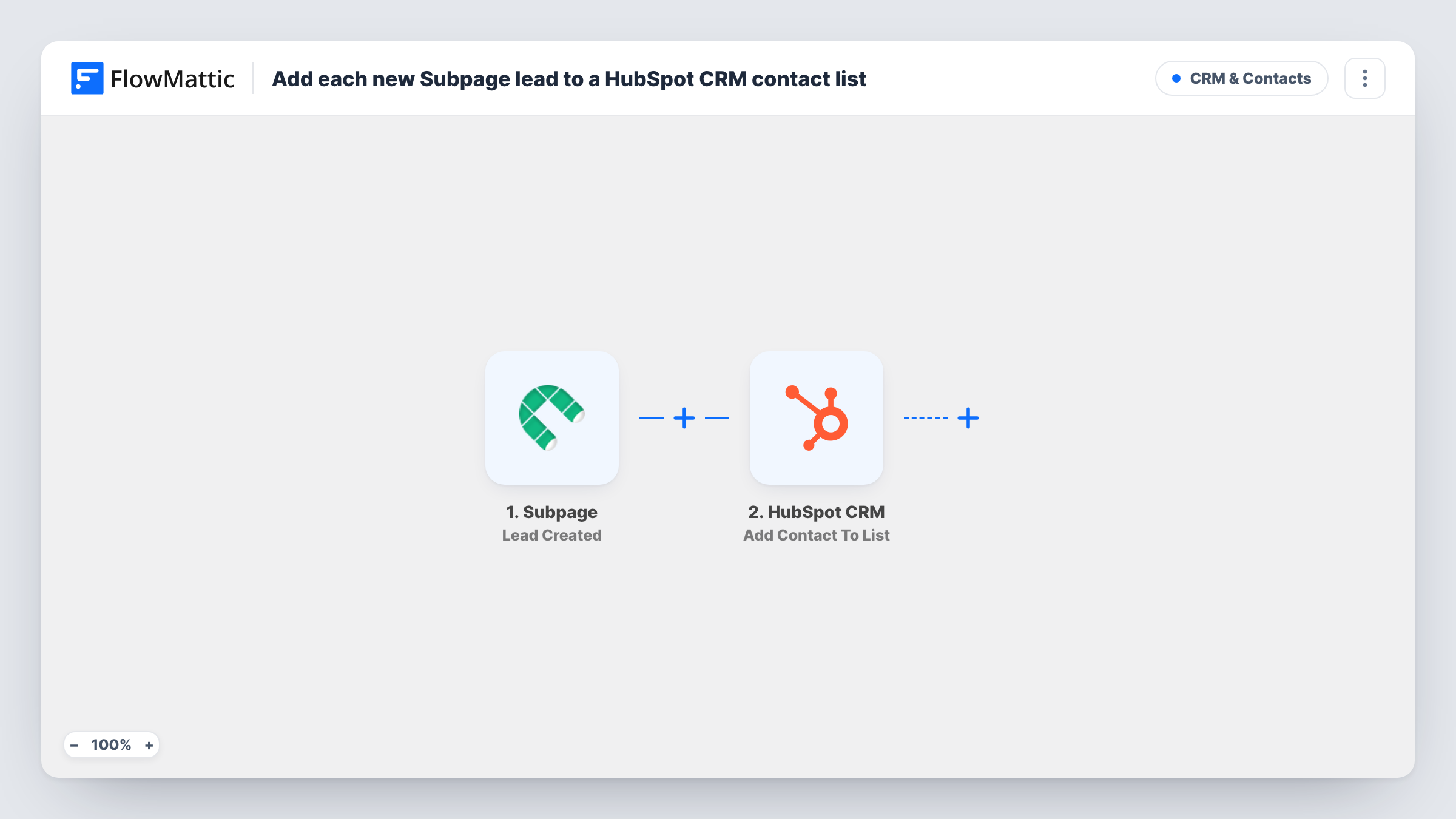
Each new lead captured on a Subpage page is created as a contact in HubSpot CRM and then added to the static HubSpot list you choose, so sign-ups from your landing pages are grouped and ready for follow-up.
 Subpage
 HubSpot CRM
3 steps Setup ~5 min Used on 406 sites Free to import
What this workflow does
Landing pages built in Subpage collect leads, but your follow-up emails and sales work may run from HubSpot. Leads that only sit in Subpage don't get either. This workflow sends each one into HubSpot and onto a list, so you can tell at a glance which contacts came from your Subpage pages.
The Subpage trigger fires when a new lead is created and passes on what the visitor entered. Submit a test lead after import to see the fields, such as the email and name.
The first HubSpot CRM step creates a contact from the lead. It ships unmapped, so map at least the email, plus the name and any other details you collect. The second step adds that contact to a static list. HubSpot static lists can only hold contacts that already exist, which is why the contact is created first. Map the contact from the Create Contact step and pick the list.
This template never updates a HubSpot record. If a lead's email is already a HubSpot contact, HubSpot may refuse to create it again. Check Task History for those runs, and add the person to the list yourself if the list step shows no success.
Webinar sign-ups in their own list
A software company runs a Subpage registration page and keeps every registrant on a HubSpot list used for the reminder and replay emails.
Lead magnet downloads
A consultant offering a checklist on a Subpage page adds each downloader to a HubSpot list that the nurture emails go to.
Campaign-level reporting
A marketing team uses one HubSpot list per Subpage campaign, so they can count sign-ups per campaign inside HubSpot.
How this workflow runs
What happens at each step once the workflow is on, and what you need before you import it.
 Subpage Lead Created
Starts a run for each lead your Subpage pages capture. The details the visitor entered on your page are passed to HubSpot.
- HubSpot CRM Create Contact
Makes a HubSpot contact from the Subpage lead. The step ships unmapped: connect HubSpot and map the lead's email, name and any other fields you collect.
- HubSpot CRM Add Contact To List
Adds the contact to a HubSpot static list. Map the contact from the Create Contact step and choose the list, as neither comes preset.
What you need
- FlowMatticCore
- Subpage AccountAccount
- HubSpot CRM AccountAccount
After importing, map your own data. To keep the template universal, not every step is pre-filled. Open each step in the builder and connect your accounts and fields (channels, lists, sheets, recipients) before you switch the workflow on.
Make it yours
Changes worth making after you import it.
- Create the static list in HubSpot before you import, so it's ready to pick in the Add Contact To List step.
- Map a fixed value, such as the Subpage page name, into a HubSpot contact property in the Create Contact step, so each contact shows where it signed up.
- Send one test lead before going live and open the list in HubSpot, to confirm the contact landed on it and not only in your contacts.
Questions about this workflow
Do I need a static HubSpot list for this?
Yes. FlowMattic describes the Add Contact To List step as adding a contact to a specific static list, so make one in HubSpot before you set up that step.
What if the Subpage lead is already a HubSpot contact?
HubSpot may turn down a second contact with that email, because the first step only creates. The run's response in Task History shows it, and you can add that person to the list in HubSpot.
Which Subpage lead fields can I send to HubSpot?
Whatever the lead event carries, usually what your form asks for. Submit a test lead, check the fields in Task History, and map them into the Create Contact step.
More CRM & Contacts workflows
Other ready-to-import templates from the same category.




Import this workflow into your WordPress site
Download the JSON, import it from the Workflows screen and connect your accounts. Every run stays on your server, with no per-task fees.
30-day money-back guarantee Unlimited workflows and runs Self-hosted