

Add Emarsys campaign contacts to a Mailchimp audience
Contacts from the Emarsys events you send to FlowMattic are added to a Mailchimp audience, or updated if they are already members, so people reached in Emarsys campaigns also sit on your Mailchimp list.
 Emarsys
 Mailchimp
2 steps Setup ~5 min Used on 748 sites Free to import
What this workflow does
Some teams run larger campaigns in Emarsys and keep a Mailchimp audience for newsletters or a separate brand. Moving contacts between the two usually means exports and imports. This workflow passes contacts across as Emarsys reports campaign events about them.
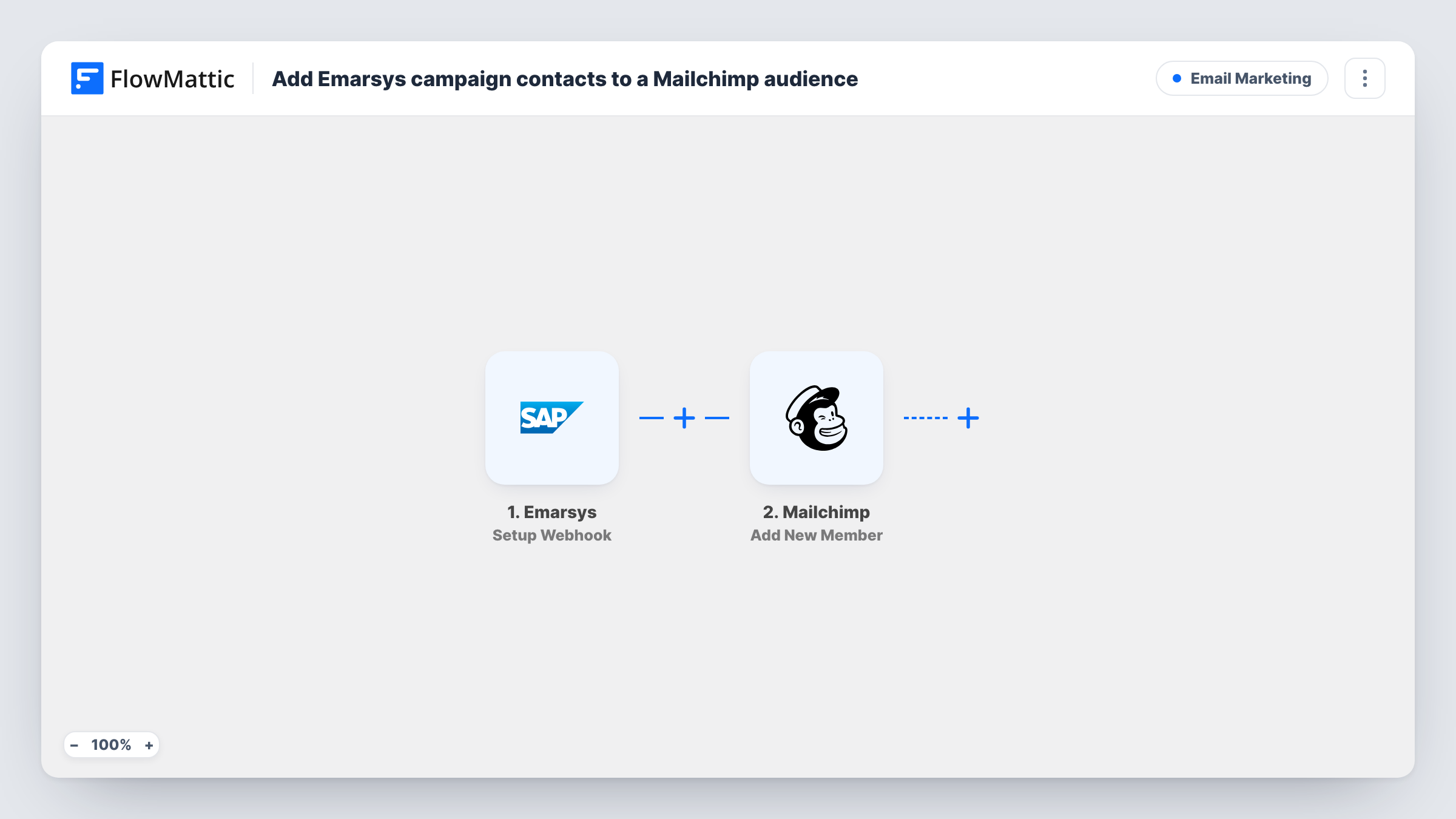
The Emarsys trigger is a webhook: FlowMattic gives you a URL, and Emarsys calls it for the events you specify on its side. Each event that arrives starts a run. FlowMattic then hands the contact data to the Mailchimp Add New Member action, which adds the person to your chosen audience or updates them if their email address is already there.
Which contacts come through depends on the events you select in Emarsys, so choose them with care. The Mailchimp step needs an email address, so check a test event to confirm the payload includes one. Every run is listed in Task History with the data received and Mailchimp's answer.
Second brand on Mailchimp
A retailer runs its main campaigns in Emarsys and a smaller brand's newsletter in Mailchimp. Contacts from chosen Emarsys events join the Mailchimp audience as well.
Moving from Emarsys to Mailchimp in stages
While a team tries out Mailchimp, contacts active in Emarsys campaigns are copied over so the new audience fills with people who are engaging now.
Agency handing a list to a client
An agency sends campaigns from its Emarsys account, and the client's Mailchimp audience receives each contact those campaigns report on.
How this workflow runs
What happens at each step once the workflow is on, and what you need before you import it.
 Emarsys Setup Webhook
Gives you a webhook URL to add in Emarsys. Each event you choose to send there starts a run, and the contact data in the event becomes available to map.
- Mailchimp Add New Member
Adds the contact to the Mailchimp audience you pick, or updates the existing member with that email address. Map the email from the Emarsys event and any name values it carries.
What you need
- FlowMatticCore
- Emarsys AccountAccount
- Mailchimp AccountAccount
After importing, map your own data. To keep the template universal, not every step is pre-filled. Open each step in the builder and connect your accounts and fields (channels, lists, sheets, recipients) before you switch the workflow on.
Make it yours
Changes worth making after you import it.
- Add a Filter after the trigger that continues only for one event type, so a contact who triggers several Emarsys events is not processed over and over.
- Add a Filter condition that the email value is not empty, so events without an address stop before the Mailchimp step.
- Send a test event from Emarsys after import and look at the captured payload in FlowMattic before you map fields into Add New Member.
Questions about this workflow
Which Emarsys events reach this workflow?
The ones you set Emarsys to send to the webhook URL. The trigger accepts whatever events you specify there, so pick only those that relate to the contacts you want in Mailchimp.
What happens when an Emarsys contact is already in my Mailchimp audience?
Add New Member updates the existing member instead of adding a duplicate, so you can run it on the same person more than once.
Will contacts removed in Emarsys leave the Mailchimp audience?
No. The workflow only adds or updates members. Removing someone from Mailchimp needs a separate step or workflow.
Do I need accounts with both Emarsys and Mailchimp?
Yes. You set up the webhook in your Emarsys account and connect your Mailchimp account to the Add New Member step when you import.
More Email Marketing workflows
Other ready-to-import templates from the same category.






Import this workflow into your WordPress site
Download the JSON, import it from the Workflows screen and connect your accounts. Every run stays on your server, with no per-task fees.
30-day money-back guarantee Unlimited workflows and runs Self-hosted