

Add new WooCommerce customers to Vbout list
When WooCommerce creates a new customer profile on your store, this workflow adds that customer to a Vbout list, so new accounts reach your Vbout email marketing without CSV exports.
 WooCommerce
 Vbout
Vbout2 steps Setup ~5 min Used on 2.1k sites Free to import
What this workflow does
Getting store customers into an email platform usually means exporting a customer list from WooCommerce and importing it somewhere else, then doing it again next week. This workflow moves each new customer across on its own, at the moment their profile is created.
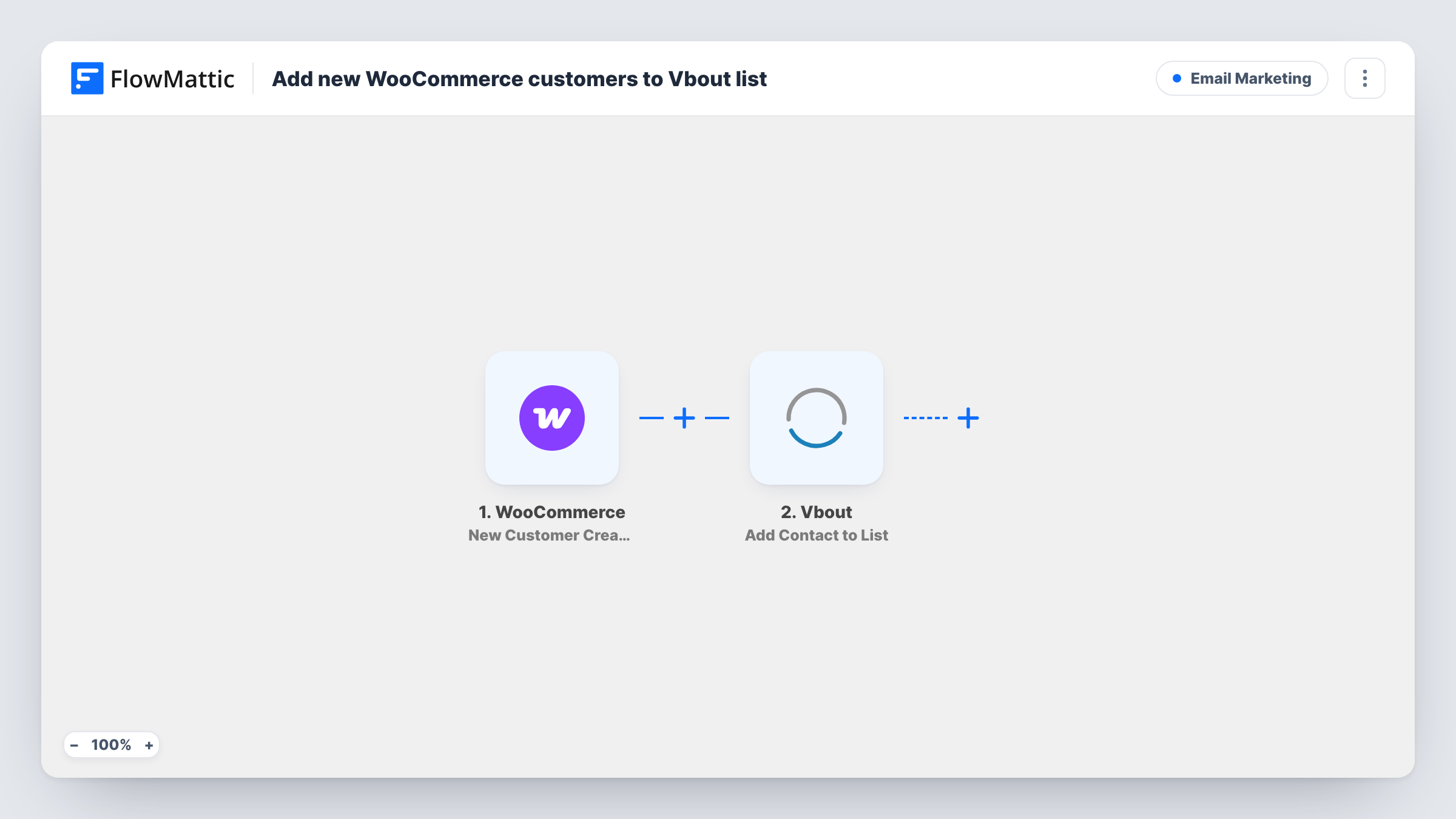
The WooCommerce trigger, New Customer Created, fires when a new customer profile is created on your store. That happens once per customer account, not on every order, so a returning buyer who already has an account does not start a new run. The customer's details pass to Vbout, whose Add Contact to List action adds the contact to the list you select. You map the email and any name fields into it.
Guest checkouts that don't create an account may not produce a customer profile, so check how your store handles guests before you rely on this for every buyer. Each run shows in Task History, including the reply from Vbout.
Welcome series for new accounts
New WooCommerce account holders join a Vbout list that starts your welcome emails, without anyone exporting the customer table first.
Separate list for store customers
Keep buyers on their own Vbout list, apart from blog subscribers, so product announcements go only to people who have an account in your shop.
Wholesale shop with registered buyers
On a store where every buyer must register, each new trade account is added to the Vbout list you use for price updates and restock notices.
How this workflow runs
What happens at each step once the workflow is on, and what you need before you import it.
 WooCommerce New Customer Created
Fires when WooCommerce creates a new customer profile. The customer's email, name and other profile details are passed on for mapping in the Vbout step.
- Vbout Add Contact to List
Adds the customer as a contact on the Vbout list you choose. Map the WooCommerce email to the contact's email, plus the first and last name if you want them in Vbout.
What you need
- FlowMatticCore
- WooCommerce PluginPlugin
- VBOUT AccountAccount
After importing, map your own data. To keep the template universal, not every step is pre-filled. Open each step in the builder and connect your accounts and fields (channels, lists, sheets, recipients) before you switch the workflow on.
Make it yours
Changes worth making after you import it.
- If you also want guest buyers, add a second workflow on a WooCommerce order trigger with the same Vbout step, and expect repeat buyers to be sent again on each order.
- Pick a Vbout list set aside for store customers, not your general newsletter list, so you can write to buyers separately.
- After import, create a test customer account on your store, then check Task History to see which WooCommerce fields arrived and map them in the Vbout step.
Questions about this workflow
Does a repeat WooCommerce order add the customer to Vbout again?
No. The trigger is New Customer Created, which fires when the customer profile is made, not on each order. Later orders from the same account do not start a run.
What if the email is already on the Vbout list?
The step asks Vbout to add the contact to the list. How Vbout treats an address it already has is up to Vbout, and Task History shows the response it sent back.
Are my existing WooCommerce customers sent to Vbout?
No. Only profiles created after you turn the workflow on are added. Import your current customers into Vbout once by hand if you want them on the list too.
Do I need a Vbout account and list?
Yes. Connect your Vbout account when you import the workflow and pick the list the new customers should join. Create the list in Vbout first if it doesn't exist yet.
More Email Marketing workflows
Other ready-to-import templates from the same category.






Import this workflow into your WordPress site
Download the JSON, import it from the Workflows screen and connect your accounts. Every run stays on your server, with no per-task fees.
30-day money-back guarantee Unlimited workflows and runs Self-hosted