

Email a congratulations message via Gmail after a Synap Academy completed attempt
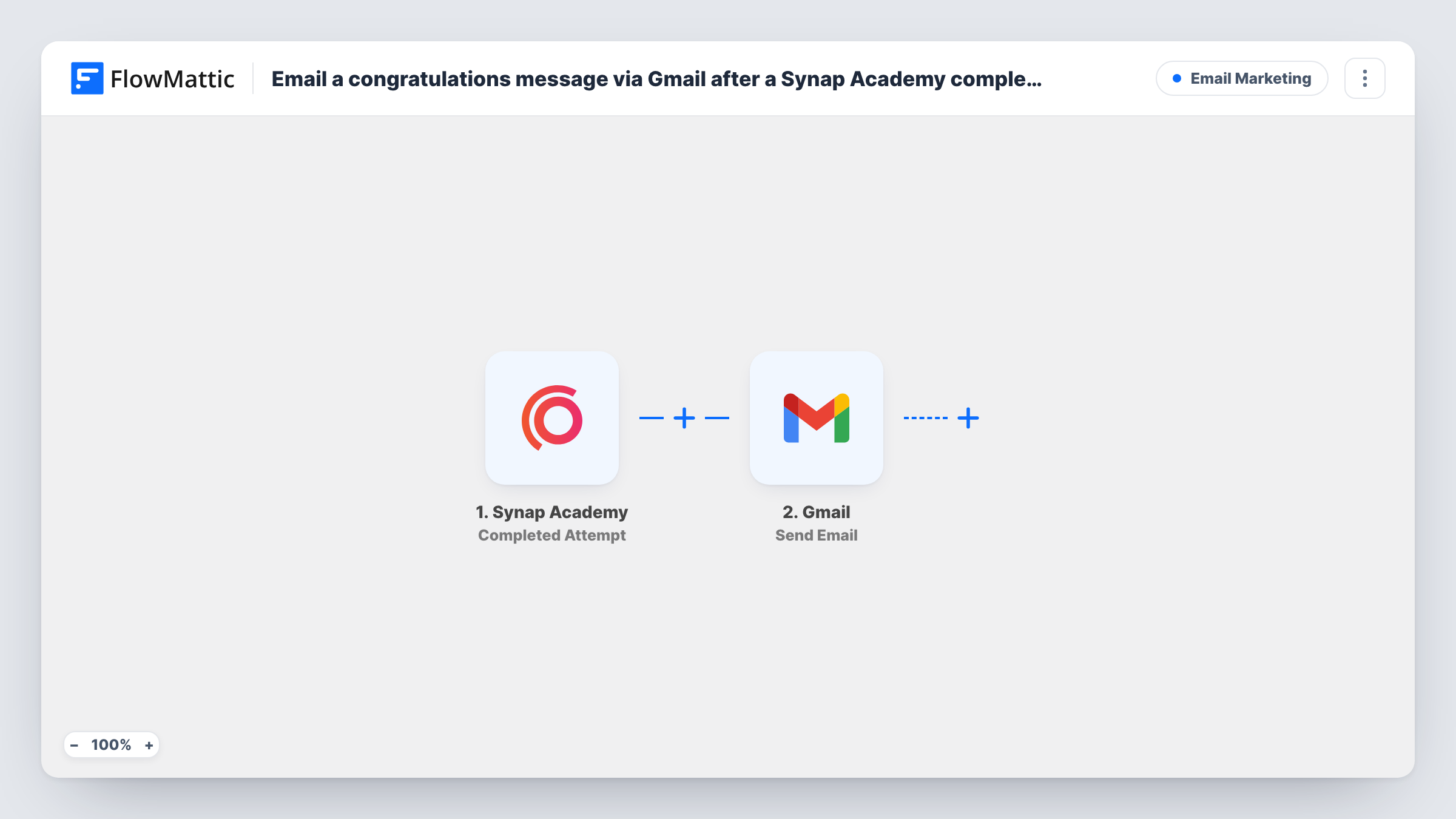
When a learner completes an attempt on Synap Academy, this workflow sends them a congratulations email from your Gmail account, written by you and filled with details from the attempt.
 Synap Academy
 Gmail
Gmail2 steps Setup ~5 min Used on 3.1k sites Free to import
What this workflow does
Finishing a test or exam on Synap Academy is a moment worth marking. Writing to each learner yourself takes time, and a note sent days later means less. This workflow sends the email from your own Gmail account as soon as Synap Academy reports the attempt as completed.
The Synap Academy trigger fires when any attempt is completed on the platform, including after marking. FlowMattic receives the attempt data and makes it available for mapping. The second step sends an email through Gmail. You map the learner's email address as the recipient and write the subject and message, adding values such as their name or the assessment title where Synap Academy provides them.
Every completed attempt sends an email, whatever the result, because the template has no condition on the score. If you only want to congratulate learners who passed, add a Filter. A test attempt after import shows which values you can use, and Task History lists each email sent.
Training provider marking course assessments
Each learner who completes an end-of-module assessment gets a short note from the trainer's Gmail address with the name of the assessment.
Exam preparation platform
Students who finish a practice exam receive an email that thanks them and points them to the next practice set you name in the message.
Internal staff training
Employees who complete a compliance test get an acknowledgement from the HR inbox, which also gives them a record in their own mailbox.
How this workflow runs
What happens at each step once the workflow is on, and what you need before you import it.
 Synap Academy Completed Attempt
Runs when an attempt is completed on Synap Academy, including attempts completed after marking. The attempt data is passed on so you can use it in the email.
- Gmail Send Email
Emails the learner through the Gmail account you connect. Map their email address as the recipient, then write the subject and body with Synap Academy values where you want them.
What you need
- FlowMatticCore
- Synap Academy AccountAccount
- Gmail AccountAccount
After importing, map your own data. To keep the template universal, not every step is pre-filled. Open each step in the builder and connect your accounts and fields (channels, lists, sheets, recipients) before you switch the workflow on.
Make it yours
Changes worth making after you import it.
- Add a Filter after the trigger that continues only when the score is at or above your pass mark, so learners who did not pass are not congratulated.
- Complete a test attempt on Synap Academy after import, so FlowMattic captures the attempt data and you can see which values to place in the email.
- If you also want to message learners who did not pass, swap the Filter for a Router with two routes that cannot overlap, one per outcome, each with its own Gmail step.
Questions about this workflow
Does every Synap Academy attempt send a congratulations email?
Yes, as imported. The trigger fires on any completed attempt, and nothing checks the result. Add a Filter on the score if the email should go only to learners who passed.
When does the email go out for attempts that need marking?
Synap Academy treats marking as part of completing an attempt, so for marked assessments expect the email once marking is done rather than at submission. Confirm the timing with a test attempt.
Which address does the learner see the email from?
It is sent from the Gmail account you connect in the Gmail step, so learners see that address as the sender.
Can I write different emails for different Synap Academy exams?
Yes. Add a Router after the trigger with a route per exam, using a condition on the exam name or ID, and give each route its own Gmail step.
More Email Marketing workflows
Other ready-to-import templates from the same category.




Import this workflow into your WordPress site
Download the JSON, import it from the Workflows screen and connect your accounts. Every run stays on your server, with no per-task fees.
30-day money-back guarantee Unlimited workflows and runs Self-hosted