

Log Kylas CRM lead events (created, updated or deleted) in a Google Sheets spreadsheet
Every Kylas CRM lead event, whether a lead is created, updated or deleted, adds a row to your Google Sheets spreadsheet, giving you a running activity log outside the CRM.
 Kylas CRM
 Google Sheets
2 steps Setup ~5 min Used on 1.6k sites Free to import
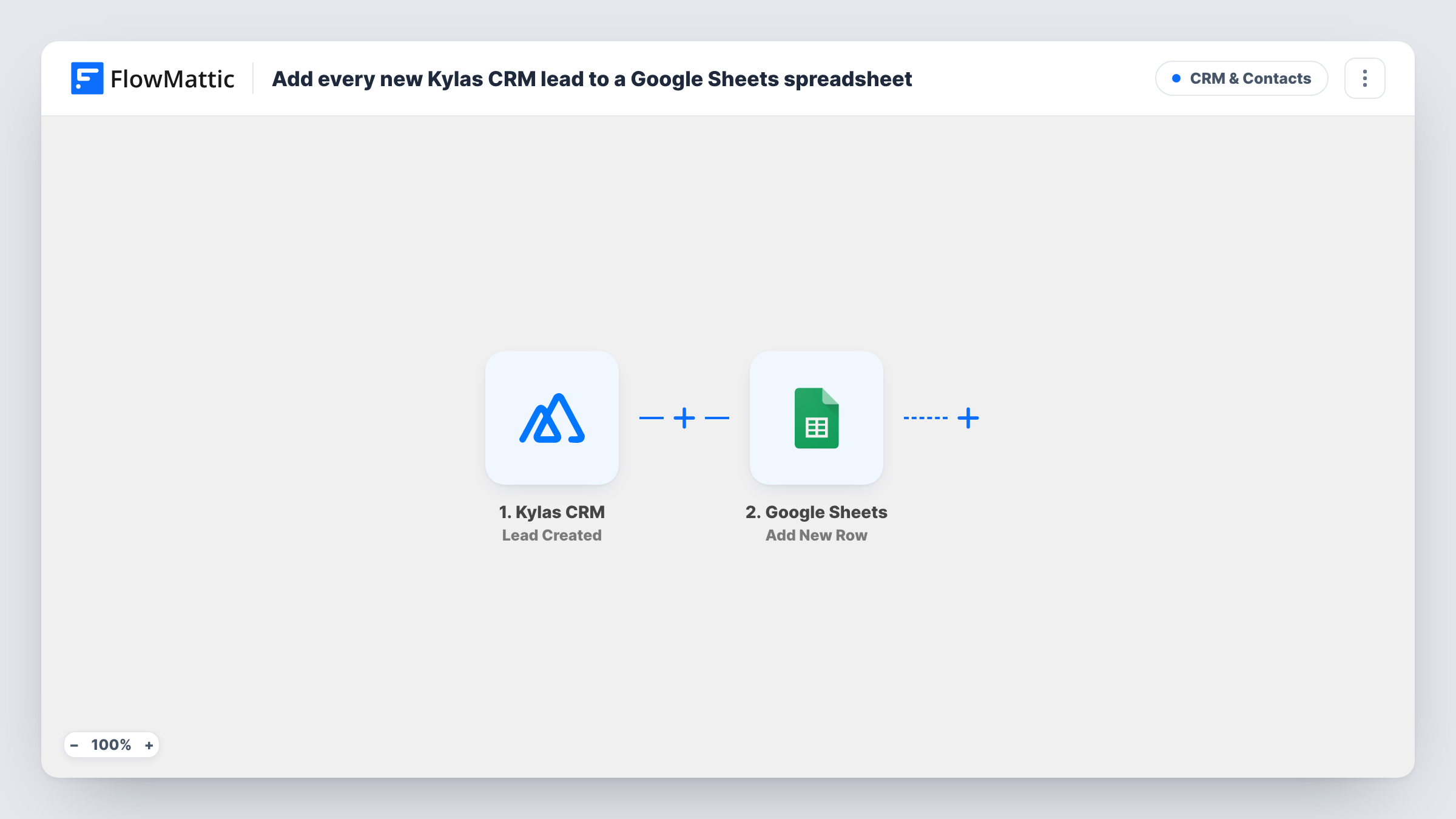
What this workflow does
A CRM shows you each lead as it is now, but not always what happened to it along the way. A spreadsheet that gains a row each time a lead is created, changed or removed gives managers a log they can filter, chart or share with people who don't have a Kylas login.
The Kylas CRM trigger is named Lead Created, but FlowMattic describes it as firing when a lead is created, updated or deleted. So a single lead can produce many rows: one when it arrives and one for each later edit. The lead's details for that event are passed on.
The Google Sheets step then turns each event into one fresh row. It doesn't look for an earlier row for the same lead, so the sheet is a history, not a current list. The step ships without column mapping: after import you choose the spreadsheet and sheet and map the lead's ID, name and owner into your columns, plus the event type if Kylas sends one.
If you only want new leads, set the Kylas webhook to send the created event only, if your account lets you choose. Otherwise keep an event column so you can sort the history. Task History shows what each event carried.
Lead activity report for managers
A sales manager reviews the sheet each Friday to see how many leads were created, edited and deleted that week, by owner.
Record of deleted leads
Because delete events are logged too, an operations lead can see which leads were removed from Kylas and when.
Data for a dashboard
A team connects the Google Sheet to a reporting tool and charts lead volume and changes over time.
How this workflow runs
What happens at each step once the workflow is on, and what you need before you import it.
 Kylas CRM Lead Created
Fires when a lead is created, updated or deleted in Kylas CRM, despite its Lead Created name. Each event passes that lead's current details on to the sheet.
- Google Sheets Add New Row
Adds a new row for each Kylas lead event. The step ships unmapped: pick the spreadsheet and sheet, then map the lead ID, name, owner and the event type into your columns.
What you need
- FlowMatticCore
- Kylas CRM AccountAccount
- Google Sheets AccountAccount
After importing, map your own data. To keep the template universal, not every step is pre-filled. Open each step in the builder and connect your accounts and fields (channels, lists, sheets, recipients) before you switch the workflow on.
Make it yours
Changes worth making after you import it.
- Map the lead ID into its own column, so you can group all rows for one lead and read its history in order.
- Add a column for the time of the event, so the log can be sorted even when several updates arrive close together.
- If you only want leads as they are created, put a Filter between the Kylas trigger and the Google Sheets step on the event type field. Run a test to see the field name and value Kylas sends.
Questions about this workflow
Why does one Kylas lead appear in several rows?
The trigger fires on creation, every update and deletion, and the Google Sheets step always adds a new row. Each event is its own row in the log.
Can I log only new Kylas leads?
Yes. Set the Kylas webhook to send only the created event if that option is available, or put a Filter on the event type between the Kylas trigger and the Google Sheets step.
Which lead fields can go into the sheet?
Any field the Kylas event carries. Create a test lead, then map the fields you see into the Add New Row step.
More CRM & Contacts workflows
Other ready-to-import templates from the same category.






Import this workflow into your WordPress site
Download the JSON, import it from the Workflows screen and connect your accounts. Every run stays on your server, with no per-task fees.
30-day money-back guarantee Unlimited workflows and runs Self-hosted