

When a new survey response is received in Webask, create a lead in HubSpot
Each time a WebAsk survey response comes in, this workflow creates a contact in HubSpot CRM from the answers, so survey respondents are in your CRM without you exporting results and importing them by hand.
 WebAsk
 HubSpot CRM
2 steps Setup ~5 min Used on 3.3k sites Free to import
What this workflow does
Surveys are a common way to collect interest from prospects: a product-fit questionnaire, a feedback form after a demo, a quiz on a landing page. The answers sit in WebAsk until someone exports them, and the people behind them never reach the sales team's CRM. This workflow moves each respondent into HubSpot as the response arrives.
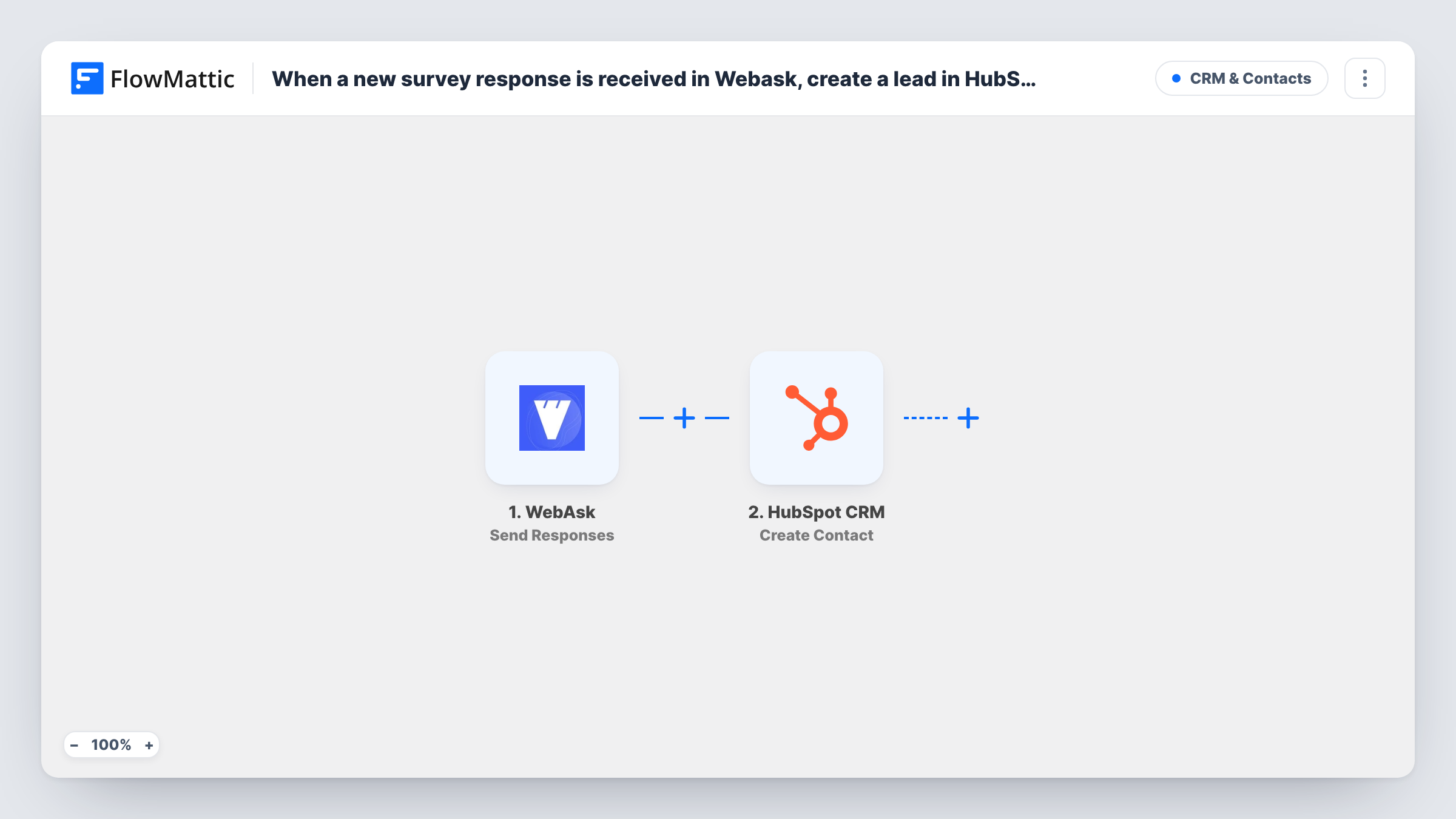
The WebAsk trigger, Send Responses, passes each survey response to FlowMattic along with the answers it holds. Next, FlowMattic runs Create Contact in HubSpot CRM. You map the answers you want, such as the email, name and company questions, into the new contact.
HubSpot keeps leads as contact records, so the step adds a contact rather than a separate lead object. It only creates; it doesn't look for an existing contact first. Your survey needs a question that collects an email address, or there is no reliable way to tell respondents apart in HubSpot. Each run shows up in Task History with the data sent and HubSpot's reply.
Product-fit questionnaire on a pricing page
Visitors answer a few WebAsk questions about team size and needs. Each response becomes a HubSpot contact your sales reps can call, with the answers mapped into contact properties.
Post-webinar feedback survey
Attendees who fill in your WebAsk feedback survey are added to HubSpot, so the people who engaged after the session are in the CRM for follow-up.
Lead quiz for a consultancy
A WebAsk quiz asks prospects about their current setup. The respondent's details and key answers land in HubSpot, where your team qualifies them.
How this workflow runs
What happens at each step once the workflow is on, and what you need before you import it.
 WebAsk Send Responses
Runs when WebAsk sends a survey response to FlowMattic. Every answer in that response becomes data you can map into the HubSpot step.
- HubSpot CRM Create Contact
Creates a new contact in HubSpot CRM from the response. Map the email question and any name or company answers into the contact, then connect your HubSpot account on import.
What you need
- FlowMatticCore
- WebAsk AccountAccount
- HubSpot CRM AccountAccount
After importing, map your own data. To keep the template universal, not every step is pre-filled. Open each step in the builder and connect your accounts and fields (channels, lists, sheets, recipients) before you switch the workflow on.
Make it yours
Changes worth making after you import it.
- Make the email question required in your WebAsk survey. Without an address in the response, HubSpot has nothing reliable to identify the new contact by.
- Add a Filter after the trigger that continues only when the email answer is not empty, so partial responses don't create contacts with no address.
- Run a test response after import so FlowMattic captures the survey's answer fields, then map them in the HubSpot step before you turn the workflow on.
Questions about this workflow
Does this create a lead or a contact in HubSpot?
It creates a contact record, which is where HubSpot keeps leads. If your team marks leads with a property such as lifecycle stage, check in a test run whether the Create Contact step lets you set it.
What if the WebAsk respondent is already a HubSpot contact?
The step only creates contacts; it doesn't search for an existing one first. HubSpot may refuse a duplicate email address, and Task History shows the response it sent back for that run.
Which WebAsk answers can I send to HubSpot?
Any answer the response carries can be mapped. Send a test response first so you can see exactly which fields WebAsk passes to FlowMattic.
Will earlier WebAsk responses be copied into HubSpot?
No. The workflow acts on responses WebAsk sends after you turn it on. Older responses stay in WebAsk unless you import them another way.
More CRM & Contacts workflows
Other ready-to-import templates from the same category.







Import this workflow into your WordPress site
Download the JSON, import it from the Workflows screen and connect your accounts. Every run stays on your server, with no per-task fees.
30-day money-back guarantee Unlimited workflows and runs Self-hosted