

Send a follow-up email via Gmail when a Servis.ai webhook event fires
When Servis.ai sends one of the webhook events you set up, such as a deal or contact change, FlowMattic sends a follow-up email from your Gmail account.
 Servis.ai
 Gmail
2 steps Setup ~5 min Used on 2.5k sites Free to import
What this workflow does
Sales teams that run their pipeline in Servis.ai often want a personal email to go out at a particular moment, for example when a deal reaches a new stage. This workflow sends that email from your own Gmail account whenever Servis.ai reports the event, so the follow-up doesn't depend on someone remembering it.
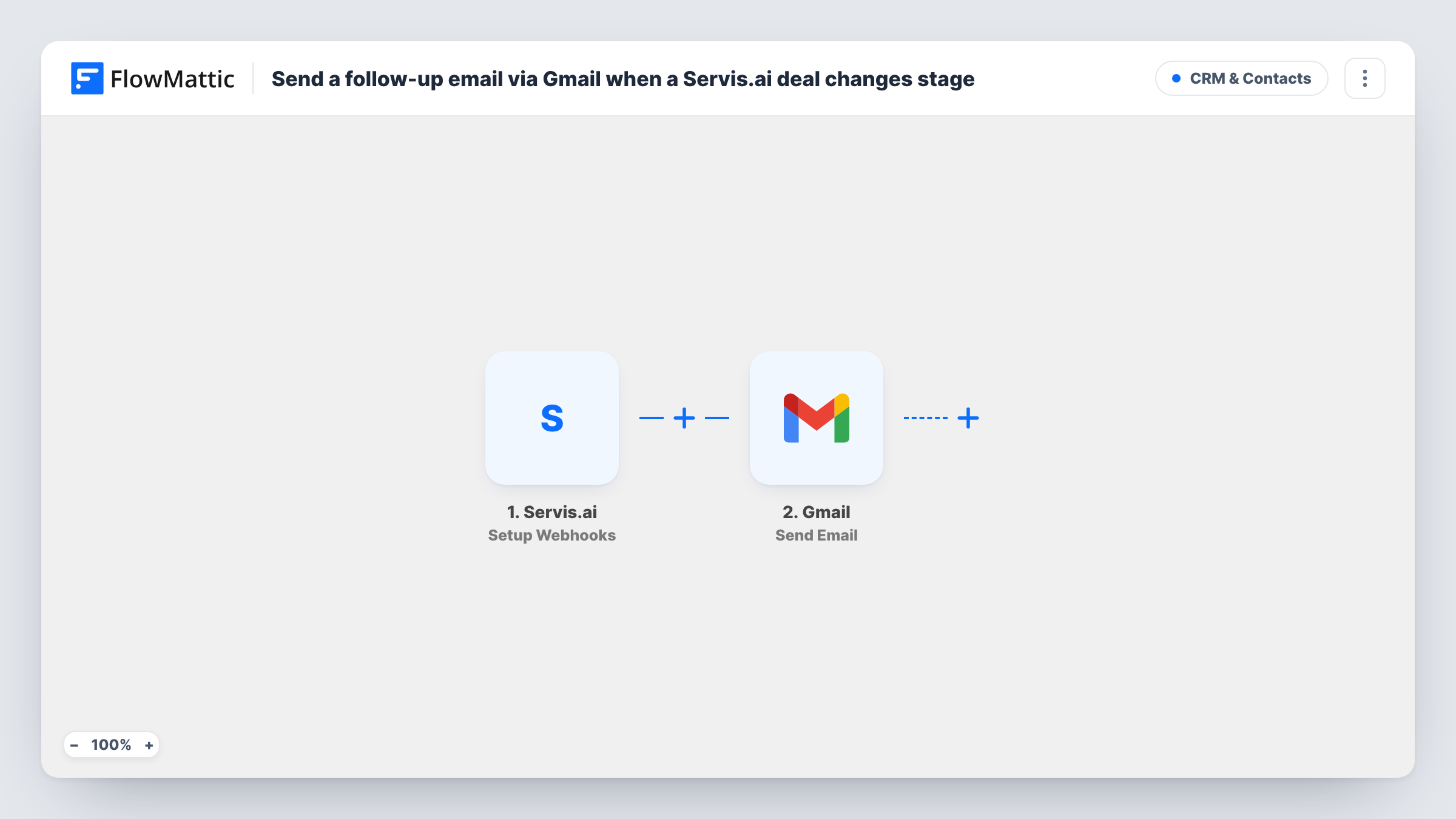
The Servis.ai Setup Webhooks trigger fires for the events you specify inside Servis.ai. After import you copy the workflow's webhook URL into Servis.ai and choose which events it sends. Pick only the events that should lead to an email, because every event delivered starts a run.
The Gmail Send Email step then sends the message from the account you connect. It ships unmapped: map the contact's email address from the Servis.ai event as the recipient, write the subject and body, and add details such as the contact's name or the deal name where they fit. A test event from Servis.ai shows which fields arrive.
Each event sends one email, so an event that fires again sends again. Task History shows every run with the Servis.ai data and Gmail's response.
Follow-up when a deal moves forward
A sales rep has Servis.ai send deal updates, and the contact gets a short Gmail note with next steps each time an update arrives.
Welcome note for new contacts
A consultancy sends a new-contact event from Servis.ai, and each new contact receives an introduction email from the account manager's Gmail.
Personal emails instead of bulk mail
A small agency prefers emails that come from a real Gmail inbox, so replies land straight in the rep's mail rather than in a marketing tool.
How this workflow runs
What happens at each step once the workflow is on, and what you need before you import it.
 Servis.ai Setup Webhooks
Fires when Servis.ai sends an event you set up in its webhook settings. Choose the events in Servis.ai after import; the event's contact or deal data is passed to Gmail.
- Gmail Send Email
Emails the Servis.ai contact from the Gmail account you connect. The step ships unmapped: after import, map the recipient's email from the Servis.ai event and write the subject and message.
What you need
- FlowMatticCore
- Servis.ai AccountAccount
- Gmail AccountAccount
After importing, map your own data. To keep the template universal, not every step is pre-filled. Open each step in the builder and connect your accounts and fields (channels, lists, sheets, recipients) before you switch the workflow on.
Make it yours
Changes worth making after you import it.
- Send only the Servis.ai events that should lead to an email, such as one update type, so other activity doesn't email your contacts.
- Put a Filter between the Servis.ai trigger and the Gmail step on a field from the event, such as the deal stage, if the event type alone is too broad. The field and value are examples to set from your test data.
- Add a Delay between the Servis.ai trigger and the Gmail step if the follow-up should arrive a day after the change rather than straight away.
- Map the contact's first name into the greeting so the email reads as written for them.
Questions about this workflow
Which Servis.ai events send an email?
The ones you choose in Servis.ai's webhook setup. Every event Servis.ai sends to the workflow's URL starts a run, so pick only the events that need a follow-up.
Whose Gmail inbox do Servis.ai follow-ups come from?
The Google account you connect in the Gmail step after import. Contacts see that address as the sender, and their replies go to that inbox.
What does the follow-up email say as imported?
Nothing yet. Recipient, subject and message are all empty in the template. Write the email and map the contact's details from the Servis.ai event before going live.
Can the same Servis.ai contact get several follow-up emails?
Yes. Each event Servis.ai sends starts its own run, so a contact whose deal changes several times gets an email for each event.
More CRM & Contacts workflows
Other ready-to-import templates from the same category.







Import this workflow into your WordPress site
Download the JSON, import it from the Workflows screen and connect your accounts. Every run stays on your server, with no per-task fees.
30-day money-back guarantee Unlimited workflows and runs Self-hosted