

Add new Fynzo Survey respondents to a MailerLite group for follow-up
Every new Fynzo Survey response creates or updates the respondent as a MailerLite subscriber, then puts them in the group you choose, so you can follow up with the people who answered.
 Fynzo-Survey
 MailerLite
3 steps Setup ~5 min Used on 997 sites Free to import
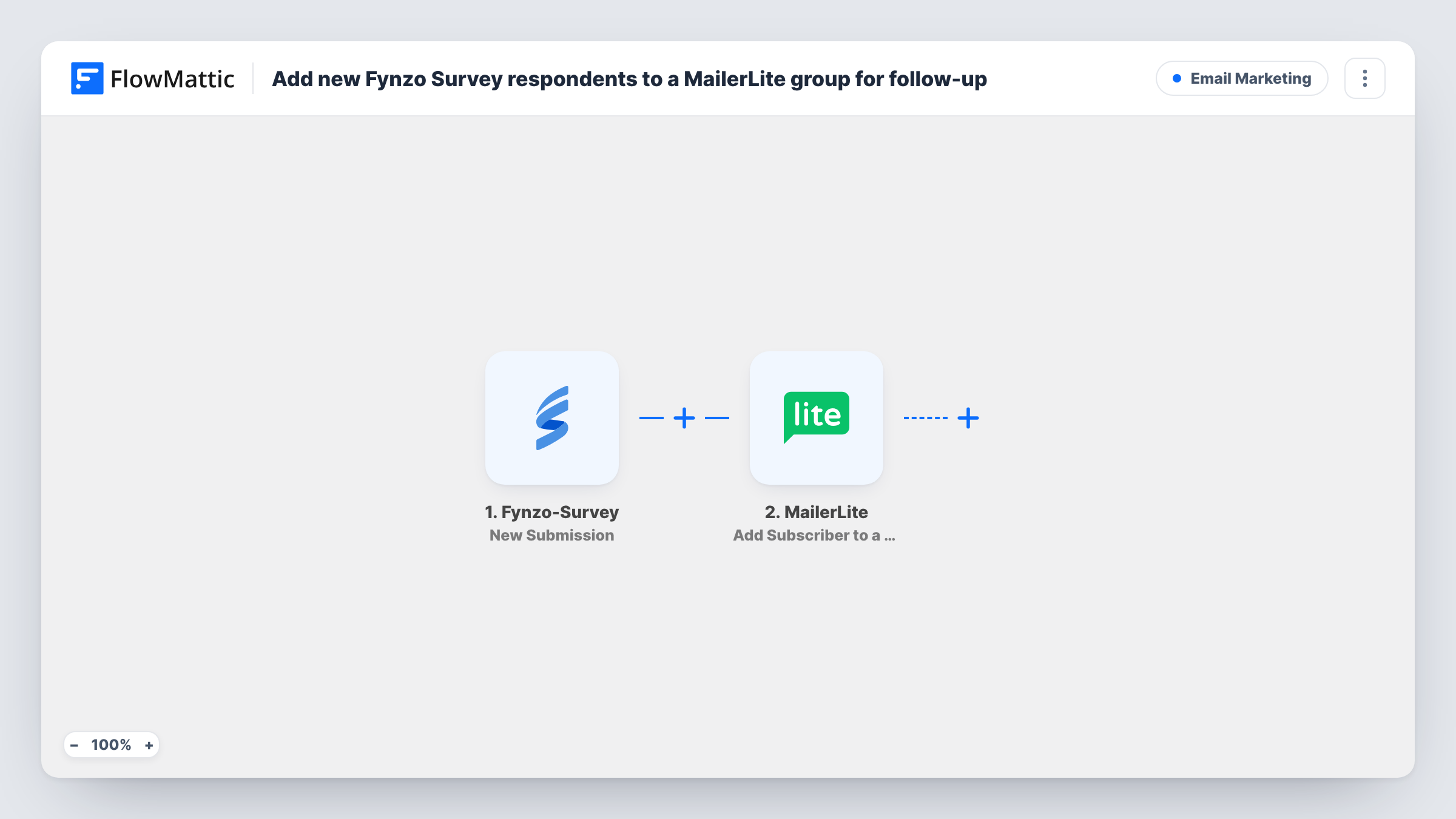
What this workflow does
A survey tells you who cares enough to answer, and that is a good moment to follow up: a thank-you, the results, or an offer tied to what they said. This workflow moves each respondent from Fynzo Survey into MailerLite so the follow-up can go out from your email tool.
The Fynzo Survey trigger fires when a new response is submitted and passes the answers on. The first MailerLite step creates the respondent as a subscriber, or updates them if they already exist, along with any custom fields you map. The second step then assigns that subscriber to an existing group.
Running create-or-update first matters: MailerLite's group step works on a subscriber who already exists, and the first step makes sure they do. Both steps ship unmapped, so after import you map the respondent's email and any answers you want saved, then choose the group.
Your survey must ask for an email address, because MailerLite needs one to create a subscriber. Responses without it can't be added. Submit a test response and check Task History to see what Fynzo sent and how MailerLite replied.
Share survey results with everyone who took part
A research team adds all respondents to a MailerLite group and emails them a summary of the findings once the survey closes.
Customer feedback follow-up
A restaurant runs a Fynzo feedback survey after visits and sends respondents in the group a thank-you with a voucher for their next meal.
Event interest list
An organiser asks about topics for a future event and later invites the respondents' group to registration first.
How this workflow runs
What happens at each step once the workflow is on, and what you need before you import it.
 Fynzo-Survey New Submission
Fires each time a new response is submitted to your Fynzo Survey. The respondent's answers, including the email question if your survey has one, are passed on.
- MailerLite Create or Update Subscriber
Creates the respondent as a MailerLite subscriber, or updates the subscriber who already has that email, along with any custom fields you map. After import, map the email and the answers you want to store.
- MailerLite Add Subscriber to a Group
Puts the respondent, now a MailerLite subscriber, into one of your existing groups. Make the group in MailerLite before setup, then pick it and point the step at the subscriber from step 2. Run one test response to see the subscriber data MailerLite hands back.
What you need
- FlowMatticCore
- Fynzo Survey AccountAccount
- MailerLite AccountAccount
After importing, map your own data. To keep the template universal, not every step is pre-filled. Open each step in the builder and connect your accounts and fields (channels, lists, sheets, recipients) before you switch the workflow on.
Make it yours
Changes worth making after you import it.
- Make the email question required in Fynzo Survey, so every response can become a MailerLite subscriber.
- Save a key answer, such as satisfaction score, into a MailerLite custom field in the Create or Update Subscriber step, so you can segment the group later.
- To group respondents by answer, put a Router between the Create or Update Subscriber step and the group step, give each route its own Add Subscriber to a Group step, and use conditions that can't both match.
- Set up a MailerLite automation that starts when someone joins the group, so the follow-up email goes out without you sending it by hand.
Questions about this workflow
What if the Fynzo respondent is already a MailerLite subscriber?
The Create or Update Subscriber step updates the existing subscriber with the fields you map, and the next step adds them to the group.
Do I need to create the MailerLite group before importing?
Yes. FlowMattic's MailerLite group step only works with groups you already have, so create the follow-up group first and pick it when you set up the step.
Can I store the Fynzo Survey answers in MailerLite?
Yes, as custom fields. Create the fields in MailerLite, then map the answers into them in the Create or Update Subscriber step.
Will people who answered before I imported this be added?
No. Only responses submitted while the workflow is active start a run.
More Email Marketing workflows
Other ready-to-import templates from the same category.







Import this workflow into your WordPress site
Download the JSON, import it from the Workflows screen and connect your accounts. Every run stays on your server, with no per-task fees.
30-day money-back guarantee Unlimited workflows and runs Self-hosted