

Add new Hello Bar subscribers to a MailerLite group for nurturing
Every new Hello Bar subscriber is created or updated in MailerLite and then added to the MailerLite group you choose, ready for the nurture sequence that group starts.
 Hello Bar
 MailerLite
3 steps Setup ~5 min Used on 3.2k sites Free to import
What this workflow does
A Hello Bar sign-up is usually someone who just met your site. The useful thing to do next is start a short welcome or nurture series, and in MailerLite that usually begins with a group. This workflow puts each new Hello Bar subscriber into that group as they sign up, without CSV exports.
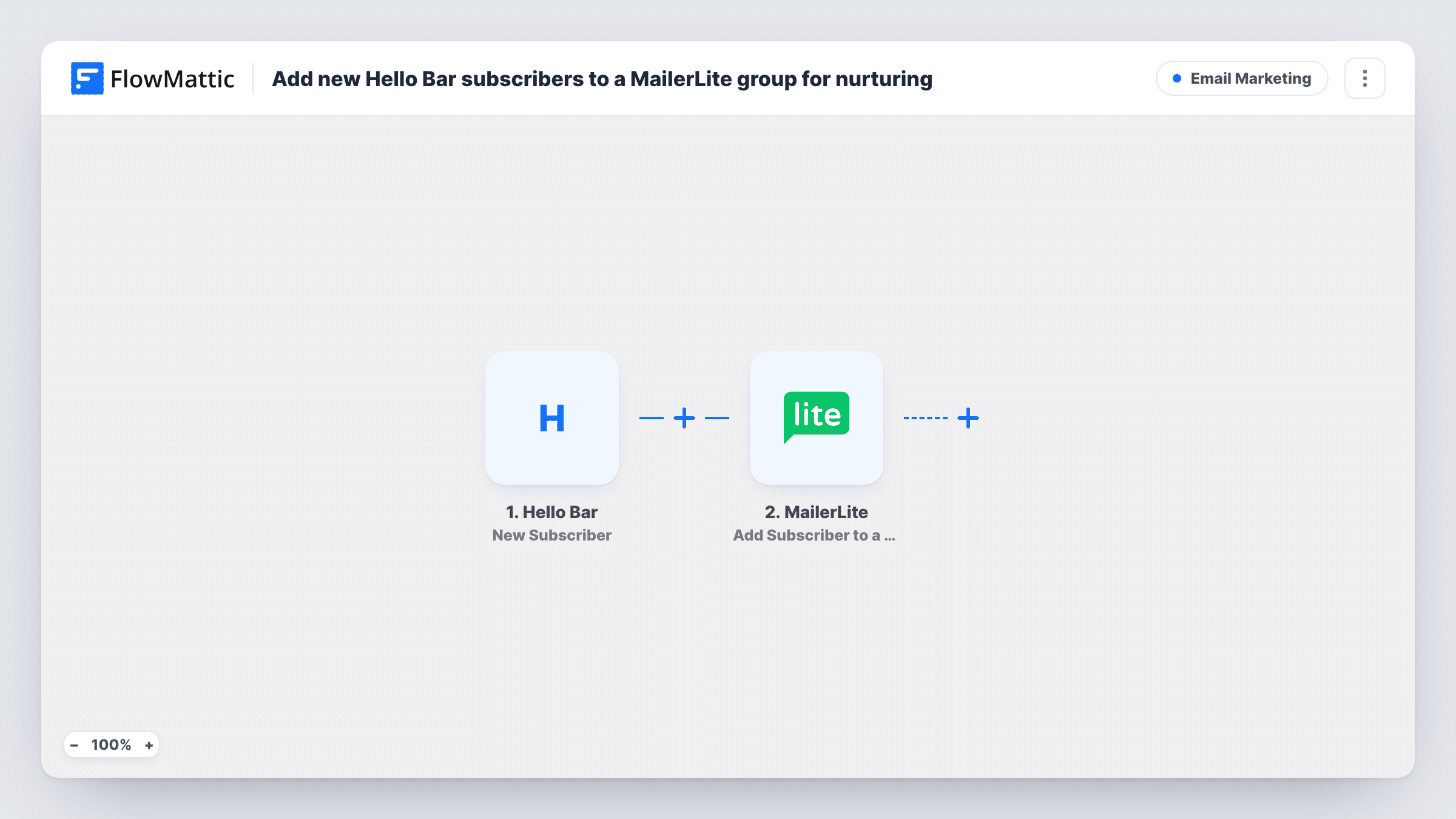
The Hello Bar trigger starts a run each time your bar collects a new subscriber. The first MailerLite step creates the subscriber, or updates them if they already exist. The second step assigns that subscriber to a group.
MailerLite's Add Subscriber to a Group action works on a subscriber who already exists and a group that already exists. Step 2 takes care of the first part, so new sign-ups are in MailerLite before the group step runs. Create the group in MailerLite before import.
Both MailerLite steps ship unmapped. After import, map the subscriber's email and any name fields Hello Bar collects into the first step, then choose the group and map the subscriber from step 2 into the second. Send a test sign-up and check Task History to see MailerLite's response.
Welcome series for blog readers
A travel blogger's Hello Bar offers a free packing list, and each sign-up joins a MailerLite group that sends the list and three follow-up emails.
Launch waitlist
A software founder runs a Hello Bar for an upcoming product, and the MailerLite waitlist group gets the launch announcement.
Separate groups per offer
An online shop runs one Hello Bar for a discount code and another for a newsletter, each feeding its own MailerLite group.
How this workflow runs
What happens at each step once the workflow is on, and what you need before you import it.
 Hello Bar New Subscriber
Runs for each person who signs up through your Hello Bar. Their email and any other fields your bar collects are passed to MailerLite.
- MailerLite Create or Update Subscriber
Creates the subscriber in MailerLite, or updates the existing one. Ships unmapped: map the Hello Bar email and any name or custom fields you collect.
- MailerLite Add Subscriber to a Group
Assigns the subscriber from step 2 to an existing MailerLite group. Ships unmapped: pick the group after import and map the subscriber from the previous step.
What you need
- FlowMatticCore
- Hello Bar AccountAccount
- MailerLite AccountAccount
After importing, map your own data. To keep the template universal, not every step is pre-filled. Open each step in the builder and connect your accounts and fields (channels, lists, sheets, recipients) before you switch the workflow on.
Make it yours
Changes worth making after you import it.
- Build a MailerLite automation that starts when someone joins the group, so the nurture emails begin without another workflow step.
- If you run several Hello Bars, import a copy of this workflow for each and send each bar's subscribers to its own group.
- Map the page URL or bar name into a MailerLite custom field in step 2, if Hello Bar passes it, so you can see where each person signed up.
Questions about this workflow
Do Hello Bar subscribers need to be in MailerLite already?
No. Step 2 creates them if they're new, which lets the group step find the subscriber. Only the group itself must exist in MailerLite before import.
What happens when the email is already a MailerLite subscriber?
The Create or Update Subscriber step updates the existing subscriber, then step 3 adds them to the group.
Will past Hello Bar subscribers be added to the MailerLite group?
No. Only people who sign up after the workflow is turned on start a run. Export earlier subscribers from Hello Bar and import them into MailerLite separately.
More Email Marketing workflows
Other ready-to-import templates from the same category.






Import this workflow into your WordPress site
Download the JSON, import it from the Workflows screen and connect your accounts. Every run stays on your server, with no per-task fees.
30-day money-back guarantee Unlimited workflows and runs Self-hosted