

Add new Razorpay payments as subscribers to MailerLite groups
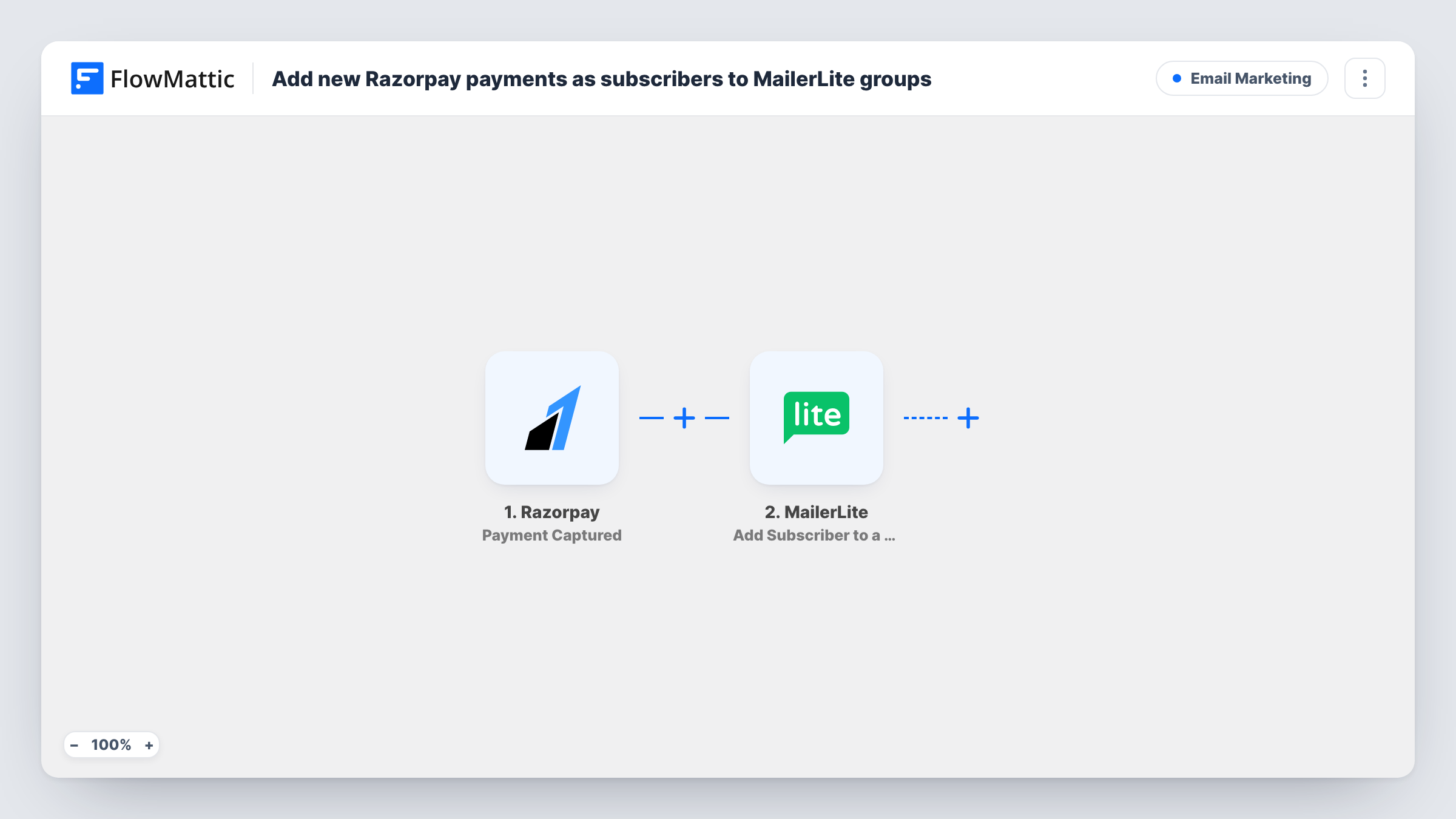
Each time Razorpay captures a payment, the payer is created as a MailerLite subscriber, or updated if they’re already there, and then assigned to the MailerLite group you choose.
 Razorpay
 MailerLite
3 steps Setup ~5 min Used on 1.3k sites Free to import
What this workflow does
People who pay you through Razorpay are customers you can email about orders, renewals and new products, but only if their address reaches your mailing tool. This workflow moves each payer into MailerLite and places them in a group, so your customer emails go to people who actually bought.
The Razorpay trigger starts a run when a payment is captured. The payment details, which usually include the payer's email and phone, are handed to MailerLite. Its first step creates a subscriber from them, or updates the subscriber who already has that email, along with any custom fields you map, such as the amount or a description of what was bought.
Once the subscriber exists, the second MailerLite step assigns them to a group you pick. Both action steps arrive without mapping, so after import you map the payer's email into Create or Update Subscriber and choose the group in Add Subscriber to a Group. Capture a test payment and check Task History to see the exact fields Razorpay sends.
Every captured payment runs the workflow, so a repeat customer is updated and placed in the group again rather than added twice.
Customer list for an online course
A tutor who sells courses through Razorpay payment links keeps every buyer in a MailerLite group that receives course updates and new launch news.
Donor emails for a non-profit
A charity taking donations by Razorpay puts each donor in a MailerLite group used for thank-you emails and impact reports.
Follow-ups for service bookings
A salon that collects booking deposits through Razorpay adds clients to a group that gets appointment reminders and seasonal offers.
How this workflow runs
What happens at each step once the workflow is on, and what you need before you import it.
 Razorpay Payment Captured
Starts a run when Razorpay captures a payment. The payment's details, including the payer's contact information and amount, are passed on for mapping.
- MailerLite Create or Update Subscriber
Creates a MailerLite subscriber from the payment, or updates the one with the same email. Map the payer's email and any custom fields you want after import.
- MailerLite Add Subscriber to a Group
Puts the payer, now a MailerLite subscriber, into one of your existing groups. Choose the group and map the subscriber returned by Create or Update Subscriber.
What you need
- FlowMatticCore
- Razorpay AccountAccount
- MailerLite AccountAccount
After importing, map your own data. To keep the template universal, not every step is pre-filled. Open each step in the builder and connect your accounts and fields (channels, lists, sheets, recipients) before you switch the workflow on.
Make it yours
Changes worth making after you import it.
- Create the MailerLite group for Razorpay customers before you import, so you can select it in the last step.
- Map the payment amount or description into a MailerLite custom field, so you can segment customers by what they paid for.
- If you also collect payments you don't want on the list, add a Filter between the Razorpay trigger and the first MailerLite step on a field your test run shows, such as the description. The field and value are yours to choose.
Questions about this workflow
What happens when the same customer pays through Razorpay again?
A new run starts. Create or Update Subscriber finds the existing MailerLite subscriber by email and updates it, and the group step assigns them again, so they aren't duplicated.
Does MailerLite get the payer's email from Razorpay automatically?
Only once you map it. Check a test payment in Task History for the email field Razorpay sends, then map it into the Create or Update Subscriber step.
Are failed or pending Razorpay payments added to MailerLite?
No. The trigger fires when a payment is captured, so payments that never reach that stage don't start a run.
More Email Marketing workflows
Other ready-to-import templates from the same category.







Import this workflow into your WordPress site
Download the JSON, import it from the Workflows screen and connect your accounts. Every run stays on your server, with no per-task fees.
30-day money-back guarantee Unlimited workflows and runs Self-hosted