

Add new Zoom webinar registrants to a Mailchimp audience
When someone registers for one of your Zoom webinars, this workflow adds them to your Mailchimp audience, or updates them if they are already there, so you can email registrants without exporting lists.
 Zoom
 Mailchimp
2 steps Setup ~5 min Used on 603 sites Free to import
What this workflow does
Webinar registrations live in Zoom, but your emails go out from Mailchimp. Moving registrants across usually means downloading a report after each event. This workflow sends each registrant to Mailchimp as they sign up.
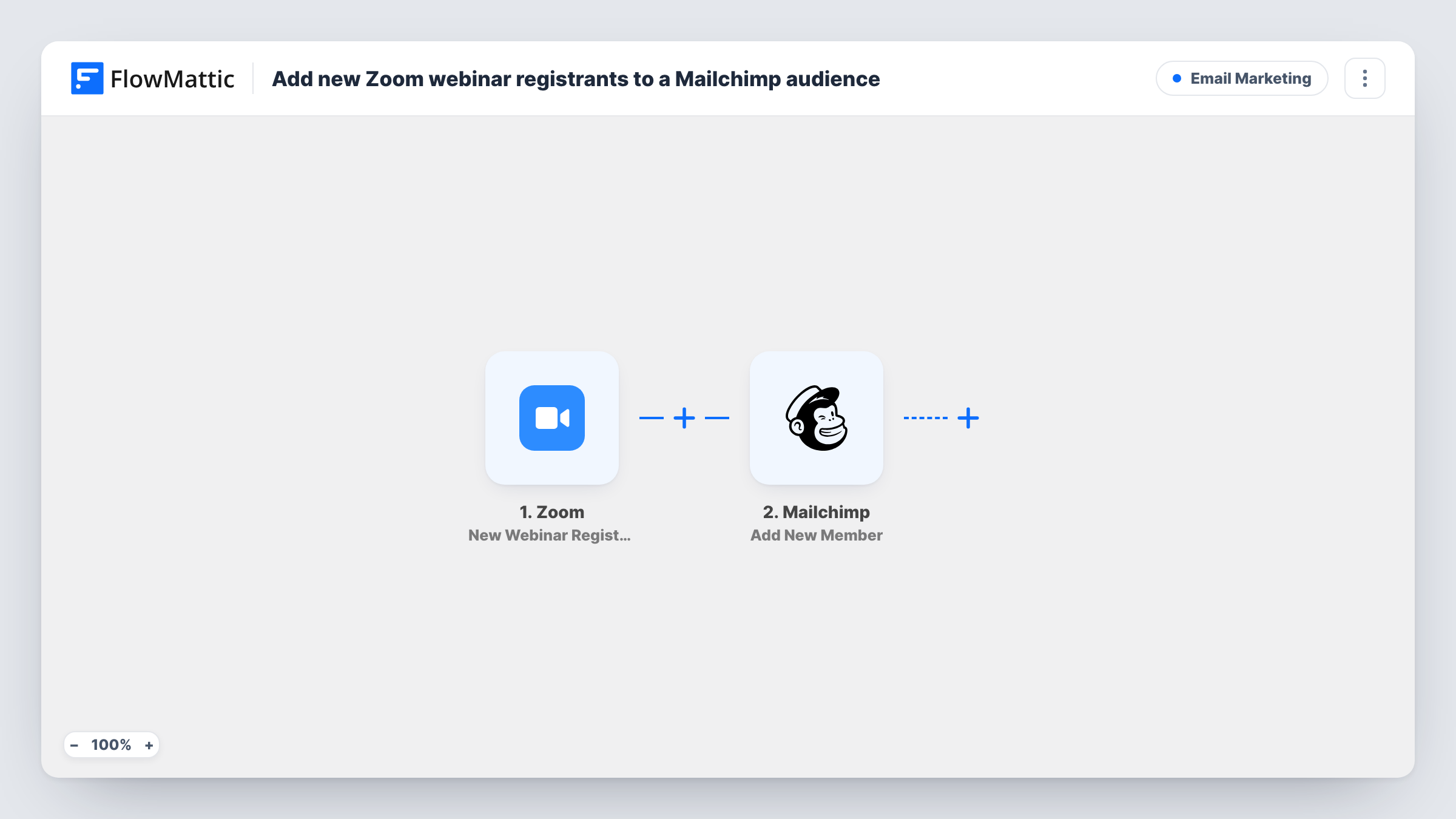
The Zoom trigger fires when a new registrant is added to a webinar. FlowMattic passes the registrant's details to Mailchimp, where Add New Member adds them to the audience you choose. If the address is already in that audience, Mailchimp updates the existing member rather than adding a second copy.
You map the registrant's email, and any name fields you want, into the Mailchimp step. Nothing in the template filters by webinar, so check a test run to see which registrations reach it. Task History shows each run and Mailchimp's response.
Pre-webinar reminder sequence
Registrants join a Mailchimp audience where you send your own reminder emails and prep material before the session starts.
Recording follow-up
After the webinar, you email the whole audience a link to the recording and slides, reaching people who registered but couldn't attend.
Recurring training series
A monthly product training webinar keeps adding registrants to the same audience, and repeat attendees are updated rather than duplicated.
How this workflow runs
What happens at each step once the workflow is on, and what you need before you import it.
 Zoom New Webinar Registrant
Fires when a new registrant is added to a webinar in your connected Zoom account. The registrant's details are passed on to the Mailchimp step.
- Mailchimp Add New Member
Adds the registrant to your Mailchimp audience, or updates them if the email address already exists there. Map the Zoom registrant email and name fields into this step.
What you need
- FlowMatticCore
- Zoom AccountAccount
- Mailchimp AccountAccount
After importing, map your own data. To keep the template universal, not every step is pre-filled. Open each step in the builder and connect your accounts and fields (channels, lists, sheets, recipients) before you switch the workflow on.
Make it yours
Changes worth making after you import it.
- Add a Filter after the trigger on the webinar ID or topic from the Zoom data, so only registrants for a particular webinar go to this audience.
- Follow the Mailchimp step with Add Member Tag and map the webinar topic, so you can later segment the audience by which webinar each person registered for.
- Register for a test webinar yourself after import. FlowMattic then captures the Zoom fields so you can map them in the Mailchimp step.
Questions about this workflow
What happens if a Zoom registrant is already in my Mailchimp audience?
Add New Member updates the existing member instead of creating a duplicate, so the person stays in the audience once.
Does this work for Zoom meetings as well as webinars?
No. The trigger listens for new webinar registrants. Meeting registrations use a different Zoom event, which you would swap in as the trigger.
Will registrants from every webinar go to Mailchimp?
Nothing in the template checks which webinar a registrant chose. Run a test and look at the Zoom data in Task History, then add a Filter on the webinar if you want only some registrants sent.
Are people who registered before I turned this on added?
No. Only registrations made after the workflow is active are sent. Export earlier registrants from Zoom and import them into Mailchimp if you need them.
More Email Marketing workflows
Other ready-to-import templates from the same category.





Import this workflow into your WordPress site
Download the JSON, import it from the Workflows screen and connect your accounts. Every run stays on your server, with no per-task fees.
30-day money-back guarantee Unlimited workflows and runs Self-hosted