

Create a HubSpot CRM contact from each Bloomreach event
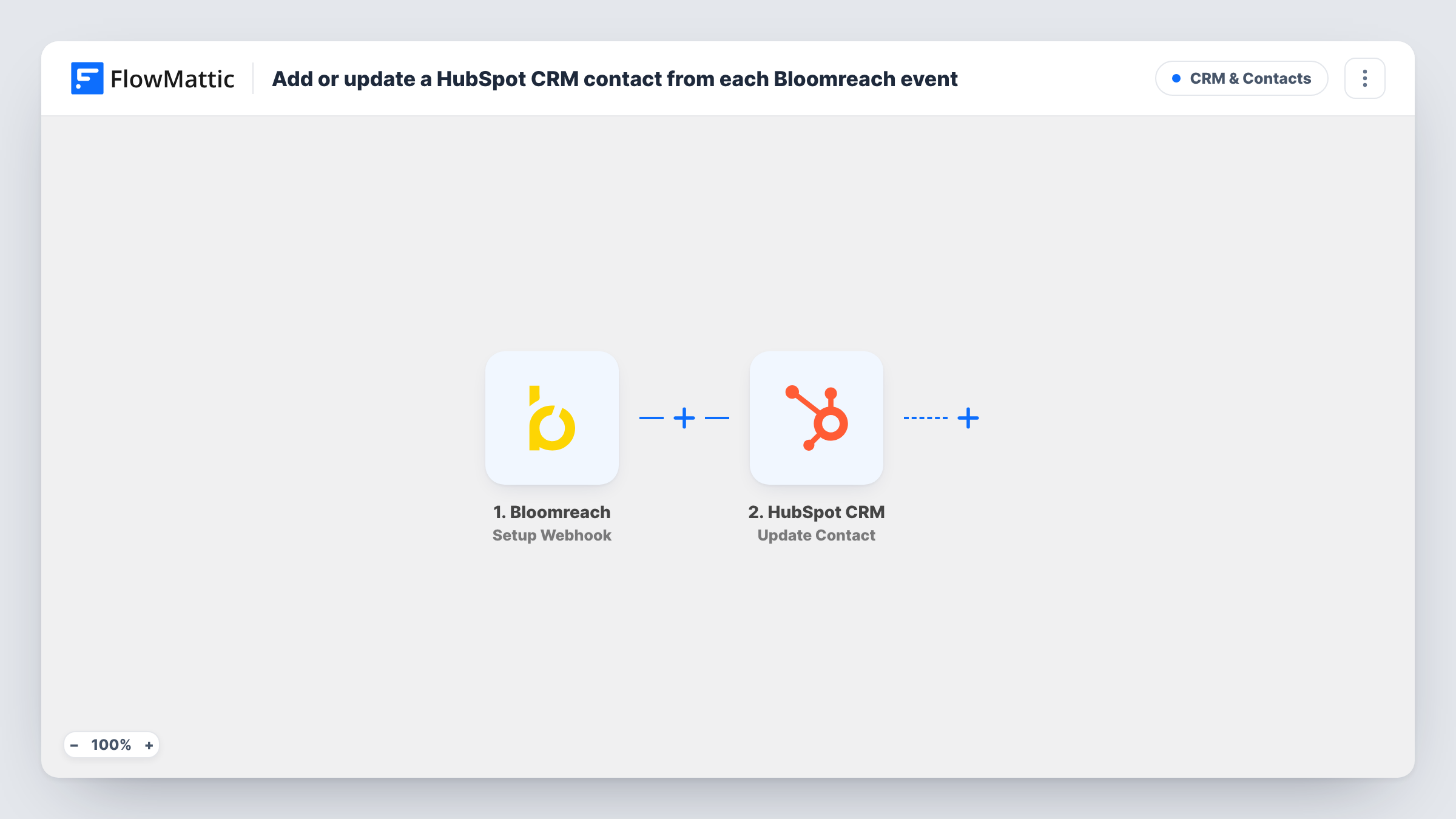
Bloomreach sends an event to FlowMattic’s webhook, and FlowMattic creates a contact in HubSpot CRM from the customer data in it, so people tracked in Bloomreach show up for your sales team.
 Bloomreach
 HubSpot CRM
2 steps Setup ~5 min Used on 978 sites Free to import
What this workflow does
Marketing teams often track customer behaviour in Bloomreach while sales works from HubSpot. When the two never talk, a person who just signed up or bought something stays invisible to the sales side. This workflow passes Bloomreach events into HubSpot CRM as new contacts.
The Bloomreach trigger is a webhook. FlowMattic describes it as firing for the events that occur in your Bloomreach portal, and you decide which events those are when you set up the webhook in Bloomreach. Each event that reaches the URL starts one run, carrying whatever customer data Bloomreach includes, such as an email address or name.
Next, the HubSpot CRM step adds the person as a contact record. That step ships unmapped, so after import you connect HubSpot and map the event's email and any other properties into the new contact. Send a test event first and look at what arrived, because the fields available depend on the event type and your Bloomreach setup.
This HubSpot action never looks up or edits someone already in your CRM. If the same customer triggers several events, HubSpot may refuse the later attempts as duplicates of an existing email. Task History shows HubSpot's response for each run, so you can see which events produced a contact.
Newsletter signups for the sales pipeline
A software company sends Bloomreach signup events to the webhook, so each new subscriber appears in HubSpot CRM where sales reps can see them.
First purchases recorded as CRM contacts
A retailer forwards Bloomreach purchase events, giving the account team a HubSpot contact for each buyer the marketing platform tracked.
Event registrations shared with sales
A B2B marketer passes webinar registration events from Bloomreach into HubSpot CRM, so the sales team can follow up with attendees.
How this workflow runs
What happens at each step once the workflow is on, and what you need before you import it.
 Bloomreach Setup Webhook
Gives you a webhook URL to add in Bloomreach. Each event Bloomreach posts to it starts the workflow and passes the event's customer data on. Choose in Bloomreach which events are sent.
- HubSpot CRM Create Contact
Adds the Bloomreach customer to HubSpot CRM as a contact. The template leaves this step empty: connect your HubSpot account and map the email address and other properties from the Bloomreach event.
What you need
- FlowMatticCore
- Bloomreach AccountAccount
- HubSpot CRM AccountAccount
After importing, map your own data. To keep the template universal, not every step is pre-filled. Open each step in the builder and connect your accounts and fields (channels, lists, sheets, recipients) before you switch the workflow on.
Make it yours
Changes worth making after you import it.
- Configure the Bloomreach webhook to send only the event types you want as contacts, rather than every event in your project, so HubSpot isn't asked to create one per page view.
- Put a Filter between the Bloomreach trigger and the Create Contact step that continues only when the email is not empty, since HubSpot contacts are usually keyed on an email address.
- Map the Bloomreach event name into a HubSpot contact property, so sales can see what action brought each contact in.
Questions about this workflow
Which Bloomreach events reach this HubSpot workflow?
The ones you set Bloomreach to post to the webhook URL. FlowMattic runs once for each event it receives, so pick only the events that should become HubSpot contacts.
What if the Bloomreach customer already exists in HubSpot?
The step has no update mode, so it won't change the existing record. HubSpot may reject a second contact with the same email, and the run's response in Task History shows what happened.
Do I need to know the Bloomreach payload format in advance?
No. Send one test event after import and FlowMattic shows the fields it received. Map those into the HubSpot step from there.
More CRM & Contacts workflows
Other ready-to-import templates from the same category.






Import this workflow into your WordPress site
Download the JSON, import it from the Workflows screen and connect your accounts. Every run stays on your server, with no per-task fees.
30-day money-back guarantee Unlimited workflows and runs Self-hosted