

Create a HubSpot CRM contact from each new Copecart customer
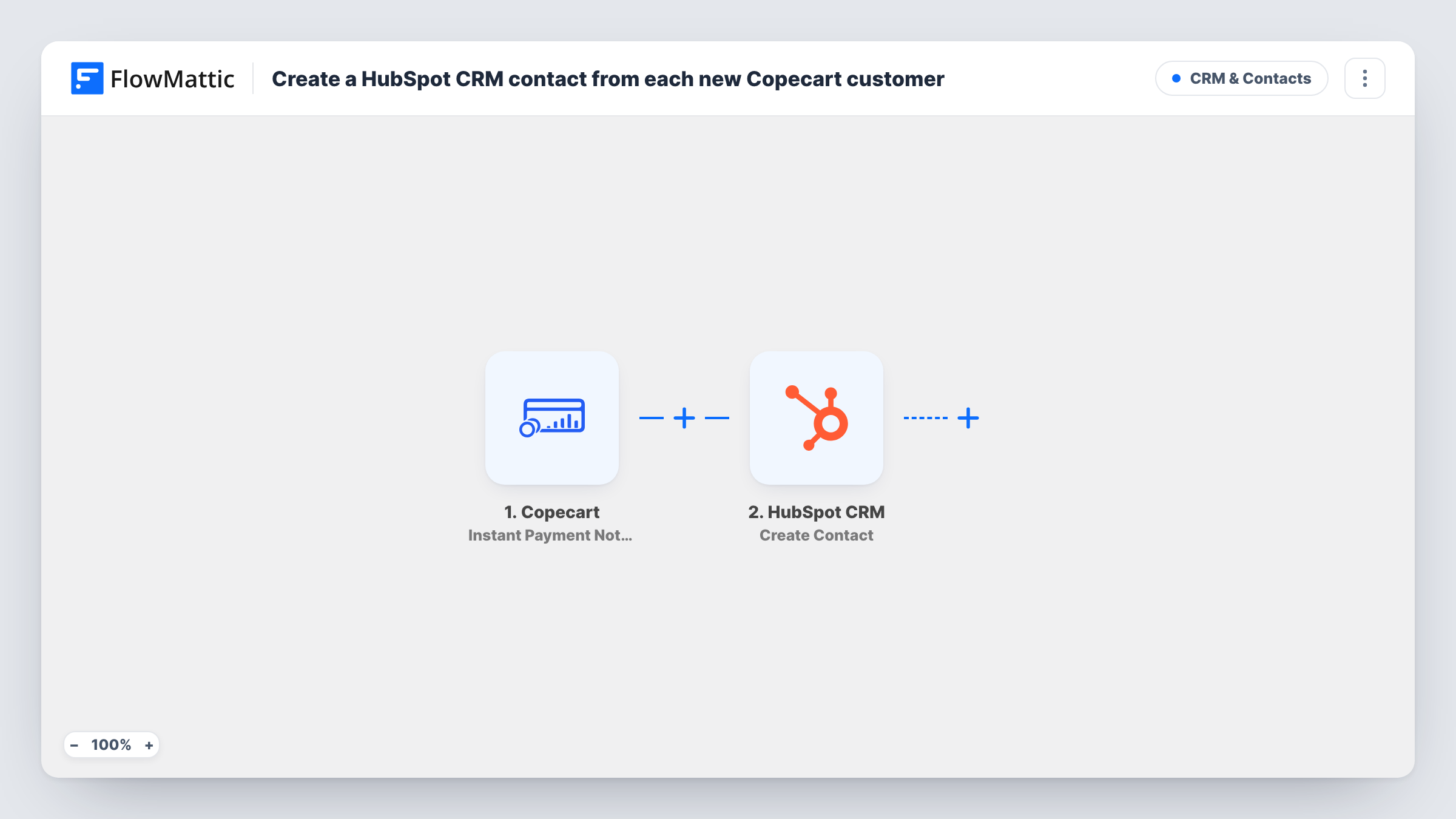
When Copecart reports a received payment, this workflow creates a contact in HubSpot CRM from the buyer’s details, so your sales and support teams see paying customers in the CRM they already use.
 Copecart
 HubSpot CRM
2 steps Setup ~5 min Used on 1.5k sites Free to import
What this workflow does
Copecart handles the checkout, but your customer records live in HubSpot. Without a link between them, someone has to export buyers and import them into the CRM, and new customers sit invisible to sales until they do. This workflow adds the contact as payments arrive.
The Copecart trigger fires on the Instant Payment Notification, sent when a payment is received. FlowMattic passes the buyer details from that notification to HubSpot CRM, where the Create Contact action adds a new contact. You map the buyer's email, name and any other details you want on the record.
The trigger is a payment, not a first purchase. A buyer who pays again, for a second product or a renewal, starts another run. Create Contact does not check for an existing record, so HubSpot may refuse a duplicate email; Task History shows the response for each run.
Hand course buyers to an upsell team
Each Copecart buyer of an entry-level course appears in HubSpot, where your sales team can follow up about the coaching programme.
Support context for digital product buyers
When a buyer writes to support, the team finds them in HubSpot because the contact was created at the moment of payment.
Reporting on customers in one CRM
Copecart buyers sit in HubSpot alongside leads from other channels, so your contact reports include paying customers.
How this workflow runs
What happens at each step once the workflow is on, and what you need before you import it.
 Copecart Instant Payment Notification
Starts each time a payment comes in and Copecart sends its Instant Payment Notification. The buyer and order details become available to map.
- HubSpot CRM Create Contact
Creates a contact in HubSpot CRM from the mapped Copecart data, such as email and name. It only creates, so a repeat buyer's email may be refused as a duplicate.
What you need
- FlowMatticCore
- Copecart AccountAccount
- HubSpot CRM AccountAccount
After importing, map your own data. To keep the template universal, not every step is pre-filled. Open each step in the builder and connect your accounts and fields (channels, lists, sheets, recipients) before you switch the workflow on.
Make it yours
Changes worth making after you import it.
- Add a Slack or email step after HubSpot so your sales team hears about each Copecart buyer as the contact is created.
- Map the Copecart product name into a contact property, if the step offers one, so sales can see what each buyer purchased.
- Make one test payment after import to capture the notification fields before you map the HubSpot step.
Questions about this workflow
Does a repeat Copecart purchase create another HubSpot contact?
It runs Create Contact again. HubSpot may refuse a duplicate email, and Task History shows its response for that run.
Does this work for Copecart subscriptions?
The trigger fires when a payment is received, so any payment Copecart notifies about starts a run. Check a renewal in Task History to see how it arrives.
Is a HubSpot deal created as well?
No. Only a contact is created. HubSpot CRM in FlowMattic also has a Create Deal action you can add as a third step.
More CRM & Contacts workflows
Other ready-to-import templates from the same category.





Import this workflow into your WordPress site
Download the JSON, import it from the Workflows screen and connect your accounts. Every run stays on your server, with no per-task fees.
30-day money-back guarantee Unlimited workflows and runs Self-hosted