

When agent closes a ticket, remove tag from contact in FluentCRM
When a Fluent Support agent closes a ticket, this workflow removes the tags you choose from the customer’s FluentCRM contact, so tags such as Open Ticket stop applying once the issue is resolved.
 Fluent Support
 FluentCRM
2 steps Setup ~5 min Used on 3.1k sites Free to import
What this workflow does
Many teams tag FluentCRM contacts while they have a support issue open, to hold back sales emails or to group people for follow-up. The tag is easy to add and easy to forget. Once the ticket is closed, the contact keeps the tag until someone clears it by hand. This workflow clears it at the moment the agent closes the ticket.
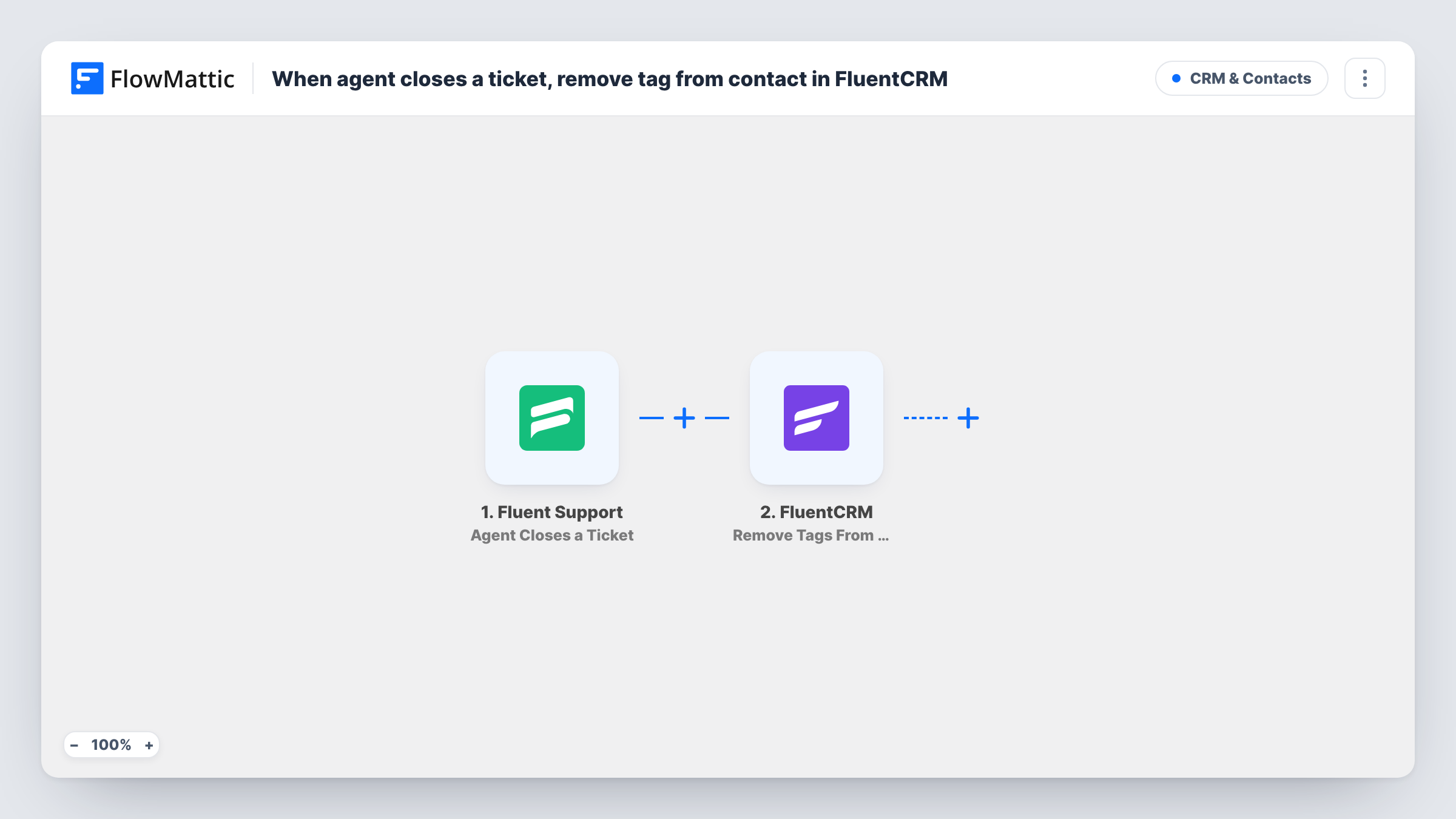
The Fluent Support trigger fires when an agent closes a ticket. The ticket data, including the customer's email, is passed to FluentCRM. Remove Tags From Contact then takes the tags you pick off that existing contact.
Fluent Support and FluentCRM both live on your WordPress site, so no ticket data leaves it. The FluentCRM step works on a contact that already exists. If the ticket's customer is not in FluentCRM, there is nothing to change, and Task History shows what the step returned for that run.
Resume marketing emails after support
You tag contacts with Open Ticket and exclude that tag from promotional campaigns. Closing the ticket removes the tag, so the customer is back in your normal sends.
Clear an escalation flag
Agents tag a contact as Escalated when a case needs a manager. When the ticket is closed, the flag comes off and your Escalated segment shows only live cases.
Keep a churn-risk segment current
Customers who raise complaints get an At Risk tag. Removing it on closure keeps that FluentCRM segment limited to people whose problems are still open.
How this workflow runs
What happens at each step once the workflow is on, and what you need before you import it.
 Fluent Support Agent Closes a Ticket
Fires when an agent closes a ticket in Fluent Support. The ticket and customer details, including the customer's email, become available to the FluentCRM step.
- FluentCRM Remove Tags From Contact
Removes one or more tags from an existing FluentCRM contact. Map the customer's email from the ticket to find the contact, and pick the tags to remove after import.
What you need
- FlowMatticCore
- Fluent Support PluginPlugin
- FluentCRM PluginPlugin
After importing, map your own data. To keep the template universal, not every step is pre-filled. Open each step in the builder and connect your accounts and fields (channels, lists, sheets, recipients) before you switch the workflow on.
Make it yours
Changes worth making after you import it.
- Pair this with a second workflow on Fluent Support's Ticket Created trigger that adds the same tag, so the tag is applied and removed without manual work.
- Add a Filter after the trigger if only some closed tickets should clear the tag, for example tickets from a particular mailbox or product, checked against a value the closed-ticket data carries.
- Close a test ticket for a known FluentCRM contact after import, then check that contact's tags and the run in Task History.
Questions about this workflow
What if the Fluent Support customer has no FluentCRM contact?
Remove Tags From Contact only works on an existing contact. For a customer who is not in FluentCRM, the step has nothing to change, and the run's result appears in Task History.
Does reopening a ticket add the tag back?
No. This workflow only listens for tickets an agent closes, and FlowMattic's Fluent Support triggers include no reopen event. To tag again when a new ticket comes in, build a second workflow on the Ticket Created trigger with FluentCRM's Add Tags to Contact.
What about tickets the customer closes in Fluent Support?
They don't run this workflow. Fluent Support has a separate Customer Closes a Ticket trigger, so add a second workflow on that trigger if those closures should clear the tag too.
Can I remove more than one FluentCRM tag at once?
Yes. The action removes one or more tags from the contact, so choose every tag that should come off when a ticket is closed.
Does it matter which agent closes the ticket?
No. As imported, every ticket closed by an agent runs the workflow. A Filter on the closed-ticket data can narrow which tickets clear the tag.
More CRM & Contacts workflows
Other ready-to-import templates from the same category.





Import this workflow into your WordPress site
Download the JSON, import it from the Workflows screen and connect your accounts. Every run stays on your server, with no per-task fees.
30-day money-back guarantee Unlimited workflows and runs Self-hosted