

Create a Bigin contact from each new Gravity Forms entry
Every new Gravity Forms submission on your WordPress site creates a contact record in Bigin by Zoho, with the answers you map, so enquiries reach your pipeline CRM without anyone retyping them.
 Gravity Forms
 Bigin by Zoho
2 steps Setup ~5 min Used on 932 sites Free to import
What this workflow does
Bigin by Zoho keeps your pipelines and customer conversations in one place, but contacts from your website still have to get there. Copying names and emails out of Gravity Forms entries takes time and invites typos. This workflow creates the Bigin contact as soon as someone submits the form.
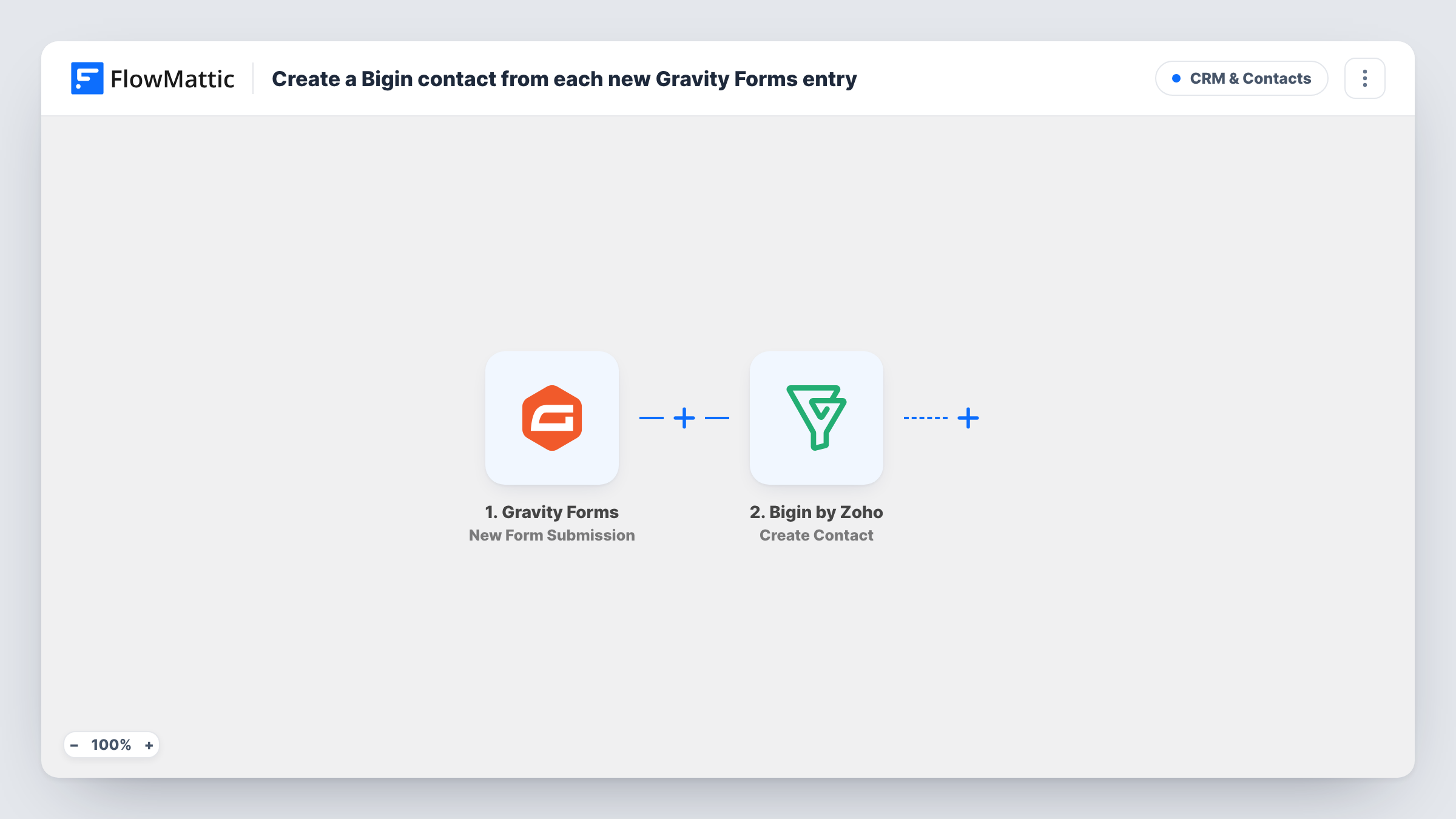
The Gravity Forms trigger fires on each new form submission and makes every answer available in FlowMattic. The Bigin by Zoho step runs Create Contact, which adds a new contact record. You choose which form answers fill which contact details when you set up the step.
This step is create-only: it doesn't look Bigin up for an existing match, so a repeat visitor may be added again or refused as a duplicate. Gravity Forms keeps its own entry as usual, and Task History shows what each run sent to Bigin and what came back.
Contact-us form for a service business
A plumber or accountant takes enquiries through a Gravity Forms contact page, and each enquirer becomes a Bigin contact the team can add to a pipeline.
Consultation booking requests
Requests for a first consultation arrive as Bigin contacts, so the person who follows up has the details in the CRM before calling back.
Trade show sign-ups on a tablet
Visitors fill in a Gravity Forms form on a tablet at your stand, and each sign-up is waiting in Bigin when you get back to the office.
How this workflow runs
What happens at each step once the workflow is on, and what you need before you import it.
 Gravity Forms New Form Submission
Runs on each new Gravity Forms submission from your site, passing all of the submitted answers along so they can be mapped into the Bigin contact.
- Bigin by Zoho Create Contact
Creates a new contact record in Bigin by Zoho from the form answers. Connect your Zoho account, map the submitted answers into the contact, and check a test contact in Bigin.
What you need
- FlowMatticCore
- Gravity Forms PluginPlugin
- Bigin by Zoho AccountAccount
After importing, map your own data. To keep the template universal, not every step is pre-filled. Open each step in the builder and connect your accounts and fields (channels, lists, sheets, recipients) before you switch the workflow on.
Make it yours
Changes worth making after you import it.
- Make the email field required in Gravity Forms so every Bigin contact created by the workflow has an address you can reach.
- Add a Filter after the trigger to continue only when a consent or 'contact me' checkbox is ticked, so only people who agreed to follow-up land in Bigin.
- Submit a test entry with every field filled in after import, then map its answers in the Bigin step and check the new contact in Bigin before going live.
Questions about this workflow
What if the person is already a contact in Bigin?
Create Contact adds a new record each time, so the same person can end up in Bigin twice, or Bigin may refuse the duplicate; Task History shows its response. To avoid this, switch the step to Bigin's Upsert Contact action, which FlowMattic also offers.
Does this add a deal in Bigin as well?
No. The template only creates the contact. FlowMattic also has a Bigin Create Deal action, which you can add after this step if each submission should open a deal in a pipeline.
Are Gravity Forms entries from before the import sent to Bigin?
No. Only submissions made after you switch the workflow on create Bigin contacts.
Is Gravity Forms needed on the same site to create Bigin contacts?
Gravity Forms is a premium plugin, so you need it installed and active on the same WordPress site as FlowMattic. You also need a Zoho account with Bigin.
More CRM & Contacts workflows
Other ready-to-import templates from the same category.





Import this workflow into your WordPress site
Download the JSON, import it from the Workflows screen and connect your accounts. Every run stays on your server, with no per-task fees.
30-day money-back guarantee Unlimited workflows and runs Self-hosted