

Create a HubSpot CRM contact from each new AnyChat form submission
Every form a visitor fills in through AnyChat becomes a new contact in HubSpot CRM, so chat leads sit in your CRM with the rest of your contacts instead of in a separate chat inbox.
 AnyChat
 HubSpot CRM
2 steps Setup ~5 min Used on 2.8k sites Free to import
What this workflow does
Leads that arrive through a chat widget are easy to lose. They sit in the chat tool, while your sales team works from HubSpot, and someone has to copy names and emails across before anyone follows up. This workflow does that copying for you each time an AnyChat form is submitted.
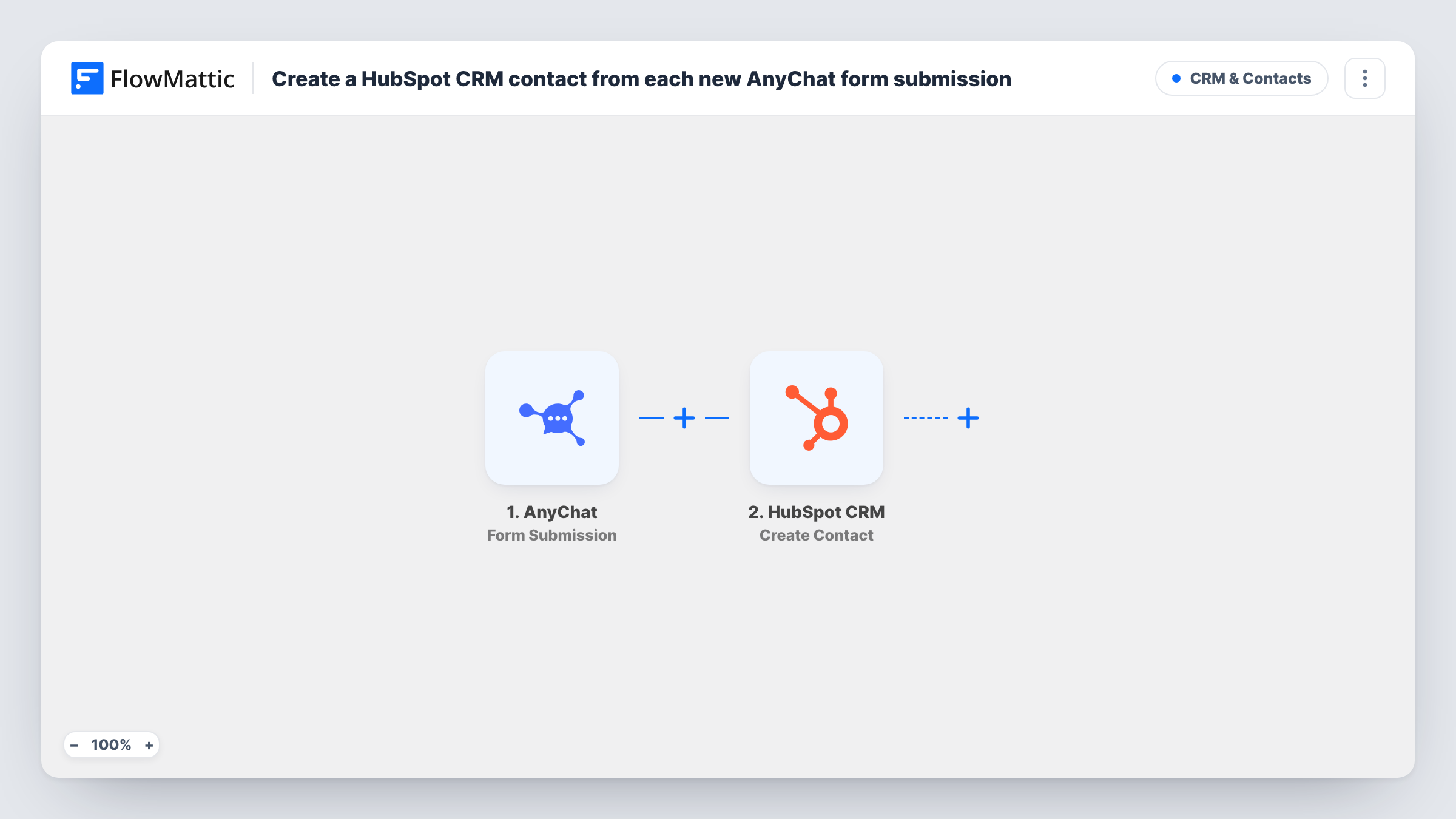
The AnyChat trigger fires on each Form Submission and hands FlowMattic the answers the visitor gave. The next step uses the Create Contact action in HubSpot CRM. You map the AnyChat answers, such as email and name, into the new contact, and HubSpot stores it with your other contacts.
There are only two steps, so the setup is short: connect both accounts, send one test submission, map the fields and switch the workflow on. Every run appears in Task History, so you can see what reached HubSpot and spot a run where the contact was not created.
Pre-sales questions on a pricing page
A visitor asks about a plan through the AnyChat form on your pricing page. Their details land in HubSpot CRM as a contact your sales rep can call or email.
Demo requests outside office hours
Visitors leave a demo request in the AnyChat form at night. By morning each one is a HubSpot contact, ready for your team to book a time.
Agency client sites feeding one CRM
Import the workflow on each client site that runs AnyChat, and every chat form lead goes into the HubSpot account you manage for that client.
How this workflow runs
What happens at each step once the workflow is on, and what you need before you import it.
 AnyChat Form Submission
Starts the workflow each time a visitor submits a form inside AnyChat. The answers from that form become data you can map in the HubSpot step.
- HubSpot CRM Create Contact
Creates a new contact in HubSpot CRM from the AnyChat submission. Map the submitted email and name into the contact, then use a test run to confirm the contact appears in HubSpot as expected.
What you need
- FlowMatticCore
- AnyChat AccountAccount
- HubSpot CRM AccountAccount
After importing, map your own data. To keep the template universal, not every step is pre-filled. Open each step in the builder and connect your accounts and fields (channels, lists, sheets, recipients) before you switch the workflow on.
Make it yours
Changes worth making after you import it.
- Put a Filter between the two steps that continues only when the email answer is not empty, so HubSpot never gets a contact without an address.
- Add a Slack or email step after HubSpot to tell your sales team that a new chat lead was added, with the visitor's name and question in the message.
- Submit the AnyChat form once with your own email before you switch the workflow on, then open HubSpot and confirm the new contact holds the values you mapped.
Questions about this workflow
What happens if the AnyChat visitor is already a HubSpot contact?
This template only creates contacts; it has no step that updates one. HubSpot does not allow two contacts with the same email, so the step can return an error for a returning visitor. Task History shows that error on the HubSpot step for that run.
Which AnyChat answers can go into the HubSpot contact?
Any answer the AnyChat form sends with the submission. Send a test submission after import, then pick the fields you want in the Create Contact step.
Are chat messages copied into HubSpot as well?
No. The trigger is the AnyChat Form Submission event, so only the form answers are passed on. Chats without a form submission do not start the workflow.
More CRM & Contacts workflows
Other ready-to-import templates from the same category.




Import this workflow into your WordPress site
Download the JSON, import it from the Workflows screen and connect your accounts. Every run stays on your server, with no per-task fees.
30-day money-back guarantee Unlimited workflows and runs Self-hosted