

When a new notification occurs in Robotalp, add a contact to FluentCRM
Each new Robotalp notification creates or updates a contact in FluentCRM, matched by email address, so the people tied to your uptime alerts are kept in your WordPress CRM.
 Robotalp
 FluentCRM
2 steps Setup ~5 min Used on 1.3k sites Free to import
What this workflow does
Robotalp watches your websites and tells you when something needs attention. If you look after sites for clients, you may want a record in your CRM of whom each alert concerns. This workflow passes each notification to FluentCRM, where you can tag, segment or email those contacts.
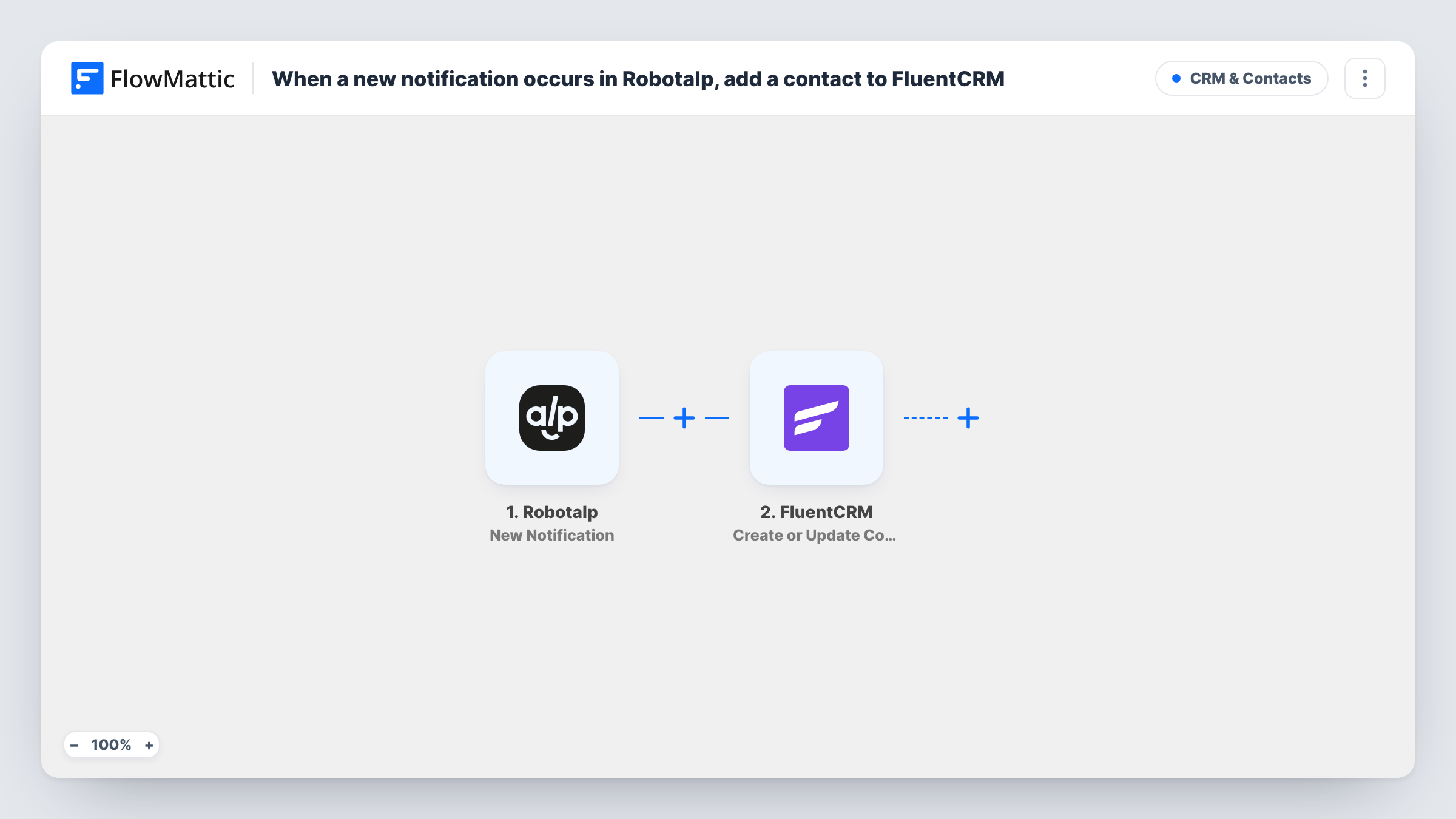
Each time Robotalp raises a new notification, the workflow starts. FlowMattic receives the notification's data and hands it to FluentCRM. Its Create or Update Contact action looks up the email address you map. A FluentCRM contact already holding that address gets the new details, and an unknown address becomes a fresh contact.
FluentCRM needs an email for this step. Send a test notification after import and look at which fields Robotalp sends. If no address is among them, type a fixed address into the step, such as your client's, and every notification will update that one contact. Task History records each run and the result FluentCRM gave.
Agencies that monitor client sites
Each Robotalp alert updates the client's FluentCRM contact, so your account notes and emails sit next to a record of their monitoring alerts.
Hosting resellers
Notifications about a customer's site keep that customer in FluentCRM, ready for a follow-up email when their site comes back up.
Freelancers managing a few sites
Keep the owners of the sites you watch in your WordPress CRM without copying anyone across from Robotalp.
How this workflow runs
What happens at each step once the workflow is on, and what you need before you import it.
 Robotalp New Notification
Runs when a new notification occurs in your Robotalp account. The data in that notification is passed to the FluentCRM step for mapping.
- FluentCRM Create or Update Contact
Creates a new FluentCRM contact, or updates the existing contact with the same email address. Map an email from the Robotalp notification or enter a fixed one, plus any other details you want stored.
What you need
- FlowMatticCore
- Robotalp AccountAccount
- FluentCRM PluginPlugin
After importing, map your own data. To keep the template universal, not every step is pre-filled. Open each step in the builder and connect your accounts and fields (channels, lists, sheets, recipients) before you switch the workflow on.
Make it yours
Changes worth making after you import it.
- If a test run shows the site's name or URL in the notification, add a Filter after the trigger so only alerts for one client's site continue.
- Send a test notification from Robotalp after import, then check which fields arrive before you map the FluentCRM step.
- Add a Slack or Discord message step after FluentCRM if your team should also hear about each notification.
Questions about this workflow
Does the Robotalp notification include an email address?
Check with a test run. The fields depend on what Robotalp sends. If there is no email, enter a fixed address in the FluentCRM step so each notification updates that contact.
Will a repeat notification create a duplicate FluentCRM contact?
No. Create or Update Contact matches on email address, so a contact that already exists is updated rather than added again.
Must FluentCRM be installed where FlowMattic runs to receive Robotalp alerts?
Yes. The contact is written to the FluentCRM plugin on the same WordPress site, not to a remote CRM.
More CRM & Contacts workflows
Other ready-to-import templates from the same category.






Import this workflow into your WordPress site
Download the JSON, import it from the Workflows screen and connect your accounts. Every run stays on your server, with no per-task fees.
30-day money-back guarantee Unlimited workflows and runs Self-hosted