

Add SmartSurvey respondents to a Mailchimp audience for follow-up
When someone completes a SmartSurvey response, FlowMattic adds them to your Mailchimp list, or updates them if they are already on it, so you can follow up with the people who took your survey.
 SmartSurvey
 Mailchimp
2 steps Setup ~5 min Used on 3.5k sites Free to import
What this workflow does
A survey shows who cares enough to answer, and those people are worth a follow-up. Moving them from SmartSurvey to Mailchimp by hand means exports and imports after every round. This workflow adds each respondent as they finish.
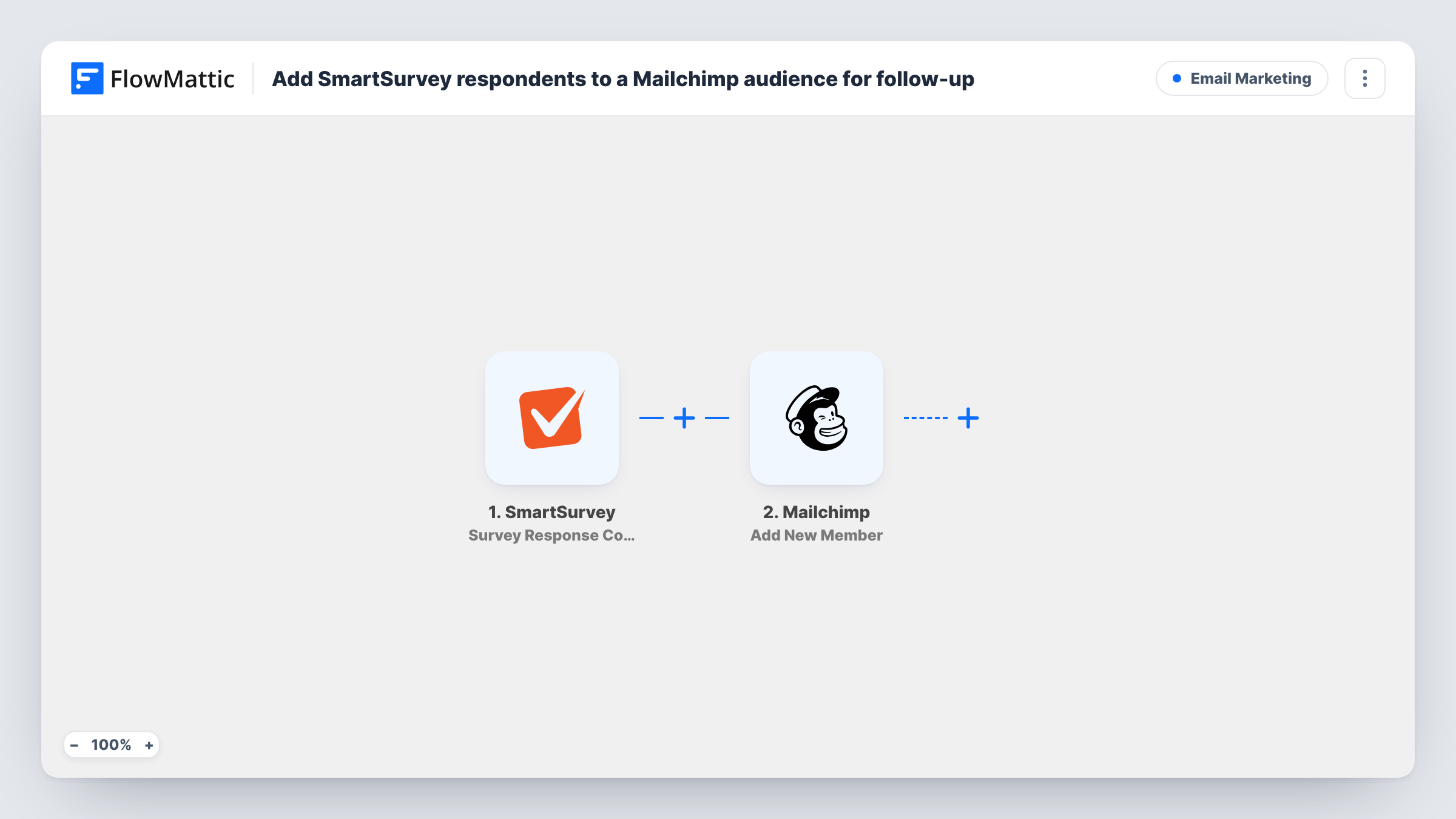
The trigger fires when a survey response is completed in SmartSurvey. The answers become data you can map, including an email address if your survey asks for one. Mailchimp's Add New Member step then puts the respondent on your list, or refreshes their record when that address is already a member. Map the email answer and any other details, such as a name.
Your survey needs a question that collects the respondent's email, since Mailchimp has nothing to add without it. Only completed responses start the workflow. Partial or disqualified responses do not. Open Task History to see what Mailchimp returned for each respondent.
Customer satisfaction follow-up
Customers who finish your satisfaction survey join a Mailchimp list, so you can email them about the changes their feedback led to.
Event feedback surveys
Attendees who complete the post-event survey are added to Mailchimp, ready for an invitation to your next event.
Research panels
People who answer a market research survey join a Mailchimp list you use to invite them to future studies.
How this workflow runs
What happens at each step once the workflow is on, and what you need before you import it.
 SmartSurvey Survey Response Completed
Fires when a survey response is completed in SmartSurvey. The respondent's answers, including any email question, are passed on to the Mailchimp step.
- Mailchimp Add New Member
Adds the respondent to your Mailchimp list, or updates them if they are already a member. Map the email answer from SmartSurvey, plus any name fields, and connect your Mailchimp account.
What you need
- FlowMatticCore
- SmartSurvey AccountAccount
- Mailchimp AccountAccount
After importing, map your own data. To keep the template universal, not every step is pre-filled. Open each step in the builder and connect your accounts and fields (channels, lists, sheets, recipients) before you switch the workflow on.
Make it yours
Changes worth making after you import it.
- Make the email question required in SmartSurvey so every completed response gives Mailchimp an address.
- Add a Filter after the trigger that continues only when a consent question was answered yes, so respondents who did not agree to emails stay off the list.
- Complete a test response after import so FlowMattic captures the survey's answers, then map the email and name in the Mailchimp step.
Questions about this workflow
What if the SmartSurvey respondent is already in Mailchimp?
Add New Member updates the existing member instead of adding them twice, so their details are refreshed with the new answers you map.
Do partial SmartSurvey responses go to Mailchimp?
No. The trigger is Survey Response Completed, so only finished responses start a run.
Does my survey need an email question?
Yes. Mailchimp adds members by email address, so the survey must collect one for the Mailchimp step to work.
Can respondents from different SmartSurvey surveys join different Mailchimp lists?
Clone the workflow for each survey and set a different list in each copy's Mailchimp step, then test each one.
More Email Marketing workflows
Other ready-to-import templates from the same category.







Import this workflow into your WordPress site
Download the JSON, import it from the Workflows screen and connect your accounts. Every run stays on your server, with no per-task fees.
30-day money-back guarantee Unlimited workflows and runs Self-hosted