

Add tags to VBOUT contacts when a Stripe charge succeeds
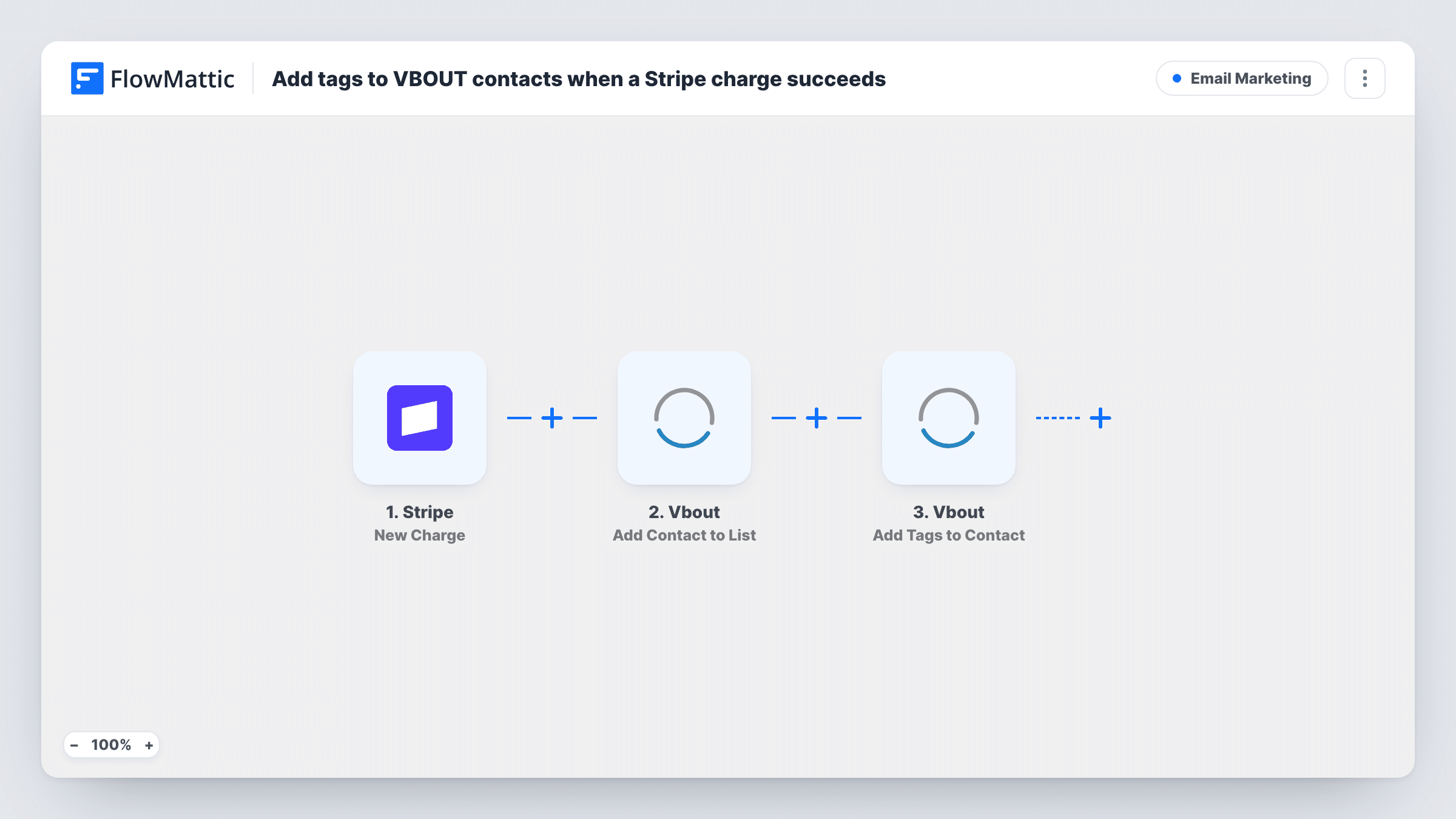
When a Stripe charge succeeds, FlowMattic adds the paying customer to a VBOUT list as a contact and then tags that contact, so buyers are segmented in VBOUT by what they paid for.
 Stripe
 Vbout
Vbout3 steps Setup ~5 min Used on 2.9k sites Free to import
What this workflow does
Paying customers usually deserve different emails from leads who haven't bought: receipts and onboarding rather than sales pitches. This workflow moves each Stripe buyer into VBOUT and labels them with tags, so your VBOUT campaigns and automations can treat customers as customers.
The Stripe New Charge trigger fires whenever a new charge is created and succeeds. The charge's details, such as the amount and description, come with it. Whether the customer's email arrives depends on how the payment was taken, so run a test payment and check. If the email is missing, add Stripe's Find Customer by ID between the trigger and the first VBOUT step and map the email from its result.
Two VBOUT steps follow. Add Contact to List puts the buyer on the list you choose with the email and name you map. Add Tags to Contact then applies your tags; it works on an existing contact, which the list step has just added, so first-time buyers can be tagged too. Both steps ship unmapped.
Every successful charge runs the workflow, so a repeat buyer is added and tagged again on each purchase. Check Task History after a test payment to confirm both VBOUT steps returned what you expect.
Customer list for post-purchase emails
An online course seller adds every Stripe buyer to a VBOUT customers list and tags them "paid", which starts an onboarding sequence in VBOUT.
Tagging buyers by product
A consultant who sells several services through Stripe maps the charge description into a tag, so VBOUT shows which service each client bought.
Keeping buyers out of sales campaigns
A software company uses the VBOUT tag to exclude paying customers from its trial-conversion emails.
How this workflow runs
What happens at each step once the workflow is on, and what you need before you import it.
 Stripe New Charge
Starts a run for each Stripe charge that goes through successfully. The charge details are passed on; check a test payment to confirm the customer's email is included.
- Vbout Add Contact to List
Adds the buyer to a VBOUT list as a contact. The step ships unmapped: choose the list and map the customer's email and name from the Stripe charge.
- Vbout Add Tags to Contact
Adds tags to the contact the previous step put on the list. Identify that contact with the buyer's details from earlier steps, checking a test run for what VBOUT expects, and type or map the tags you want.
What you need
- FlowMatticCore
- Stripe AccountAccount
- VBOUT AccountAccount
After importing, map your own data. To keep the template universal, not every step is pre-filled. Open each step in the builder and connect your accounts and fields (channels, lists, sheets, recipients) before you switch the workflow on.
Make it yours
Changes worth making after you import it.
- If the charge shows no email in a test run, add Stripe's Find Customer by ID between the trigger and Add Contact to List and map the email from that step instead.
- Use a tag that names the product or plan, mapped from the charge description, so VBOUT segments can tell different purchases apart.
- Put a Filter between the Stripe trigger and Add Contact to List that continues only when the amount is above a value you set, if small charges such as add-ons shouldn't change a contact's segment.
Questions about this workflow
Does the Stripe New Charge trigger include the buyer's email?
Not always. It depends on how the charge was created. Run a test payment, and if the email is missing, add Stripe's Find Customer by ID step and map the email from it.
Can VBOUT tag a buyer who isn't a contact yet?
Add Tags to Contact works on existing contacts, which is why Add Contact to List runs first. By the time the tag step runs, the buyer is on your list.
What happens when a customer pays in Stripe a second time?
Each successful charge runs the workflow again, so the customer is added to the list and tagged again. How VBOUT treats a contact already on the list is up to VBOUT; the run's entry in Task History shows what it replied.
More Email Marketing workflows
Other ready-to-import templates from the same category.






Import this workflow into your WordPress site
Download the JSON, import it from the Workflows screen and connect your accounts. Every run stays on your server, with no per-task fees.
30-day money-back guarantee Unlimited workflows and runs Self-hosted