

Add WooCommerce user as participant in session after new order is received
When a WooCommerce order is created, this workflow adds the buyer as a participant in a Sessions session, so people who pay for a call, class or workshop are added without manual work.
 WooCommerce
 Sessions
2 steps Setup ~5 min Used on 3.5k sites Free to import
What this workflow does
If you sell seats for a live session through WooCommerce, every sale has a second job attached: adding the buyer to the session in Sessions. Doing that by hand is easy to miss when orders come in overnight. This workflow does it for each order.
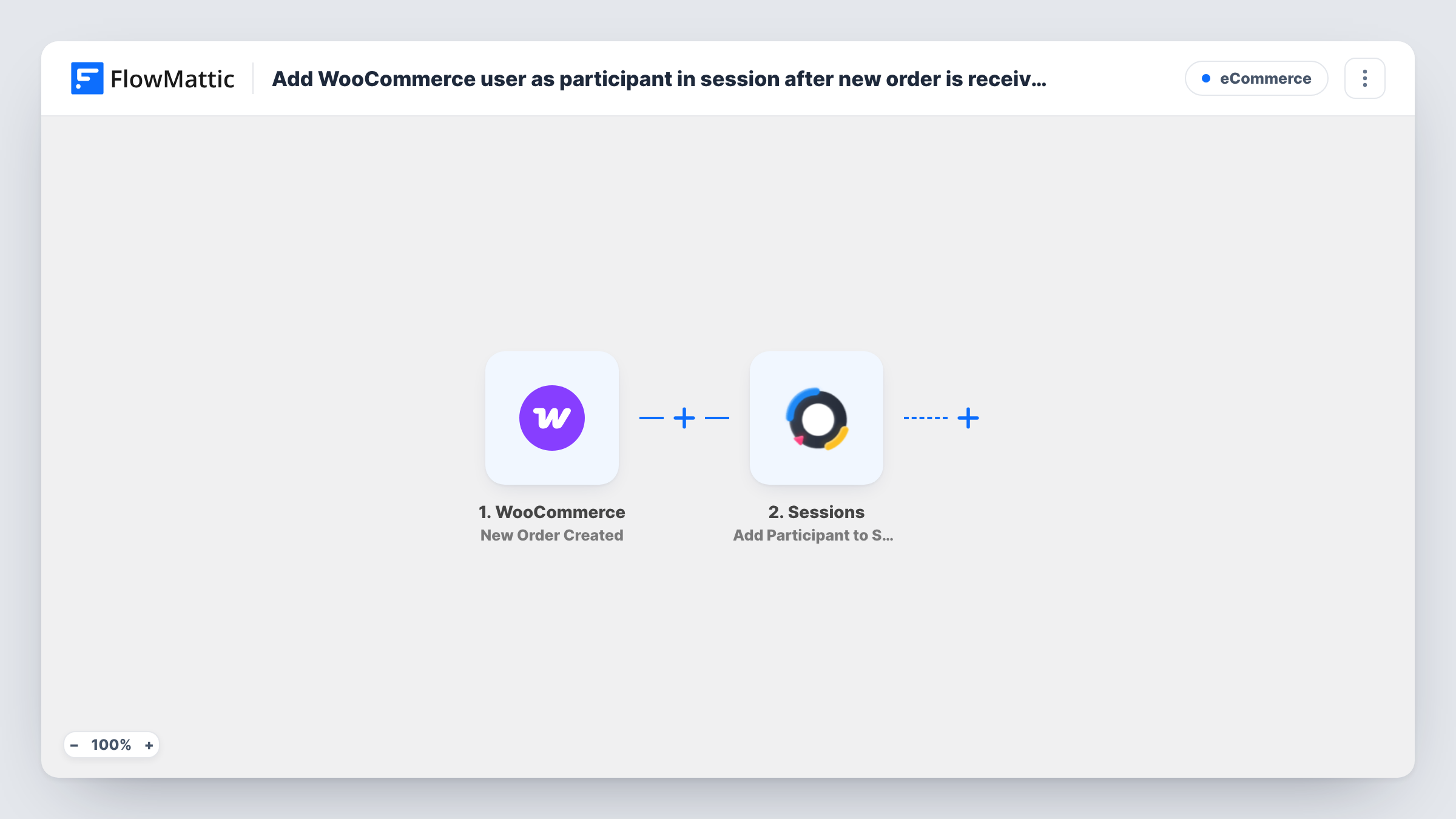
The WooCommerce trigger is New Order Created, which fires when a new order is created in your store. FlowMattic passes the order data, including the customer's billing details, to Sessions. The Add Participant to Session step adds that person to a session. After import, open the step to set which session they join and map the buyer's details from the order.
Every new order runs the workflow, whatever was bought, and a repeat buyer triggers it again. If your store sells other products too, add a Filter so only orders for the session product continue. Task History shows each run with the order data and Sessions' reply.
Paid coaching calls
A coach sells a group call as a WooCommerce product, and each buyer is added to that call in Sessions as soon as the order is created.
Paid workshop seats
A training company sells seats for one workshop at a time. Each order adds the buyer to the workshop session they paid for.
Onboarding session for new clients
Buyers of an onboarding package are added to the onboarding session you set in the step, where the host runs the welcome call.
How this workflow runs
What happens at each step once the workflow is on, and what you need before you import it.
 WooCommerce New Order Created
Fires on every new WooCommerce order, whichever product it contains. The order and customer details are passed on to the Sessions step.
- Sessions Add Participant to Session
Adds the buyer as a participant in a session in Sessions. Connect your Sessions account, set the session in the step and map the buyer's details from the WooCommerce order.
What you need
- FlowMatticCore
- WooCommerce PluginPlugin
- Sessions AccountAccount
After importing, map your own data. To keep the template universal, not every step is pre-filled. Open each step in the builder and connect your accounts and fields (channels, lists, sheets, recipients) before you switch the workflow on.
Make it yours
Changes worth making after you import it.
- Add a Filter after the trigger that continues only when the order contains your session product, so other purchases don't add anyone.
- If you only want paid orders to add a participant, add a Filter on the order status, such as processing or completed.
- Place a test order for the session product after import, then check in Sessions that the buyer appears as a participant.
Questions about this workflow
Does every WooCommerce order add someone to the Sessions session?
Yes, as imported. The workflow has no Filter, so any new order runs it. Add a Filter on the product if your store sells other things.
What happens when the same customer orders twice?
The workflow runs again for the second order. Task History shows how Sessions responded to adding someone who may already be a participant.
Can different WooCommerce products go to different sessions?
Not as imported, since the step uses one session. Add a Router with one route per product, each with its own Add Participant to Session step.
More E-Commerce workflows
Other ready-to-import templates from the same category.






Import this workflow into your WordPress site
Download the JSON, import it from the Workflows screen and connect your accounts. Every run stays on your server, with no per-task fees.
30-day money-back guarantee Unlimited workflows and runs Self-hosted