

When a new lead is captured in OpenRead.io, create new customer in WooCommerce, and send welcome email using Email Module
When OpenRead.io captures a lead, this workflow creates a customer profile in your WooCommerce store from their details and then sends them a welcome email through WordPress mail or your SMTP account.
 OpenRead.io
 WooCommerce
 Email
Email3 steps Setup ~5 min Used on 2.0k sites Free to import
What this workflow does
Lead magnets built in OpenRead.io bring in people who are interested but haven't bought yet. If your shop runs on WooCommerce, you may want those leads to have a customer profile ready, plus a welcome note that points them to your store. Here, every new lead gets both.
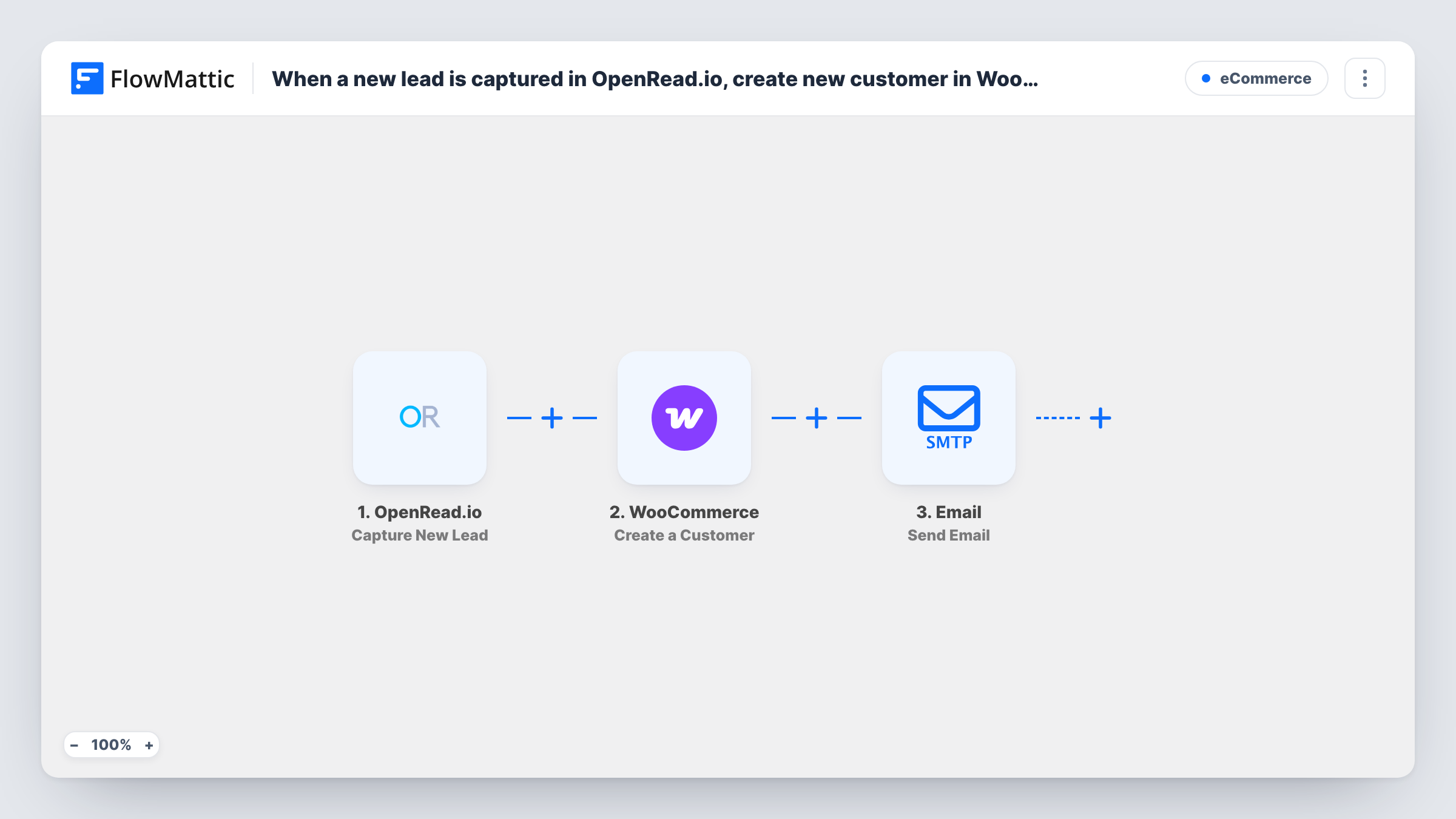
The OpenRead.io trigger, Capture New Lead, starts the run with the lead's details. The WooCommerce step, Create a Customer, makes a new customer profile in your store, using the email and any name data you map from the lead. In WooCommerce, a customer is also a WordPress user account on your site. The last step, FlowMattic's Email module, sends the welcome message you write to the lead's address.
WooCommerce may refuse to create a customer for an address that already has an account on your site. Task History shows the WooCommerce response for every lead, so you can spot those cases.
Ebook download leads for an online shop
A cookware store offers a recipe ebook through OpenRead.io. Each reader gets a WooCommerce customer profile and a welcome email linking to the shop.
Quiz funnel leads
A skincare brand runs a quiz funnel. Leads become customers in the store, so a later order is tied to the same account, and the welcome email introduces the brand.
Preparing leads for member-only offers
A store shows certain offers to logged-in customers. Creating the customer from the lead means the account exists before they come back to buy.
How this workflow runs
What happens at each step once the workflow is on, and what you need before you import it.
 OpenRead.io Capture New Lead
Runs when OpenRead.io captures a new lead from your funnel. The lead's details, such as email and name if your funnel collects them, can be mapped into the next two steps.
- WooCommerce Create a Customer
Creates a new customer profile in your WooCommerce store. Map the lead's email and any name details OpenRead.io provides into it. Test with a new address to confirm the profile appears under Customers.
 Email Send Email
Sends your welcome email to the lead through WordPress mail or the SMTP account you set. Map the lead's email as the recipient and write the subject and message.
What you need
- FlowMatticCore
- OpenRead.io AccountAccount
- WooCommerce PluginPlugin
After importing, map your own data. To keep the template universal, not every step is pre-filled. Open each step in the builder and connect your accounts and fields (channels, lists, sheets, recipients) before you switch the workflow on.
Make it yours
Changes worth making after you import it.
- Send one test lead from OpenRead.io with an address you control, then check WooCommerce, your inbox and Task History before turning the workflow on.
- Add a Delay between the WooCommerce step and the Email step if you want the welcome to arrive a little later rather than seconds after sign-up.
- To send through Gmail, enter Gmail's SMTP details in the Email step settings, or swap the step for the Gmail app's Send Email action.
Questions about this workflow
What if the OpenRead.io lead already has a WooCommerce account?
Create a Customer makes a new profile, so WooCommerce may refuse an address that is already registered. You can read WooCommerce's reply for that lead in Task History. Send a test lead with an address that already has an account to see what you get.
Does creating a WooCommerce customer make a WordPress user?
Yes. WooCommerce customers are WordPress users with the customer role, so each lead gets an account on your site.
Can the welcome email come from my own domain?
Yes. The Email step uses WordPress mail or the SMTP account you configure, so set up SMTP for your domain to send from it.
Does the OpenRead.io lead workflow work with a WooCommerce store on another site?
No. The Create a Customer step works with the WooCommerce store on the WordPress site where FlowMattic runs, so both must be installed there.
More E-Commerce workflows
Other ready-to-import templates from the same category.







Import this workflow into your WordPress site
Download the JSON, import it from the Workflows screen and connect your accounts. Every run stays on your server, with no per-task fees.
30-day money-back guarantee Unlimited workflows and runs Self-hosted