

Compress a WooCommerce product image and upload it to Google Drive when a product is created
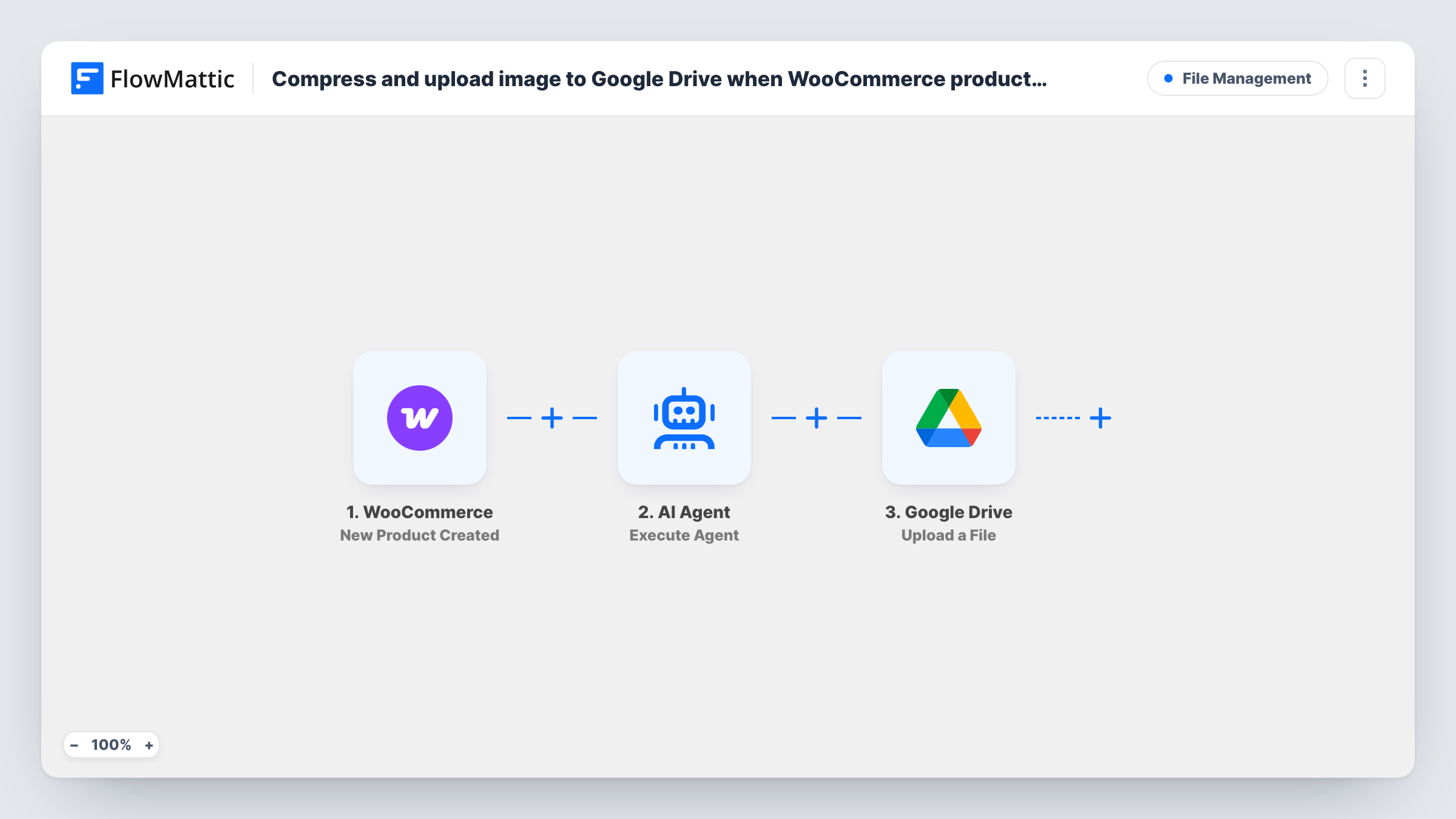
When a new WooCommerce product is created, FlowMattic compresses its product image into a smaller copy in your media library and uploads that compressed file to Google Drive.
 WooCommerce
 Image Compressor
 Google Drive
3 steps Setup ~5 min Used on 2.9k sites Free to import
What this workflow does
Product photos straight from a camera or a supplier are often far larger than a web page needs, and many shops also like a backup of their catalogue images outside WordPress. This workflow handles both for each new product: it makes a compressed copy of the product image and puts that copy in Google Drive.
The WooCommerce trigger fires when a new product is created and passes on the product's data, including its image details. The Image Compressor step then compresses an image and saves the result to your WordPress media library as a new file. It ships unmapped, so after import you map the product image URL from the trigger into it. The original image and the product itself stay as they are; the compressed version is an extra copy.
The last step uploads a file to Google Drive. It's already mapped to the compressed image's media URL from the Image Compressor step, so you only connect Google Drive and choose the folder.
Every new product starts a run. A product created without an image gives the compressor nothing to work on, and the step returns an error you can see in Task History. Test with one product first.
Off-site backup of product photos
A craft shop keeps a compressed copy of every new product photo in a Google Drive folder, so its images survive a hosting problem.
Light image files for marketplaces
A seller who also lists products on other channels pulls the compressed WooCommerce images from Drive when building those listings.
Shared folder for the marketing team
A clothing brand's social media team finds each new product's compressed image in Drive without needing a WordPress login.
How this workflow runs
What happens at each step once the workflow is on, and what you need before you import it.
 WooCommerce New Product Created
Starts a run for each product newly added to your WooCommerce store. The product's details, including its image, become available to map into the Image Compressor step.
- Image Compressor Compress Image
Compresses an image and saves the compressed copy to your WordPress media library. The step ships unmapped: map the product image URL from the WooCommerce trigger. The original image isn't replaced.
- Google Drive Upload a File
Uploads the compressed file to Google Drive. The file URL is already mapped to the media URL returned by Image Compressor; connect your Google account and choose the Drive folder.
What you need
- FlowMatticCore
- WooCommerce PluginPlugin
- Google Drive AccountAccount
After importing, map your own data. To keep the template universal, not every step is pre-filled. Open each step in the builder and connect your accounts and fields (channels, lists, sheets, recipients) before you switch the workflow on.
Make it yours
Changes worth making after you import it.
- Put a Filter between the WooCommerce trigger and the Image Compressor step that continues only when the product image field from a test run is not empty, so products saved without a photo stop there.
- Create a dedicated Google Drive folder for product images before you configure the upload step, so the compressed files don't mix with other documents.
- Map the product name or SKU into the Drive file name if the upload step offers a name field, so each compressed image is easy to match to its product.
Questions about this workflow
Does this replace the image on my WooCommerce product?
No. Image Compressor saves the compressed image to the media library as a new file. The product keeps its original image unless you add a step that changes it.
Which product image gets compressed?
The one you map into the Image Compressor step after import. Check a test product in Task History to see which image fields WooCommerce sends, and map the main product image URL.
Where in Google Drive do the compressed product images go?
Into whichever Drive folder you select on the upload step. The file URL is already mapped from the compressor, so picking the folder is the only setup left.
Are gallery images compressed as well?
Not as imported. One image is mapped into one Image Compressor step per run. To handle each gallery image, add an Iterator over the gallery between the trigger and Image Compressor so both later steps repeat per image.
More File Management workflows
Other ready-to-import templates from the same category.




Import this workflow into your WordPress site
Download the JSON, import it from the Workflows screen and connect your accounts. Every run stays on your server, with no per-task fees.
30-day money-back guarantee Unlimited workflows and runs Self-hosted