

Create a ClickUp task for each new Konstantly course assigned
Each time a course is assigned to a user in Konstantly, this workflow creates a ClickUp task, so training assignments show up next to the rest of your team’s work.
 Konstantly
 ClickUp
2 steps Setup ~5 min Used on 2.3k sites Productivity Free to import
What this workflow does
Training gets assigned in your learning platform and then forgotten, because nobody looks at the LMS until a deadline has passed. If your team plans its week in ClickUp, a task for each assigned course puts training on the same list as everything else.
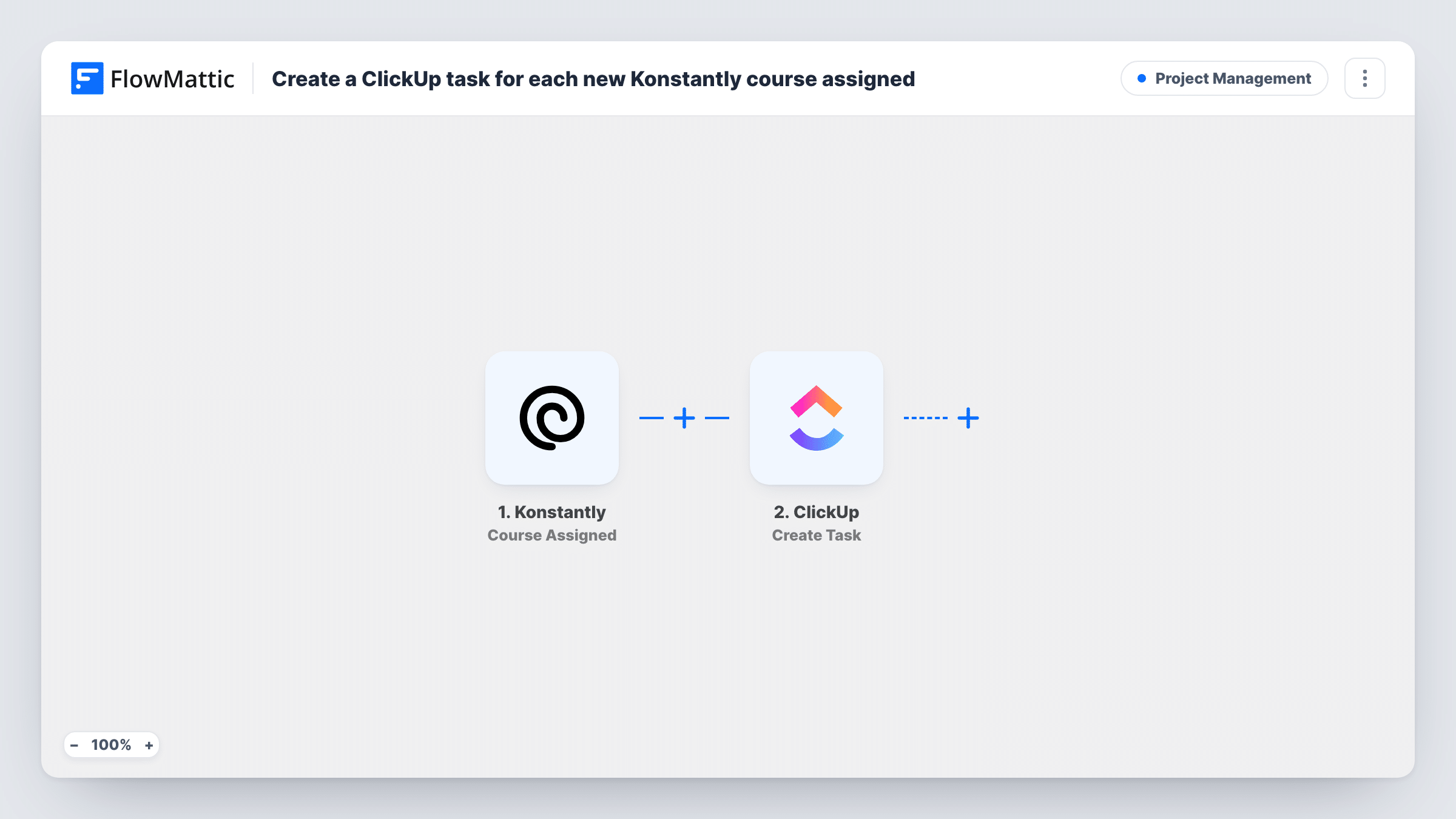
The Konstantly trigger fires when a course is assigned to a user. FlowMattic takes the details Konstantly sends about that assignment and passes them to ClickUp. The Create Task action then adds a new task, and you decide which assignment details go into its name and description.
Each assignment creates one task. If you assign the same course to ten people, expect ten runs and ten tasks. The task is created once and is not updated later, so finishing the course in Konstantly does not close it in ClickUp. You can review each Konstantly assignment run in Task History.
Onboarding new hires
When HR assigns the onboarding course in Konstantly, the new hire's manager sees a ClickUp task and can check in on progress during the first week.
Compliance training tracking
Each required compliance course assigned in Konstantly becomes a ClickUp task in an HR list, giving the team one place to chase outstanding training.
Training for client-facing staff
A support lead assigns a product course in Konstantly, and the task lands in the support team's ClickUp list alongside their tickets.
How this workflow runs
What happens at each step once the workflow is on, and what you need before you import it.
 Konstantly Course Assigned
Fires when a course is assigned to a user in Konstantly. The assignment details Konstantly sends become available for the ClickUp task.
- ClickUp Create Task
Adds a ClickUp task for the assigned course. Choose where the task goes, map the course and learner details into it, then connect your ClickUp account.
What you need
- FlowMatticCore
- Konstantly AccountAccount
- ClickUp AccountAccount
After importing, map your own data. To keep the template universal, not every step is pre-filled. Open each step in the builder and connect your accounts and fields (channels, lists, sheets, recipients) before you switch the workflow on.
Make it yours
Changes worth making after you import it.
- Want to know when learners finish? Build a second workflow on Konstantly's Course Finished trigger that alerts the team, since this one never changes the ClickUp task after creating it.
- Assign a test course after import so FlowMattic captures the Konstantly fields, then map the learner's name and the course title into the task name.
- Add a Filter after the trigger if only some courses need a ClickUp task, using a course detail from the assignment data.
Questions about this workflow
Does completing the course in Konstantly close the ClickUp task?
No. The ClickUp step only makes new tasks and never edits them. Konstantly has a Course Finished trigger in FlowMattic that you can use in a separate workflow to act on completions.
What if a course is assigned to a whole group in Konstantly?
The trigger fires per course assignment to a user. Run a test with a small group to see how many runs Konstantly sends before using it with a large one.
Can the ClickUp task be assigned to the learner?
Only if you can match the learner to a ClickUp member. Check the Create Task step after import and test with one assignment to see what it accepts.
More Project Management workflows
Other ready-to-import templates from the same category.





Import this workflow into your WordPress site
Download the JSON, import it from the Workflows screen and connect your accounts. Every run stays on your server, with no per-task fees.
30-day money-back guarantee Unlimited workflows and runs Self-hosted