

Create a ClickUp task to onboard a candidate when a Radancy application is hired
When a recruiter marks a Radancy job application as hired, FlowMattic creates a ClickUp task for the new starter’s onboarding, so setup work lands in the list your team already uses.
 Radancy
 ClickUp
2 steps Setup ~5 min Used on 1.1k sites Productivity Free to import
What this workflow does
Hiring and onboarding usually sit in different tools. The recruiter closes the application in Radancy, and someone has to tell the people who prepare the laptop, accounts and first-day plan. This workflow turns the hire into a ClickUp task straight away.
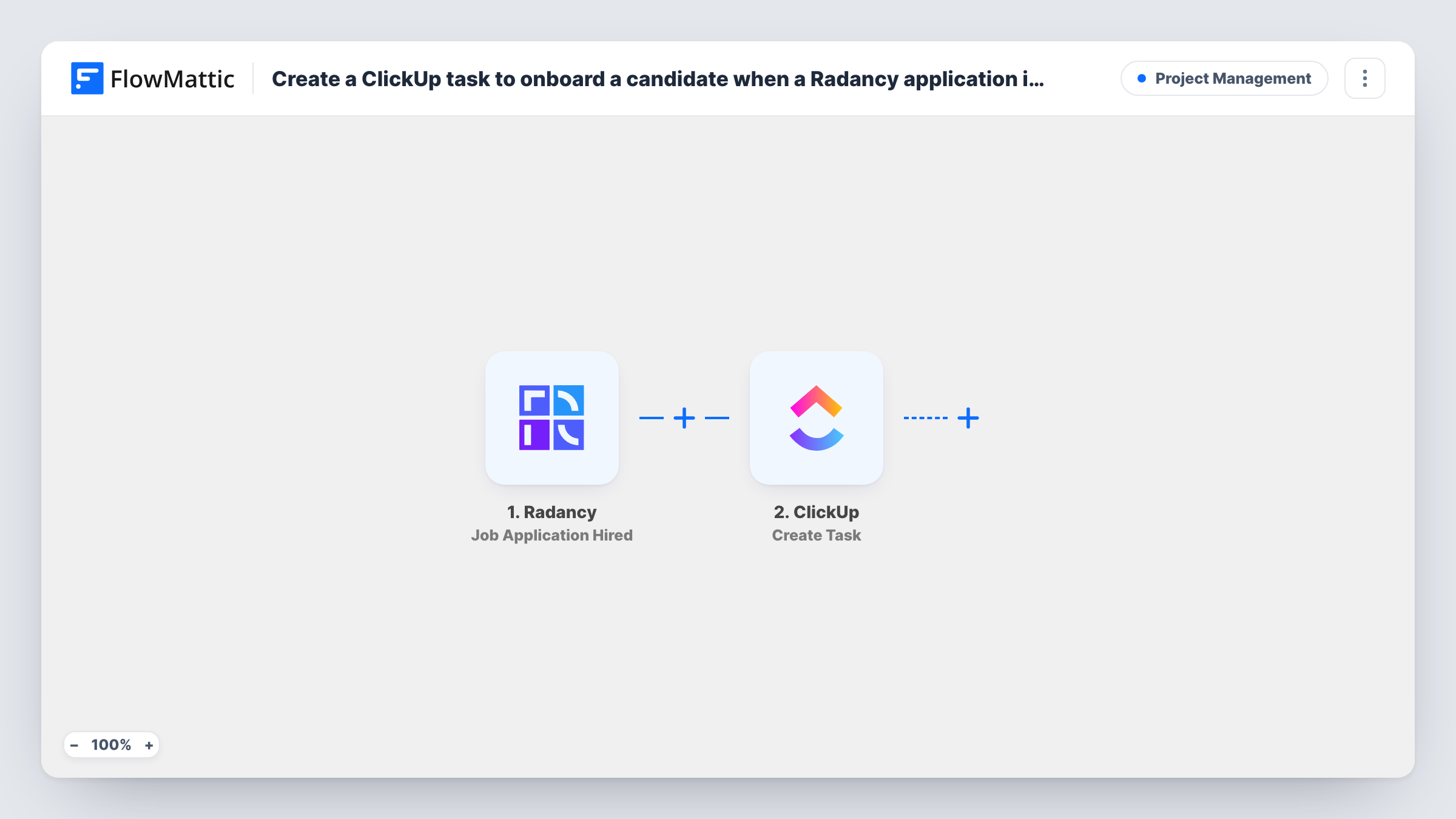
The Radancy trigger, Job Application Hired, fires when one of your recruiters hires an applicant. Next, FlowMattic runs the Create Task action in ClickUp. You choose where the task goes and map the hire's details from the trigger into it, such as the candidate's name and the job. A test run after import shows which application details Radancy sends.
The workflow creates one task per hire. It doesn't build a checklist or pick an assignee by itself. Use ClickUp's own templates and automations for that, or check what the Create Task step offers after a test run.
IT setup for new employees
Your IT team works from a ClickUp list. Each hire in Radancy adds a task there, so equipment and accounts are ready before the start date.
Onboarding at a multi-site company
Recruiters across several locations hire in Radancy. Every hire becomes a task in the central HR operations space, named after the candidate and role.
Hand-off from recruiting to the hiring manager
The task gives the hiring manager one place to track paperwork, welcome emails and the first-week plan for each person recruiting has just hired.
How this workflow runs
What happens at each step once the workflow is on, and what you need before you import it.
 Radancy Job Application Hired
Fires when a recruiter hires an applicant on a Radancy job application. The application and candidate details are passed on for mapping.
- ClickUp Create Task
Adds the onboarding task to ClickUp. Pick the location for the task, connect your ClickUp account, and map candidate details from the trigger into the task so it is clear who it is for.
What you need
- FlowMatticCore
- Radancy AccountAccount
- ClickUp AccountAccount
After importing, map your own data. To keep the template universal, not every step is pre-filled. Open each step in the builder and connect your accounts and fields (channels, lists, sheets, recipients) before you switch the workflow on.
Make it yours
Changes worth making after you import it.
- Put the candidate's name and the job title in the task name, so your onboarding list reads as a roster of who is starting.
- Add a Slack or Gmail step after ClickUp to tell the hiring manager that the onboarding task exists.
- Add a Filter after the trigger if only certain roles need this onboarding task, using a field such as the job or department from a test run.
Questions about this workflow
Does the ClickUp task include an onboarding checklist?
Not from this workflow. It creates a single task. Use a ClickUp template or ClickUp's own automations if you want the task to carry a checklist.
Which Radancy event starts the workflow?
Job Application Hired, which fires when one of your recruiters hires the applicant. Other changes to an application, such as edits or ratings, don't start it.
What if the same candidate is marked hired twice in Radancy?
Each hired event starts a run, and each run creates a new ClickUp task. Check your list for duplicates if your recruiters reopen and rehire applications.
Can I send the task to a different ClickUp list for each department?
Yes, with a change. Replace the single ClickUp step with a Router whose routes check the department, and give each route its own Create Task step.
More Project Management workflows
Other ready-to-import templates from the same category.





Import this workflow into your WordPress site
Download the JSON, import it from the Workflows screen and connect your accounts. Every run stays on your server, with no per-task fees.
30-day money-back guarantee Unlimited workflows and runs Self-hosted