

Create a ClickUp task for every new Aha! feature with an assignee
When a feature is created in Aha with an assignee, this workflow creates a task in ClickUp from its details, so the person building it has the work in the tool they use day to day.
 Aha!
Aha!
 ClickUp
2 steps Setup ~5 min Used on 1.8k sites Productivity Free to import
What this workflow does
Product managers plan features in Aha, but the people building them often track their work in ClickUp. Copying each new feature across by hand is slow and easy to forget. This workflow turns each assigned feature into a ClickUp task as it is created.
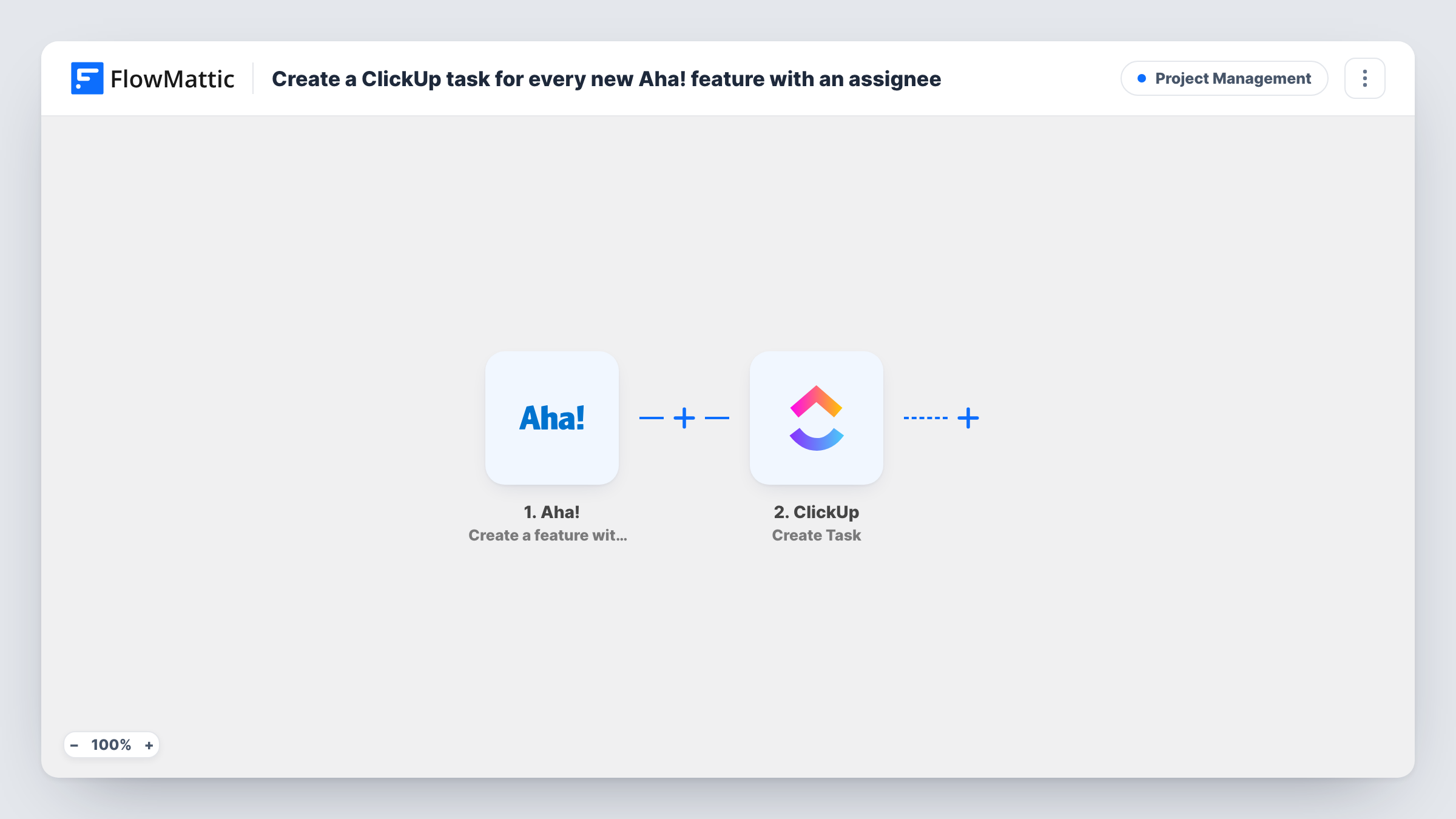
The Aha trigger is Create a feature with an assignee, which fires when a feature is created with someone assigned to it. Features created without an assignee don't start a run. The feature's details become data you can map. The ClickUp step runs Create Task, and you choose where the task goes and fill it with the feature name, description and anything else Aha sends.
The two tools aren't linked after that. Later edits to the feature in Aha don't change the ClickUp task, and closing the task doesn't update Aha. Task History lists each run, with the feature data received and ClickUp's reply.
Product team plans, dev team builds
A product manager adds and assigns features in Aha, and the engineering team picks them up as tasks in their ClickUp sprint list.
Agency handing roadmap items to designers
Each assigned Aha feature becomes a ClickUp task in the design team's list, with the feature description copied in as the brief.
Keeping a single to-do list
An engineer who works from ClickUp sees new Aha features assigned to the team there, without checking the roadmap each day.
How this workflow runs
What happens at each step once the workflow is on, and what you need before you import it.
 Aha! Create a feature with an assignee
Fires when a feature with an assignee is created in Aha. Connect your Aha account; the feature's details are passed on for the ClickUp task.
- ClickUp Create Task
Creates a ClickUp task from the Aha feature. Connect ClickUp, choose where the task should go and map the feature's name and description into it.
What you need
- FlowMatticCore
- Aha! AccountAccount
- ClickUp AccountAccount
After importing, map your own data. To keep the template universal, not every step is pre-filled. Open each step in the builder and connect your accounts and fields (channels, lists, sheets, recipients) before you switch the workflow on.
Make it yours
Changes worth making after you import it.
- If the Aha data includes the feature's reference number or URL, put it in the task description so anyone in ClickUp can find the original feature.
- Map the Aha assignee's name into the task description, so the ClickUp task shows who owns the feature even when the two tools use different accounts.
- Different teams? Add a Router after the trigger with a route per Aha product or assignee, each with its own Create Task step pointing to that team's ClickUp list.
Questions about this workflow
Does every new Aha feature create a ClickUp task?
No. The trigger fires only for features created with an assignee. Features created without one, and features assigned later, don't start a run.
Can the ClickUp task be assigned to the same person?
Aha and ClickUp use separate user accounts, so the assignee doesn't carry over by itself. Check after import whether your Create Task step offers an assignee option you can set.
Will changes in Aha update the ClickUp task?
No. The workflow only creates the task once. Later changes to the feature stay in Aha unless you build another workflow for updates.
More Project Management workflows
Other ready-to-import templates from the same category.




Import this workflow into your WordPress site
Download the JSON, import it from the Workflows screen and connect your accounts. Every run stays on your server, with no per-task fees.
30-day money-back guarantee Unlimited workflows and runs Self-hosted