

Create a ClickUp task when a new Sentry.io error is captured
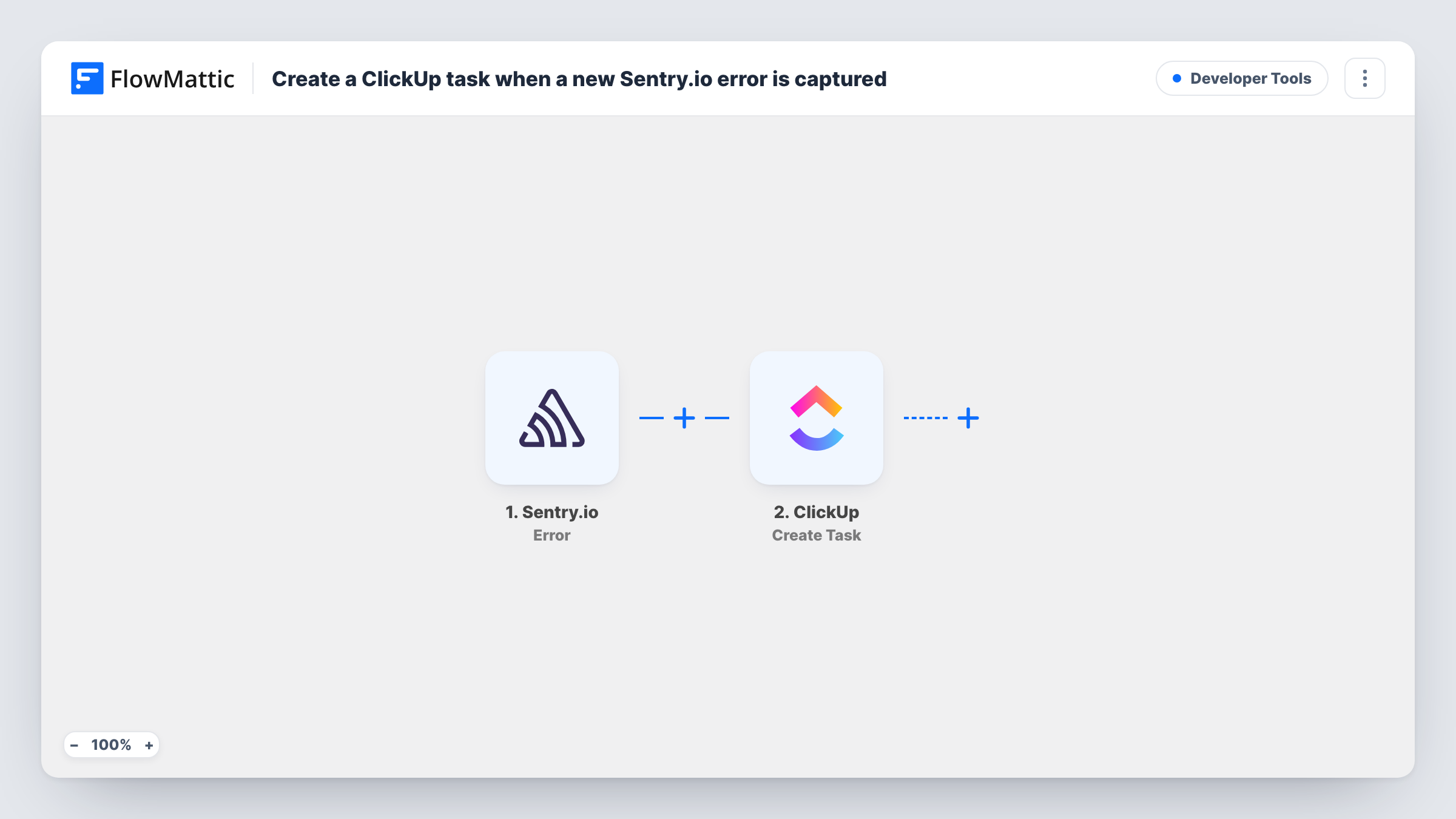
When Sentry.io reports a new error, this workflow creates a task in ClickUp with the error details you map, so bugs show up in the list your developers already work from.
 Sentry.io
 ClickUp
2 steps Setup ~5 min Used on 2.9k sites Free to import
What this workflow does
Sentry.io is good at catching errors, but developers plan their work in ClickUp. When the two are separate, someone has to copy each error into a task, and some never make it across. This workflow creates the task for you.
The Sentry.io trigger fires when an error is created. FlowMattic receives the error details and passes them to ClickUp, where the Create Task step adds a new task to the list you pick. You decide the task name and description by mapping values from the Sentry.io error, such as the message or a link back to it.
Each error event starts its own run, and each run creates a new task. If the same error happens many times, you may get many tasks, so plan how you will narrow the triggers before turning it on. Task History shows every run and the data sent to ClickUp, which helps while you tune the mapping.
Bug triage list for a small dev team
Errors from your production app land as tasks in a ClickUp Bugs list, where the team lead assigns them during stand-up.
Agency client sites
An agency monitors client sites with Sentry.io. Each error becomes a task in that client's ClickUp space for the developer on the account.
Release follow-up
After a deploy, new errors appear as ClickUp tasks so the release owner can check each one before closing the release.
How this workflow runs
What happens at each step once the workflow is on, and what you need before you import it.
 Sentry.io Error
Fires when an error is created in Sentry.io. The error details are passed on so they can go into the ClickUp task.
- ClickUp Create Task
Creates a new task in the ClickUp list you choose. Connect ClickUp and map Sentry.io values into the task name and description.
What you need
- FlowMatticCore
- Sentry.io AccountAccount
- ClickUp AccountAccount
After importing, map your own data. To keep the template universal, not every step is pre-filled. Open each step in the builder and connect your accounts and fields (channels, lists, sheets, recipients) before you switch the workflow on.
Make it yours
Changes worth making after you import it.
- Add a Filter after the trigger that continues only for your production environment or a chosen project, if Sentry.io sends that in the error data.
- Put a link to the Sentry.io error in the task description, if the event includes one, so the developer can jump straight to the stack trace.
- Post the new task to Slack with a Send Channel Message step after ClickUp, so the on-call developer sees it right away.
Questions about this workflow
Will a repeated Sentry.io error create duplicate ClickUp tasks?
It can. The workflow creates a task for each error event it receives and does not look for an existing task first. Add a Filter to narrow which errors start a run.
Which ClickUp list do the Sentry.io tasks go to?
The list you select in the Create Task step after connecting your ClickUp account. You can point it at a dedicated bugs list.
What Sentry.io details can go into the ClickUp task?
The values Sentry.io sends with the error. Trigger a test error after import and check Task History to see which fields you can map.
Does closing the ClickUp task resolve the issue in Sentry.io?
No. Nothing flows back from ClickUp to Sentry.io in this template. Resolve the issue in Sentry.io yourself.
More Developer Tools workflows
Other ready-to-import templates from the same category.





Import this workflow into your WordPress site
Download the JSON, import it from the Workflows screen and connect your accounts. Every run stays on your server, with no per-task fees.
30-day money-back guarantee Unlimited workflows and runs Self-hosted