

Create a ClickUp task when a new Stormboard task is assigned
When a task on a Stormboard board is assigned to someone, this workflow creates a task in ClickUp from it, so the work agreed in a brainstorm shows up where your team plans and tracks delivery.
 Stormboard
 ClickUp
2 steps Setup ~5 min Used on 580 sites Productivity Free to import
What this workflow does
Stormboard is good for getting ideas and actions onto a shared board during a session. The follow-through usually happens somewhere else. If your team runs projects in ClickUp, someone has to retype each assigned Stormboard task there, and the ones nobody copies tend to be forgotten. This workflow makes the copy for you.
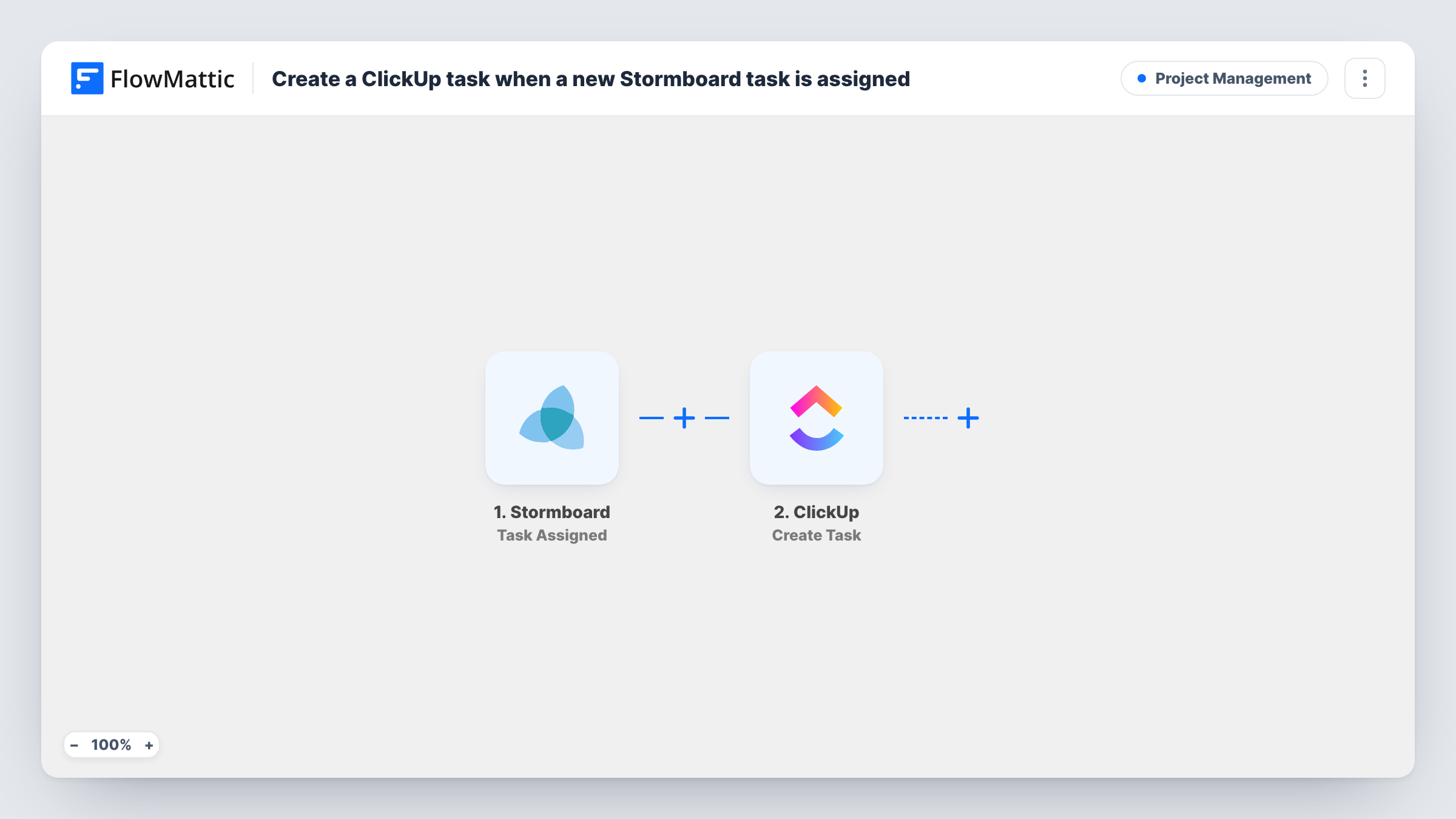
The Stormboard trigger, Task Assigned, fires when a task on your board is assigned. FlowMattic receives the details Stormboard sends about that task and makes them available to map. The second step uses ClickUp Create Task to add a new task, filled with the Stormboard values you map into it.
The template ships without any mapping, so after import you decide which Stormboard values go where in the ClickUp task and which ClickUp location receives it. Run one test assignment to see exactly what Stormboard sends and what the ClickUp step asks for. Each run then appears in Task History, with the data that passed through each step.
Retro actions that need an owner in ClickUp
At the end of a Stormboard retrospective you assign each action item. Every assignment becomes a ClickUp task, so the actions sit in the sprint list instead of on an old board.
Client workshops run on Stormboard
An agency runs discovery workshops with clients on Stormboard and delivers in ClickUp. Tasks assigned during the workshop land in ClickUp ready for the delivery team to schedule.
Planning sessions across teams
Product and marketing plan a launch together on one board. Each assigned task is created in ClickUp, where both teams already track their work.
How this workflow runs
What happens at each step once the workflow is on, and what you need before you import it.
 Stormboard Task Assigned
Fires when a task is assigned on Stormboard. The task details Stormboard sends for that event become available to map into the ClickUp step. Connect your Stormboard account and pick the board or settings the trigger asks for.
- ClickUp Create Task
Adds a new task to ClickUp for each assignment. Connect your ClickUp account, choose where the task should be created, and map the Stormboard task values into it. A test run shows which values arrive from Stormboard.
What you need
- FlowMatticCore
- Stormboard AccountAccount
- ClickUp AccountAccount
After importing, map your own data. To keep the template universal, not every step is pre-filled. Open each step in the builder and connect your accounts and fields (channels, lists, sheets, recipients) before you switch the workflow on.
Make it yours
Changes worth making after you import it.
- Add a Filter after the trigger if only some boards or assignees should reach ClickUp. Set the condition on a value from the Stormboard task, and other assignments end the run at the Filter.
- Map the Stormboard task name into the ClickUp task title and put a short note in the description saying it came from Stormboard, so your team knows where to look for the context.
- Make one test assignment on a practice board before you switch the workflow on, then check the new ClickUp task and Task History to confirm the mapping.
Questions about this workflow
Does reassigning a Stormboard task create a second ClickUp task?
The workflow has no check for tasks it already copied. If Stormboard sends Task Assigned again for the same task, the ClickUp step runs again and creates another task. Test a reassignment on a practice board to see how it behaves.
Will changes in ClickUp go back to Stormboard?
No. The flow only goes one way, from a Stormboard assignment to a new ClickUp task. Nothing in it updates the Stormboard board.
Are tasks assigned before I import this copied to ClickUp?
No. The trigger reacts to new assignments, so only tasks assigned after the workflow is turned on create ClickUp tasks.
Do I need accounts in both Stormboard and ClickUp?
Yes. You connect a Stormboard account for the trigger and a ClickUp account with access to the place where tasks should be created.
More Project Management workflows
Other ready-to-import templates from the same category.




Import this workflow into your WordPress site
Download the JSON, import it from the Workflows screen and connect your accounts. Every run stays on your server, with no per-task fees.
30-day money-back guarantee Unlimited workflows and runs Self-hosted