

Create a HubSpot CRM company record when a new account is added in Factors.ai
When Factors.ai adds a company to one of your segments, this workflow creates a company record for it in HubSpot CRM, so accounts showing interest on your site appear in your CRM without manual entry.
 Factors.ai
 HubSpot CRM
2 steps Setup ~5 min Used on 2.3k sites Free to import
What this workflow does
Factors.ai tells you which companies are visiting your site and sorts them into segments. Your sales process, though, runs in HubSpot. Typing those companies into the CRM by hand is slow and means some never make it. This workflow creates the HubSpot record for you.
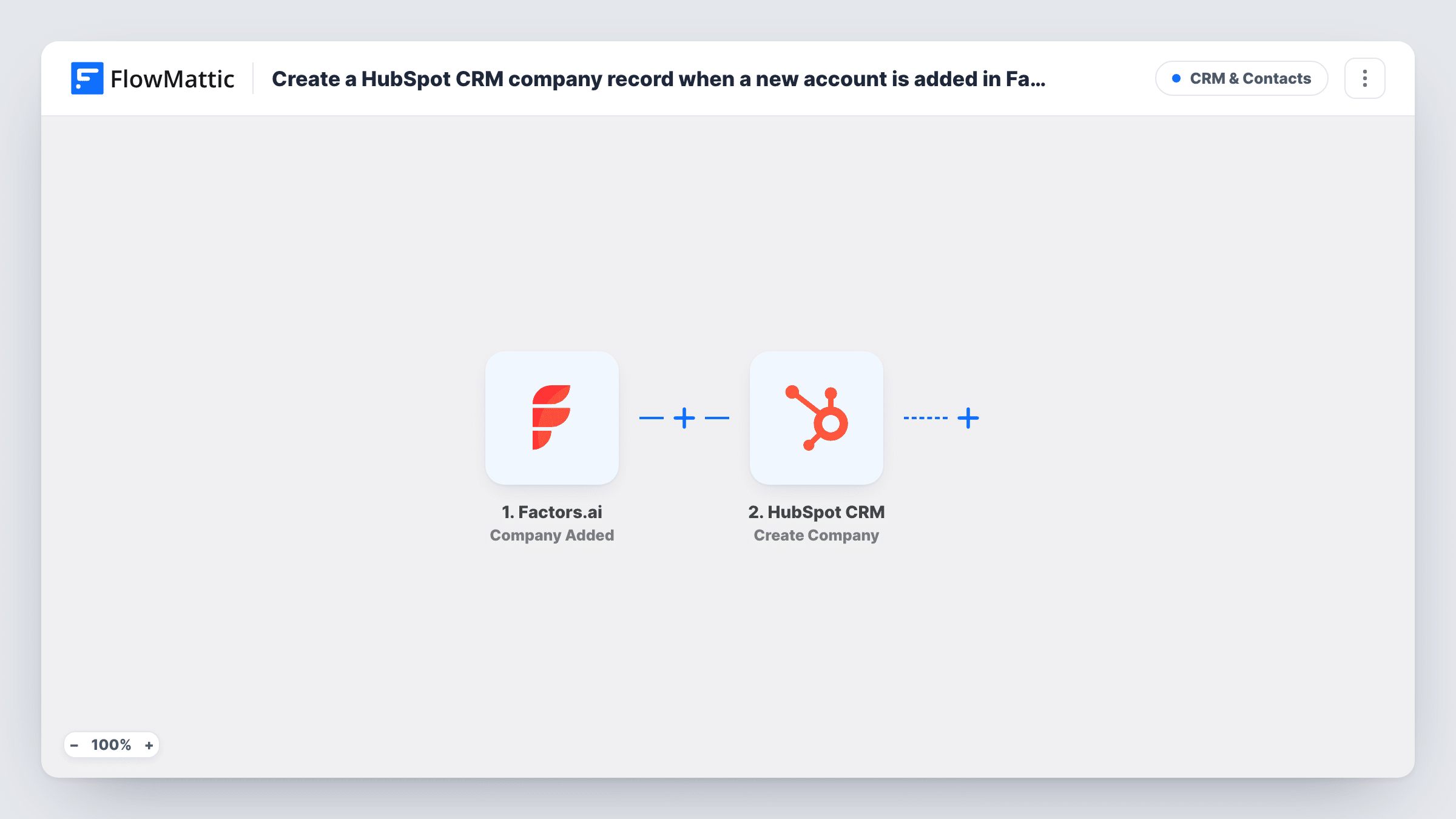
The Factors.ai trigger starts a run whenever a company joins one of your segments. FlowMattic passes the company data to HubSpot CRM, where the Create Company action adds a company record. You map fields from Factors.ai, such as the company name and domain, to the HubSpot company properties.
The HubSpot step only creates companies; it doesn't look for an existing one first. If a company is already in HubSpot, or reaches the trigger more than once, you may end up with a second record. Task History shows HubSpot's response for each run, so you can spot problems while you test.
Building a target-account list in HubSpot
A Factors.ai segment for companies that fit your ideal customer profile feeds HubSpot, so reps start each week with those accounts already in the CRM.
Handing website interest to sales
Companies placed in a high-intent segment become HubSpot records that a rep can own, add notes to and attach contacts to.
Reporting on account sources
Mapping a fixed value into a HubSpot property marks each company as coming from Factors.ai, so you can report on how many arrived this way.
How this workflow runs
What happens at each step once the workflow is on, and what you need before you import it.
 Factors.ai Company Added
Runs each time a company enters a Factors.ai segment. The company's details are passed to the HubSpot step for mapping.
- HubSpot CRM Create Company
Creates a company in HubSpot CRM from the Factors.ai data. Map the company name, domain and any other fields you want, then connect your HubSpot account on import.
What you need
- FlowMatticCore
- Factors.ai AccountAccount
- HubSpot CRM AccountAccount
After importing, map your own data. To keep the template universal, not every step is pre-filled. Open each step in the builder and connect your accounts and fields (channels, lists, sheets, recipients) before you switch the workflow on.
Make it yours
Changes worth making after you import it.
- Add a Filter after the trigger on a company field such as industry or country, so only accounts your team wants in HubSpot are created there.
- Map a fixed text value, such as Factors.ai, into a HubSpot property you use for the record's source, so these companies are easy to filter later.
- After import, test with a company you know isn't in HubSpot yet, then check the new record and the mapped properties in HubSpot.
Questions about this workflow
Will this create duplicate companies in HubSpot?
It can. The Create Company step doesn't search HubSpot first, so a company that already exists may be created again. Task History shows HubSpot's response for each run.
Which Factors.ai fields can I send to HubSpot?
Any field Factors.ai sends with the company. A test run after import shows them, and you map each one to a HubSpot company property.
Are companies already in my Factors.ai segment sent to HubSpot?
No. Only companies added to the segment after you turn the workflow on start a run.
Can I also tell the team in Slack when a HubSpot company is created?
Yes. Add a Slack Send Channel Message step after the HubSpot step and include the Factors.ai company name in the text.
More CRM & Contacts workflows
Other ready-to-import templates from the same category.





Import this workflow into your WordPress site
Download the JSON, import it from the Workflows screen and connect your accounts. Every run stays on your server, with no per-task fees.
30-day money-back guarantee Unlimited workflows and runs Self-hosted