

When a new contact is created in FluentCRM, send the contact to a webhook URL
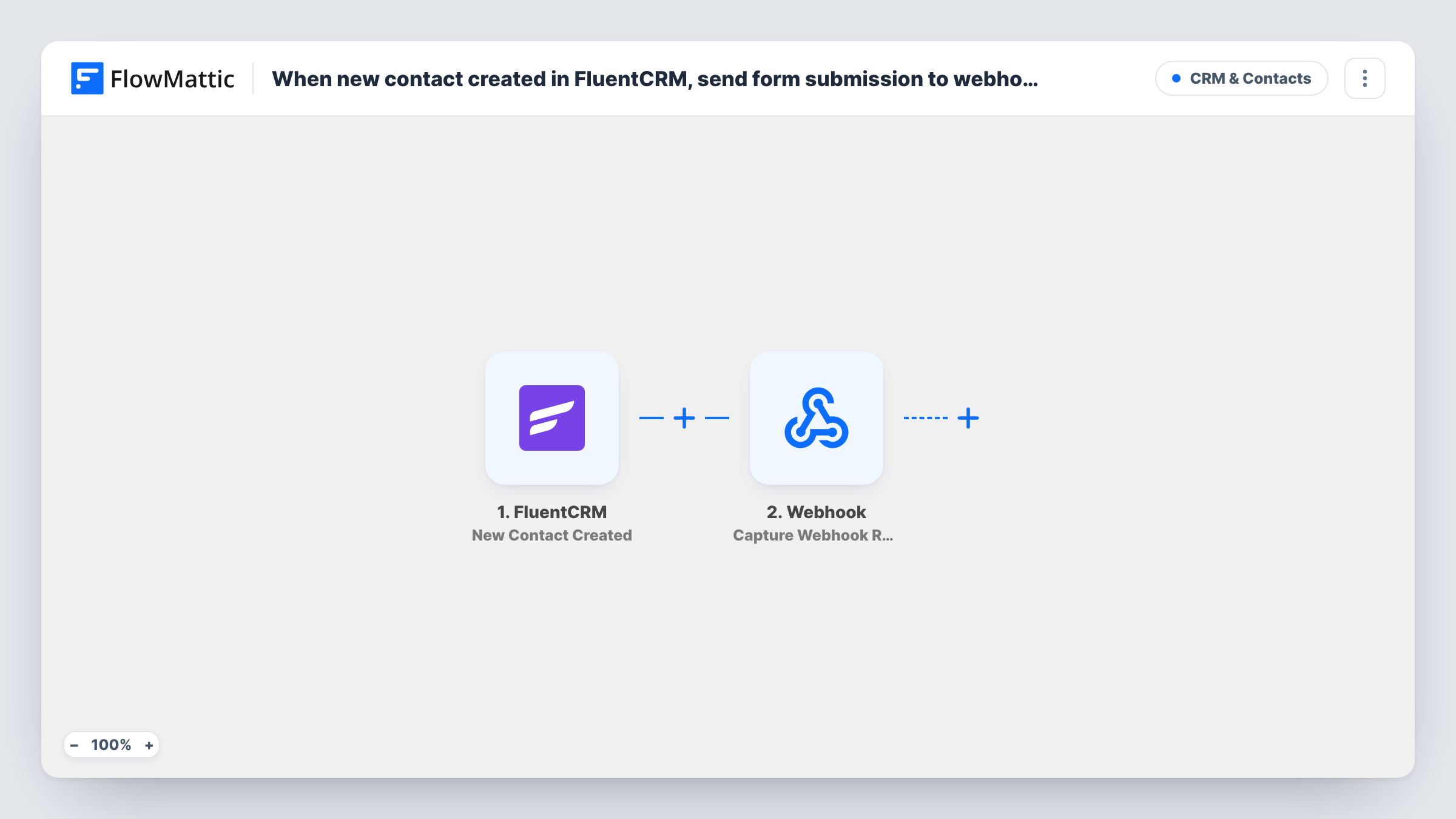
Whenever FluentCRM creates a new contact, FlowMattic posts that contact’s details as JSON to a webhook URL you choose, so another system or script learns about the contact straight away.
 FluentCRM
 Webhook Outgoing
2 steps Setup ~5 min Used on 2.4k sites Free to import
What this workflow does
FluentCRM keeps your contacts inside WordPress, but other tools often need to know about them too: a custom app, a data warehouse loader, a partner's endpoint or an automation platform that listens for webhooks. This workflow sends each new contact to that endpoint, so you don't have to build a FluentCRM add-on or export lists by hand.
The FluentCRM trigger fires when a new contact is created in your CRM. FlowMattic receives the contact record, such as the email, name and status.
The Webhook Outgoing step then sends that data to a URL using a POST request in JSON format. It ships unmapped: after import you paste the receiving URL and choose which contact fields to include in the payload. Nothing is hard-coded, so the receiving side decides how to use what arrives.
Each new contact makes one request. Contacts that already existed before you turn the workflow on are not sent. Before going live, create a test contact and check Task History for the response your endpoint returned, which tells you whether the receiver accepted the JSON.
Feeding a custom-built member portal
A developer's own app needs every new FluentCRM contact to set up a profile. The webhook delivers each one as JSON, so the app needs no WordPress database access.
Copying contacts to a reporting database
An agency sends new FluentCRM contacts to an endpoint that writes them into the client's reporting database for dashboards.
Handing contacts to another automation tool
A team that runs some processes in another automation platform points this webhook at that platform's catch URL, so it starts its own steps per contact.
How this workflow runs
What happens at each step once the workflow is on, and what you need before you import it.
 FluentCRM New Contact Created
Fires each time FluentCRM creates a new contact. The contact's details, such as the email and name, become available to map into the webhook payload.
- Webhook Outgoing Submit Data to Webhook
Posts the contact data as JSON to the URL you enter. The template leaves both the URL and the payload empty, so paste the endpoint and map the FluentCRM fields the receiver expects.
What you need
- FlowMatticCore
- FluentCRM PluginPlugin
After importing, map your own data. To keep the template universal, not every step is pre-filled. Open each step in the builder and connect your accounts and fields (channels, lists, sheets, recipients) before you switch the workflow on.
Make it yours
Changes worth making after you import it.
- Send only the fields the receiving system needs, such as email, first name, last name and contact ID, so the JSON stays small and predictable.
- To send only contacts with a certain status or tag, put a Filter between the FluentCRM trigger and the Submit Data to Webhook step on the field you care about.
- Point the webhook at a request inspector first, look at the JSON a test contact produces, then switch the URL to your real endpoint.
Questions about this workflow
Is the FluentCRM data sent as JSON or as form fields?
As JSON. The Submit Data to Webhook action sends a POST request with a JSON body made from the fields you map.
Can I send the FluentCRM contact to two different webhook URLs?
Yes. Add a second Submit Data to Webhook step after the first one, enter the other URL and map the fields that receiver needs.
Does this send updates when a FluentCRM contact changes later?
No. The trigger only fires when a contact is created. Changes to an existing contact, like a new tag or a status change, don't start this workflow.
How do I know if my endpoint received the FluentCRM contact?
Look at that contact's run in Task History, where the webhook step lists the response your endpoint returned. That tells you whether it accepted the request.
More CRM & Contacts workflows
Other ready-to-import templates from the same category.





Import this workflow into your WordPress site
Download the JSON, import it from the Workflows screen and connect your accounts. Every run stays on your server, with no per-task fees.
30-day money-back guarantee Unlimited workflows and runs Self-hosted