

Create a HubSpot CRM contact for each new GivingFuel registration
Each new GivingFuel registration creates a contact in HubSpot CRM from the registrant’s details, so the people signing up for your fundraising events are in your CRM for follow-up and reporting.
 GivingFuel
 HubSpot CRM
2 steps Setup ~5 min Used on 3.5k sites Free to import
What this workflow does
Registrations collected in GivingFuel tell you who is coming, but your relationship work happens in HubSpot. Copying each registrant across by hand is slow, and anyone missed is left out of your follow-up. This workflow adds them to HubSpot as they register.
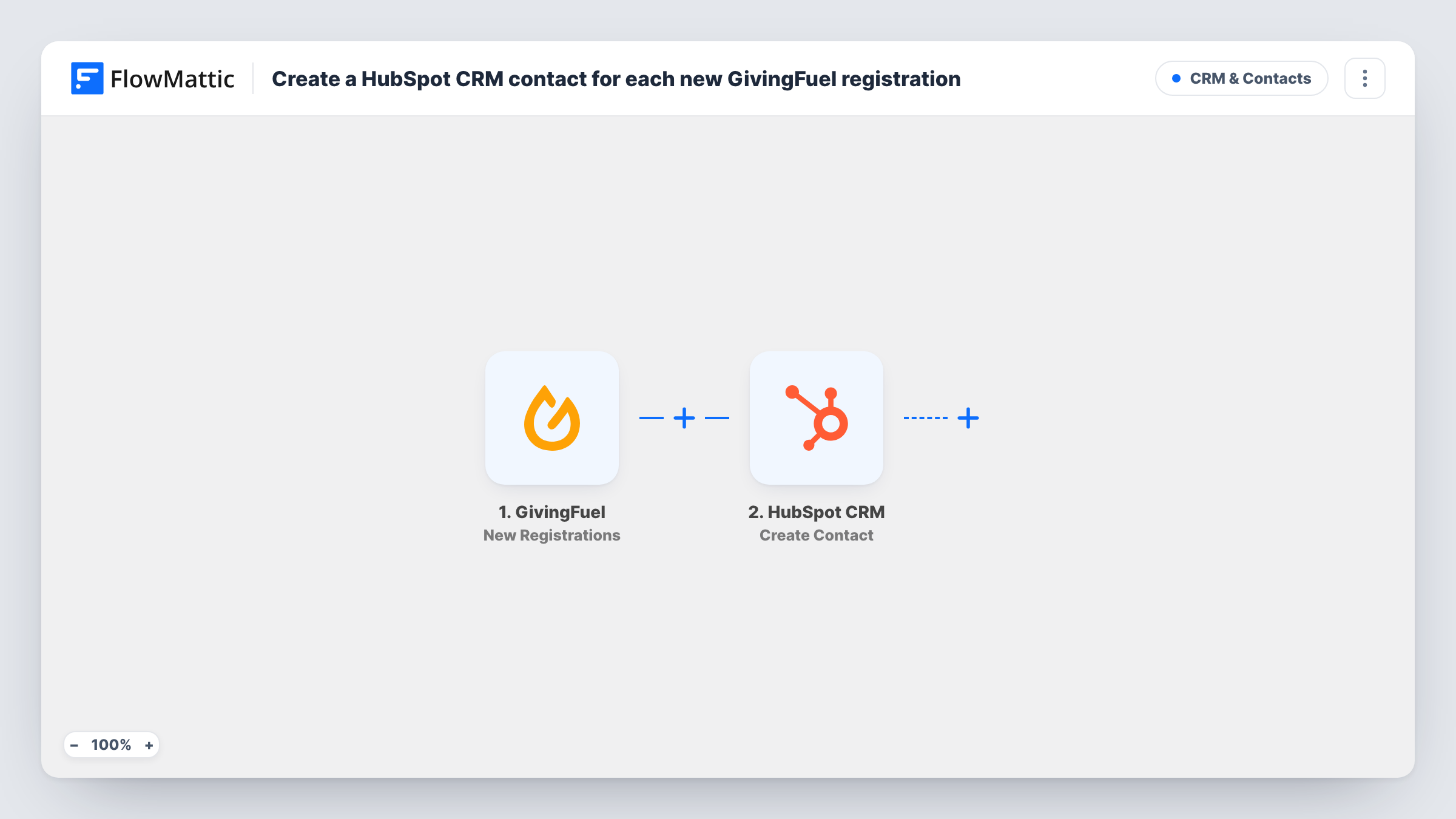
The GivingFuel trigger fires for each new registration and passes the registration data to FlowMattic. The second step runs Create Contact in HubSpot CRM. You map the registrant's email, name and any other values you want saved on the contact.
Create Contact only creates. If the registrant is already in HubSpot under the same email, HubSpot may refuse a duplicate, and Task History shows the response for that run. There is no Filter in the template, so every registration reaches HubSpot. Register once with a test address after import to see which values GivingFuel sends before you finish the mapping.
Gala and dinner registrations
Guests register for your annual gala through GivingFuel, and each one becomes a HubSpot contact your development team can thank and invite to future events.
Charity run sign-ups
Participants who register for a fun run are added to HubSpot, where you can segment them for training updates and fundraising reminders.
Volunteer days
Volunteers register in GivingFuel for a service day, and HubSpot holds their contact records so your coordinator can reach them about the next one.
How this workflow runs
What happens at each step once the workflow is on, and what you need before you import it.
 GivingFuel New Registrations
Fires when a new registration is recorded in GivingFuel. The registrant's data is handed to the HubSpot step for mapping.
- HubSpot CRM Create Contact
Creates a contact in HubSpot CRM from the registration. Connect HubSpot and map the registrant's email and name. Use a test run to see which other contact details the step accepts.
What you need
- FlowMatticCore
- GivingFuel AccountAccount
- HubSpot CRM AccountAccount
After importing, map your own data. To keep the template universal, not every step is pre-filled. Open each step in the builder and connect your accounts and fields (channels, lists, sheets, recipients) before you switch the workflow on.
Make it yours
Changes worth making after you import it.
- Map a fixed value into a HubSpot contact property you use for lead source, such as GivingFuel registration, so you can build lists of registrants later.
- Add a Filter after the trigger if only some registrations should reach HubSpot, such as one event. Check the trigger data for the value that identifies it.
- If you also want gifts in HubSpot, build a second workflow on GivingFuel's Subscription/Deposit Processed trigger and test what it carries before mapping it to a contact.
Questions about this workflow
What if the GivingFuel registrant already exists in HubSpot?
The step uses Create Contact, which does not update existing records. HubSpot may refuse a duplicate email, and Task History shows its response. The existing contact is left as it was.
Does this workflow record GivingFuel deposits or subscriptions too?
No. It listens for new registrations only. FlowMattic has a separate GivingFuel trigger for processed subscriptions and deposits, which you could use in a second workflow.
Do I need a paid HubSpot plan for this GivingFuel workflow?
The step creates contacts in HubSpot CRM, so you need a HubSpot account FlowMattic can connect to. Check HubSpot's own terms for what your plan includes.
Will registrations made before I import this reach HubSpot?
No. Only new registrations recorded after the workflow is turned on start a run. Earlier registrants need to be added another way.
More CRM & Contacts workflows
Other ready-to-import templates from the same category.



Import this workflow into your WordPress site
Download the JSON, import it from the Workflows screen and connect your accounts. Every run stays on your server, with no per-task fees.
30-day money-back guarantee Unlimited workflows and runs Self-hosted